Applications
The Applications screens allow users to create and manage application clients that can securely access the platform’s authenticated API endpoints. From this interface, users can register new app clients, configure scopes and permissions, and control the level of access granted to each client.
Managing Applications
To create and manage API-enabled applications:
-
Navigate to the Settings page.
-
Under the User Management group, click Applications to open the Applications screen.
-
The Applications screen displays a table of applications created by the system and users.
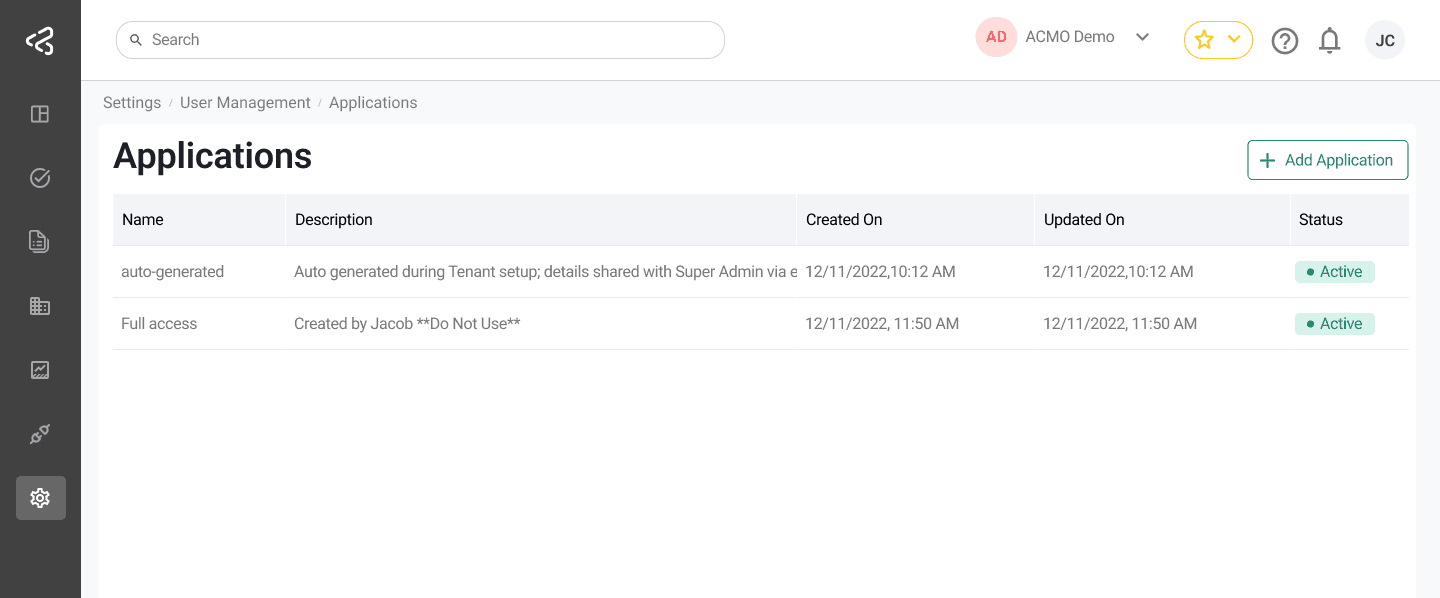
Access to this screen is controlled by role-based permissions.
Creating a New Application
To create a new application:
- Click the Add Application button.
- A new page opens prompting you to enter:
- Application Name
- Description
- Scope Bundles
- Scope bundles define the set of features and permissions available to the application.
- Click Create after completing all required fields.
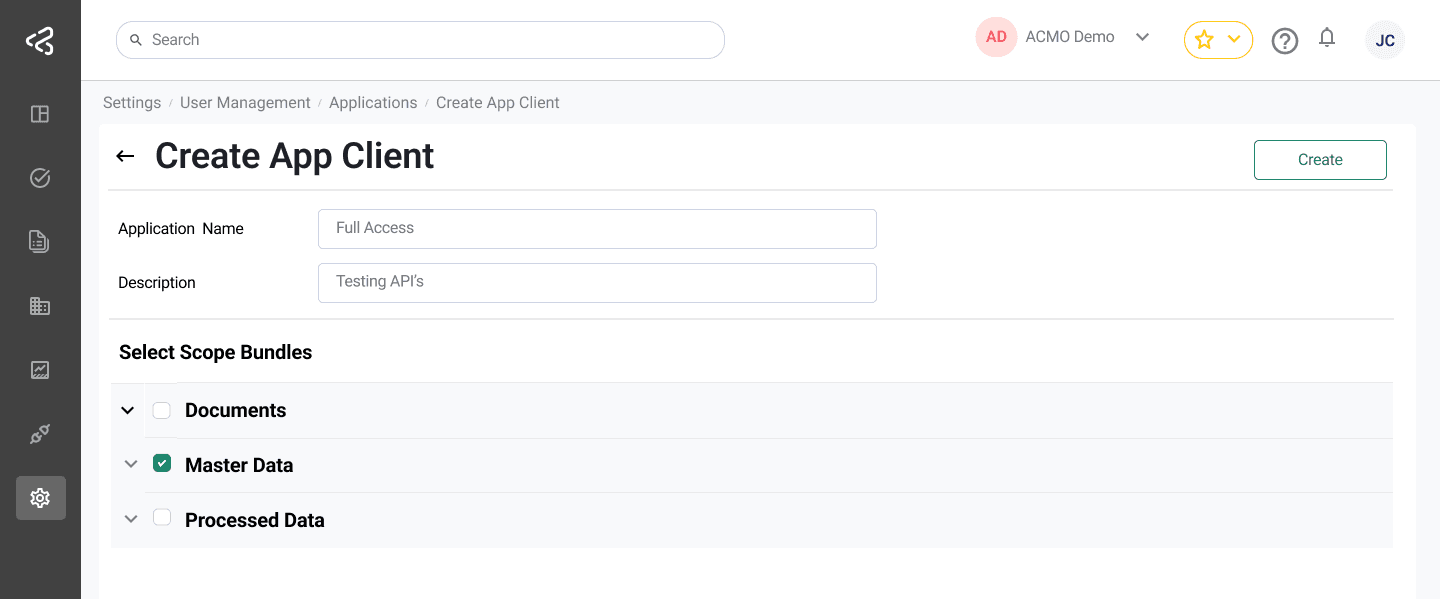
Once created, you will be redirected to the Application Details screen.
Application Details
On the Application Details screen, users can view and manage:
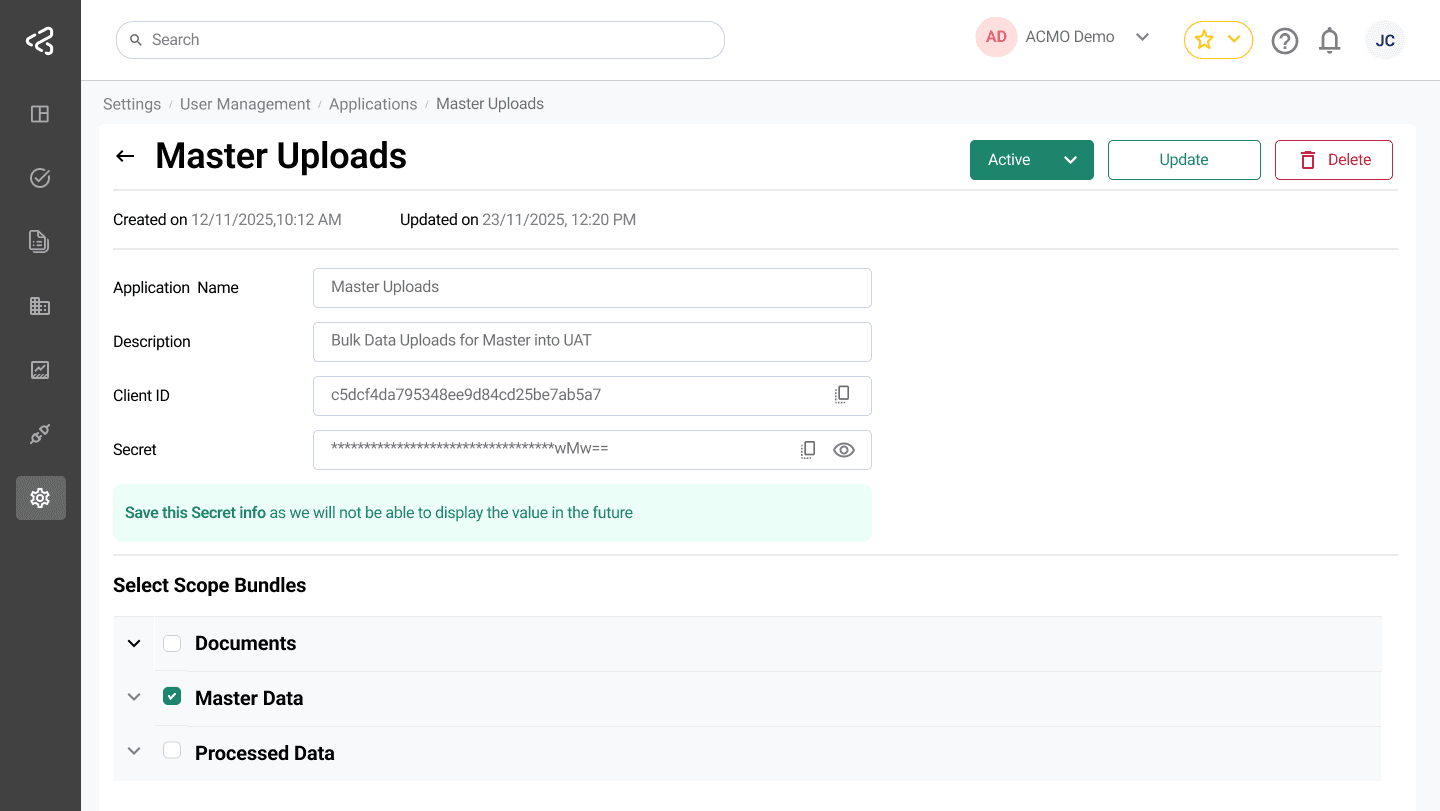
- Application Name and Description
- Scope Bundles
- Client ID
- Client Secret
- Created On and Updated On timestamps
- Application Status (Active or Disabled)
Key considerations:
- The Client Secret is displayed only once at creation time.
- Applications can be:
- Activated or Disabled
- Updated (name and description)
- Deleted, if no longer required
Copy and store the Client Secret in a safe location for future API
authentication.
Editing Existing Applications
- Existing applications can be edited by clicking on the Application Name in the Applications table.
- The edit/update screen provides the same management capabilities as the Application Details screen.
Deleting an existing application will invalidate the associated Client ID
and Client Secret.