Extraction Review
The Extraction Review step is the first stage in the Accounts Payable workflow. Its purpose is to verify that bill information extracted using OCR, AI, and Machine Learning is accurate and complete before the bill moves to matching, coding, or approval.
A thorough extraction review helps prevent downstream errors, reduces rework, and ensures smoother bill processing.
When Is Extraction Review Required?
- Extraction Review applies to all bills, including:
- PO Bills (Bills with a Purchase Order)
- Non-PO Bills (Bills without a Purchase Order)
- Every bill must successfully complete this step before progressing further in the workflow.
Accessing Extraction Review
- Navigate to Tasks → Accounts Payable from the left-side menu.
- Click the Extraction Review under Accounts Payable to view bills pending review.
- In the task list, review the Document Type column to identify:
- PO Bill - Bill linked to a Purchase Order
- Non-PO Bill - Bill without a Purchase Order
- Click a Bill ID to open the bill and begin the review.
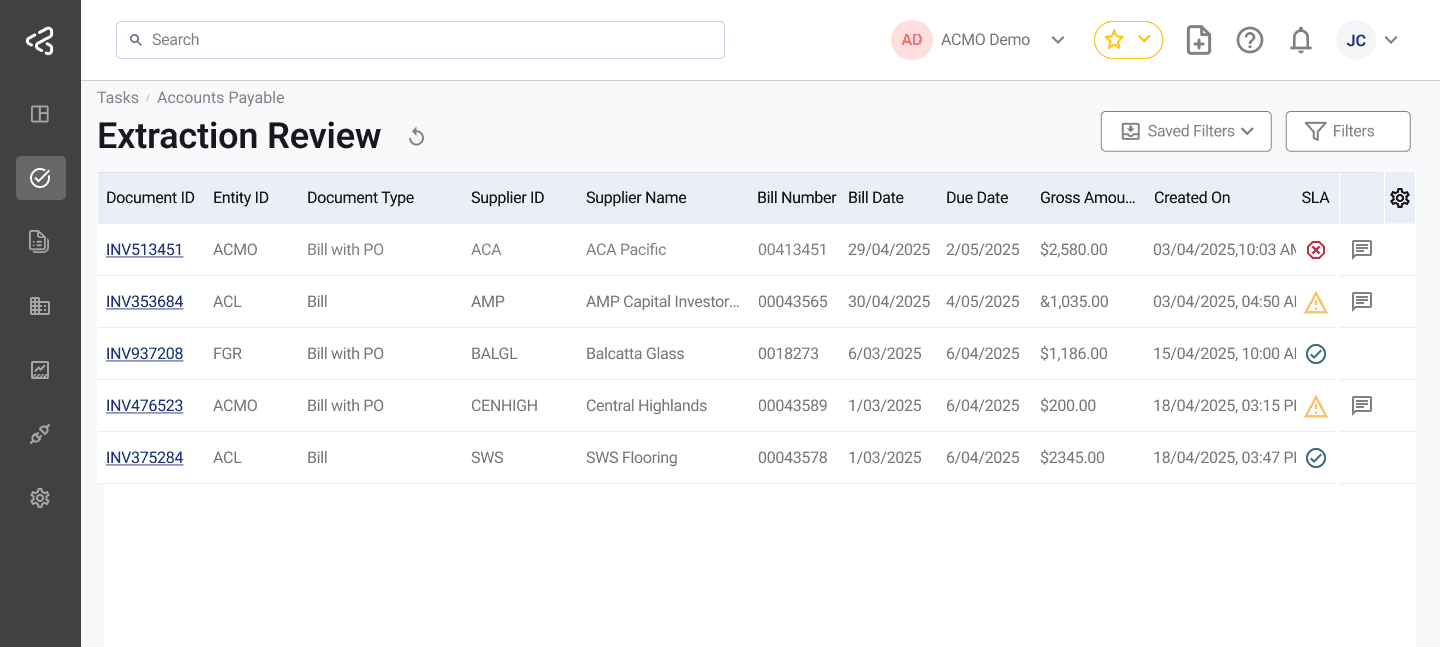
Use the comments icon in the table to quickly view any comments added to a task; the icon will appear in a row only when comments are available.
This task uses the standard filter set. For detailed information, refer to the Task Filters documentation.
Reviewing Extracted Bill Data
Once a bill is opened, the screen displays extracted bill details alongside the original document for easy validation.
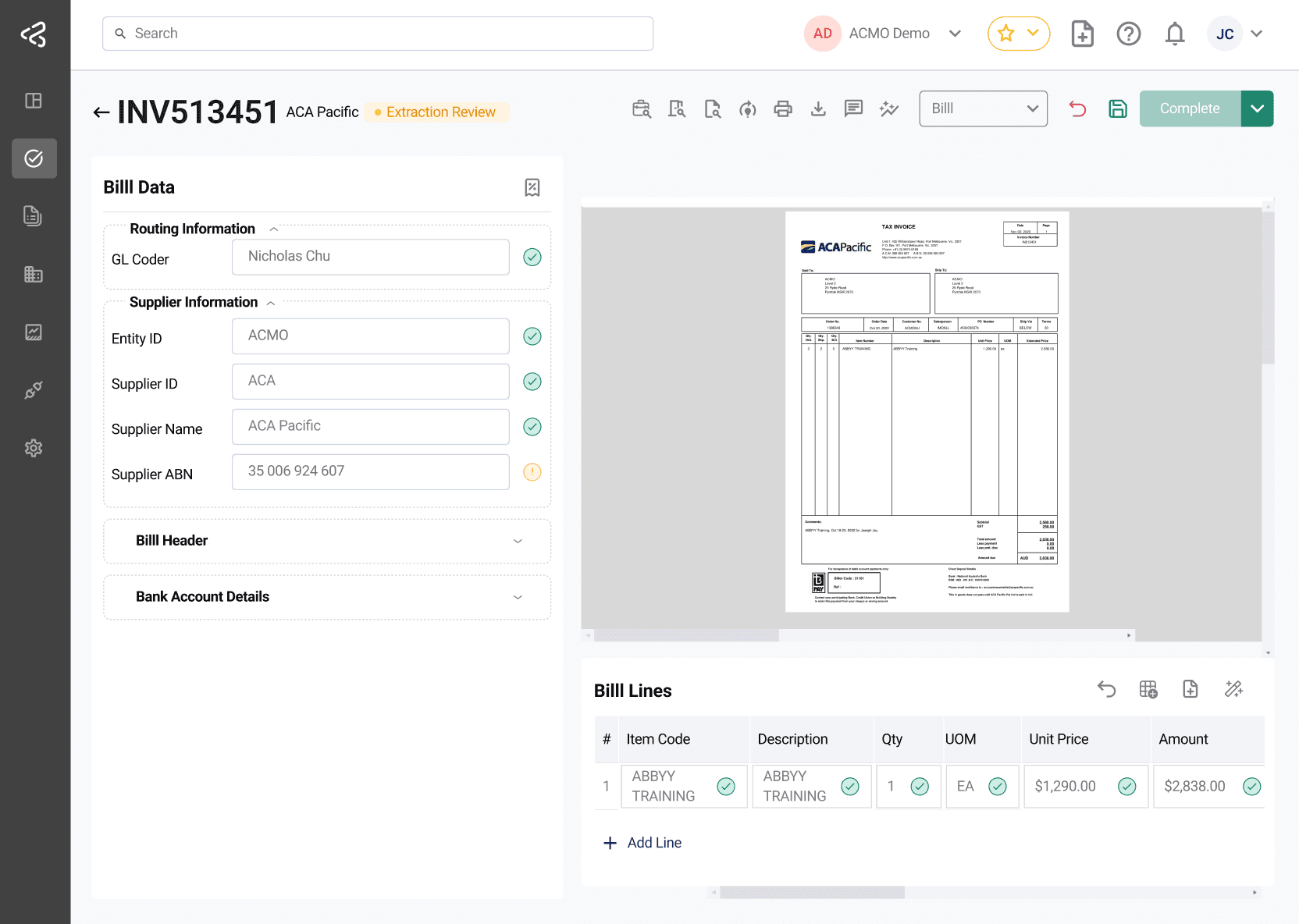
Bill Details to Validate
Review and validate the following information:
- Supplier Name
- Bill Number
- Bill Date
- Due Date
- Line items, quantities, prices, and tax codes
If any discrepancies are found, update the relevant fields before completing the review.
Line Item Actions
Several quick-action buttons are available to efficiently manage and correct line items:

- Reset to Extracted Lines: Restores all line items to the originally extracted values.
- Replace with Single Line: Replaces all extracted lines with a single line equal to the header net amount.
- Recalculate Net Amount: Calculates net amounts using unit price and quantity.
- Convert Gross to Net: Converts each line’s gross amount to net amount assuming a 10% tax rate.
Supplier and Purchase Order Corrections
Supplier Selection
If the system has identified an incorrect supplier:
-
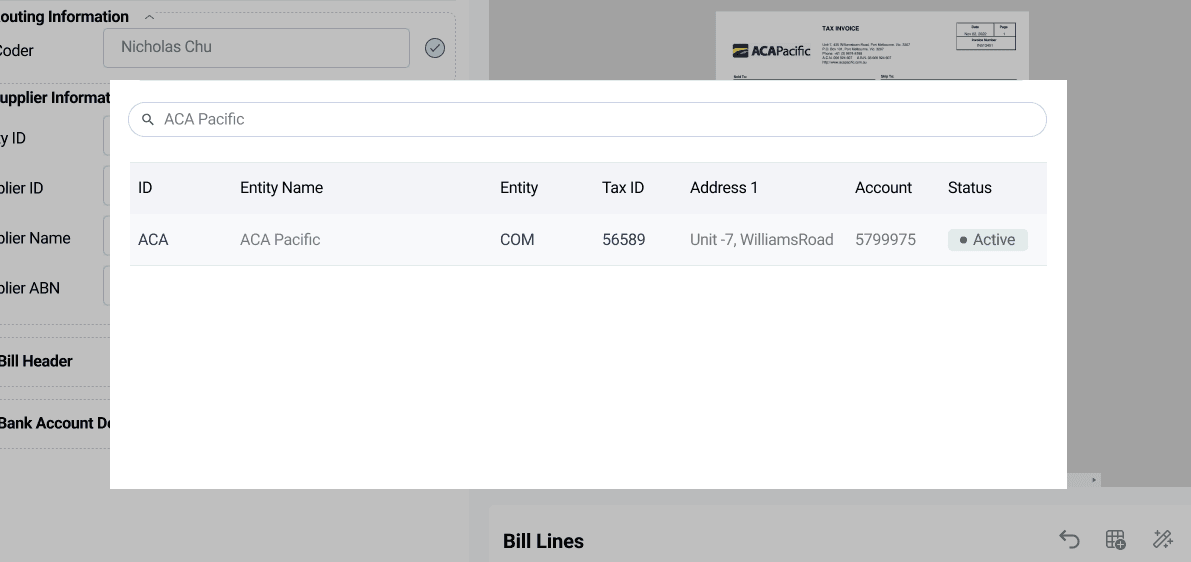
Click the Supplier Lookup button.

-
Search by supplier name, ID, or other attributes.
-
Select the correct supplier from the results.
-
The selected supplier is applied to the bill.
Purchase Order Selection (PO Bills Only)
-
For PO Bills, users can manually select or correct the Purchase Order:
-
Click the PO Lookup button next to the Supplier Lookup.

-
Search and select the appropriate Purchase Order.
-
Once selected, the bill is linked to the PO for downstream matching.
Extraction Review for Non-PO Bills
For Non-PO Bills, the objective is to ensure the bill is ready for GL coding and approval.
-
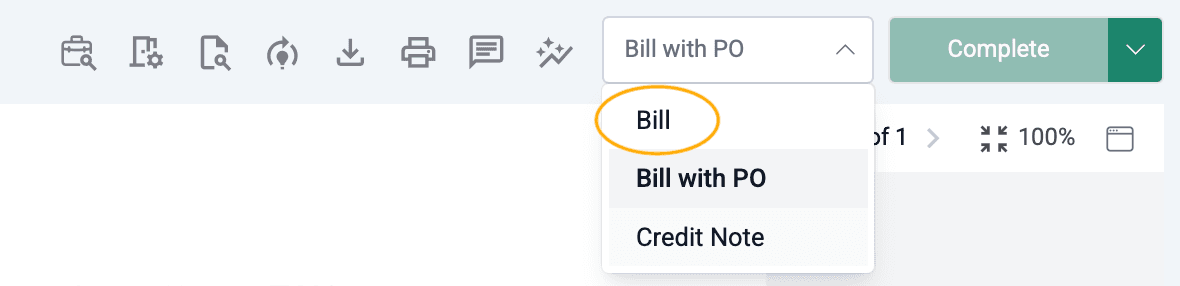
Select a bill with Document Type = Bill (Non-PO Bill).
-
PO-related fields are hidden since no Purchase Order is required.
-
GL Coder assignment:
-
For PO Bills, GL coding is derived from the Purchase Order and no GL coder is required.
-
For Non-PO Bills, if Determine GL Coder During Extraction Review is enabled, the system attempts to auto-assign a GL Coder using the “Attention To” field.
-
If no valid user is identified, the reviewer must manually assign a GL Coder using the GL Coder Lookup button.

-
Document Viewer Controls
The document viewer includes navigation and display controls to improve review efficiency:

- Navigate to next and previous pages
- Zoom In
- Zoom Out
- Reset zoom to 100% (default size)
- Zoom to fit (stretch document to entire width of panel)
- Open the document viewer in a separate window
Bill Details Panel Actions
On the left side bill details panel, a quick-action button is available to:
- Populate net amount from gross amount (Tax Inclusive)
Header Actions
The top header provides access to common document-level actions:
- Print document
- Download document
- Add or view comments
- View the audit trail associated with the current document
Save and Clear options are available only when Allow Save is enabled in General Settings, allowing you to manage and retain in-progress changes efficiently.
Completing Extraction Review
Once all extracted data has been validated and corrected, the bill can be completed and moved to the next stage in the workflow. This includes confirming core details and ensuring the bill is ready for further processing.

- Verify bill header and line item details
- Confirm supplier and PO (if applicable)
- Ensure a GL coder is assigned for Non-PO Bills
- Complete the task to advance the bill
For a consolidated view of the bill’s full lifecycle—including extracted data, matching, coding, approvals, comments, and audit trail—see Bill Document.
Continuous Learning and Improvement
Users can help improve extraction accuracy over time by contributing documents for training.
-
Click Mark for Learning to send a copy of the document to the ACMO Product Team.

-
These documents are reviewed to fine-tune extraction models, resulting in improved accuracy, reduced manual intervention, and faster bill processing over time.
Unable to Complete Extraction Review
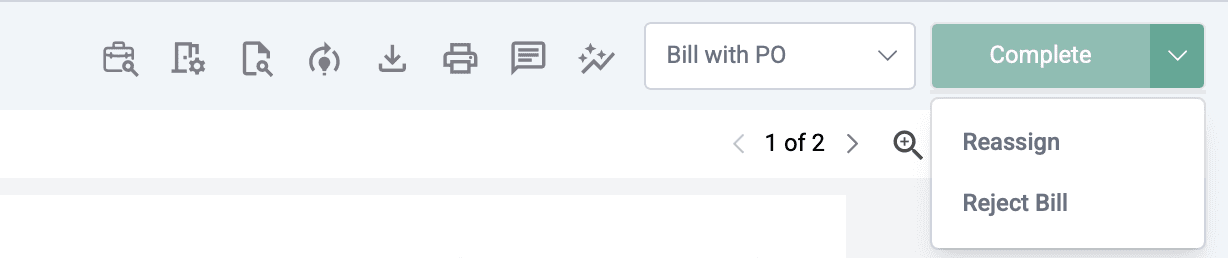
If the bill cannot be completed due to missing information, incorrect data, or business exceptions, users can choose one of the following actions:
-
Reassign
- Sends the task to another user or group for review or correction.
-
Reject
- Use Reject if the bill cannot be processed.
- Provide a clear reason, such as Bill amount exceeds PO value, No matching PO lines found, or Duplicate or incorrect invoice.
- Rejected bills are closed and must be re-uploaded if they need to be processed again.