Email Templates
The Email Templates screen allows authorized users to view and manage the email templates used by the system to send notifications to users. These templates control both the content and branding of system-generated emails.
Purpose
The Email Templates screen enables users to:
- View default and customized email templates
- Customize email content and branding
- Test email templates before applying changes
Access to this screen is controlled by role-based permissions.
Email Templates List
The main screen displays a list of email templates currently available in the system. These may include default system templates or templates that have been customized by the organisation.
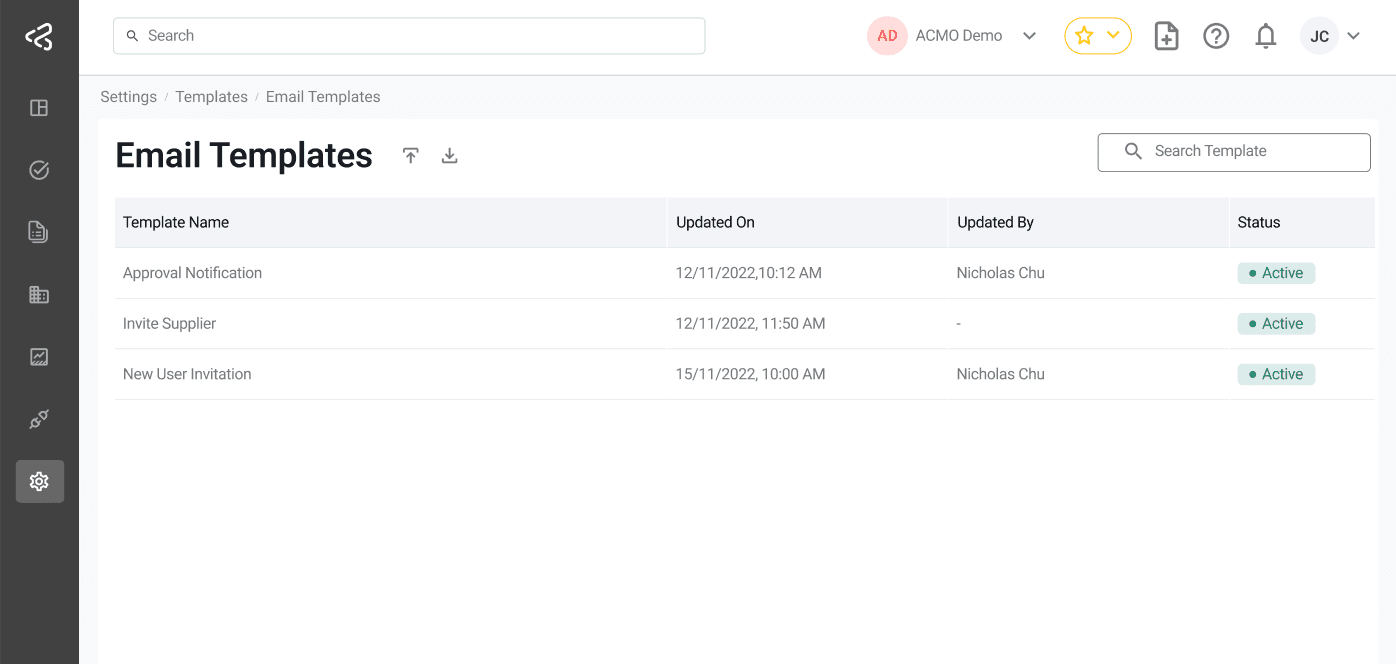
Table Columns
Each template is listed in a table with the following columns:
-
Template Name
The name of the email template (for example, Password Reset).
Clicking the template name opens the edit screen. -
Updated On
The date when the template was last modified. -
Updated By
The name of the user who last updated the template. -
Status
Indicates whether the template is Active or Disabled.
Email Template Configuration
The following table lists all available email templates that can be customized within the system. Each template corresponds to a specific event or workflow trigger, allowing users to modify the content, tone, and structure of system-generated emails to better align with organizational requirements and communication standards.
| Template Name | Description |
|---|---|
| Test Email Delivery | A test email sent to verify that email configuration and delivery are functioning correctly. |
| Password Reset | Sent to users when they request to reset their account password, typically containing a secure reset link. |
| Account Reset | Notifies users when a temporary password is created for their account. |
| Sync Report | Sent after synchronization of user accounts, roles, and groups with the organisation account, summarizing the results. |
| New User Invitation | Invites a new user to join the platform, usually including onboarding instructions or an activation link. |
| Awaiting Invoice Approval | Alerts relevant users that an invoice is pending their review or approval. |
| Scheduled Report | Delivered automatically based on a configured schedule, containing selected report data. |
| Export Report | Sent when a report is exported (e.g., PDF or Excel), often including the file or download link. |
| Account Updated | Notifies users when changes have been made to their account details or settings. |
| User Account Blocked | Informs the user that their account has been blocked, typically including reason or next steps. |
| User Account Unblocked | Notifies the user that their previously blocked account has been restored. |
| Export File Download Link | Provides a direct link for users to download an exported file. |
| Invite Supplier | Sends an invitation to a supplier to join or connect with the platform. |
| Notify Comment | Alerts users when a new comment is added to a relevant thread, document, or record. |
| Notify App Client | Sends notifications to application clients regarding specific system or user-triggered events. |
| Request Goods Receipt | Notifies relevant parties to confirm or process the receipt of requested goods. |
| New User Invitation | Provide a concise, redesigned user invitation email template that removes non-functional placeholders, simplifies content, and incorporates relevant documentation portal links to help new users get started quickly. |
| Invoice Rejection Notification | Enables automated email notifications when an invoice is marked as rejected, with configurable recipients and templates. |
Import and Export Email templates
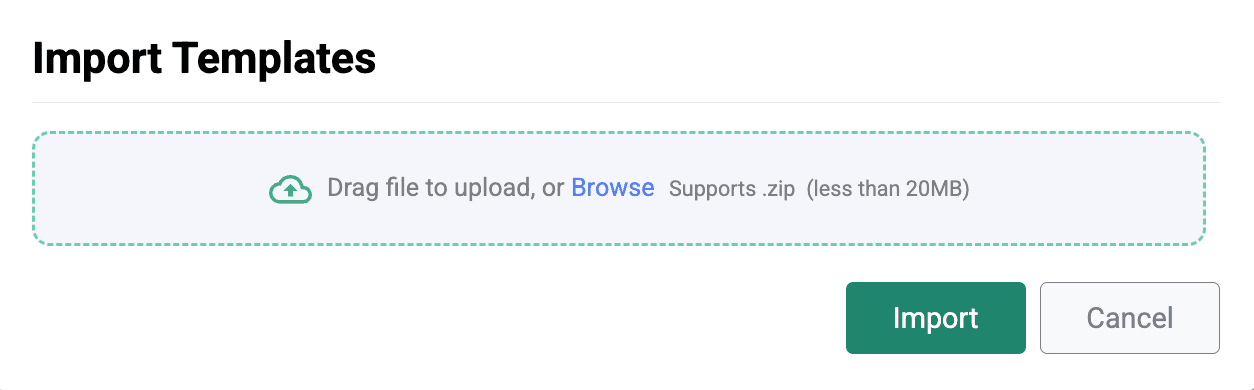
Manage and customise email templates used across the system, with support for importing and exporting templates as ZIP files. This allows users to easily back up, share, and modify templates externally before re-importing them for use.
Export Templates
-
Click on the Export icon
-
All email templates will be downloaded as a ZIP file

Import Templates
-
Click on the Import icon to open the import popup
-
Drag and drop the ZIP file into the upload area, or click inside the area to browse and select the file
Editing an Email Template
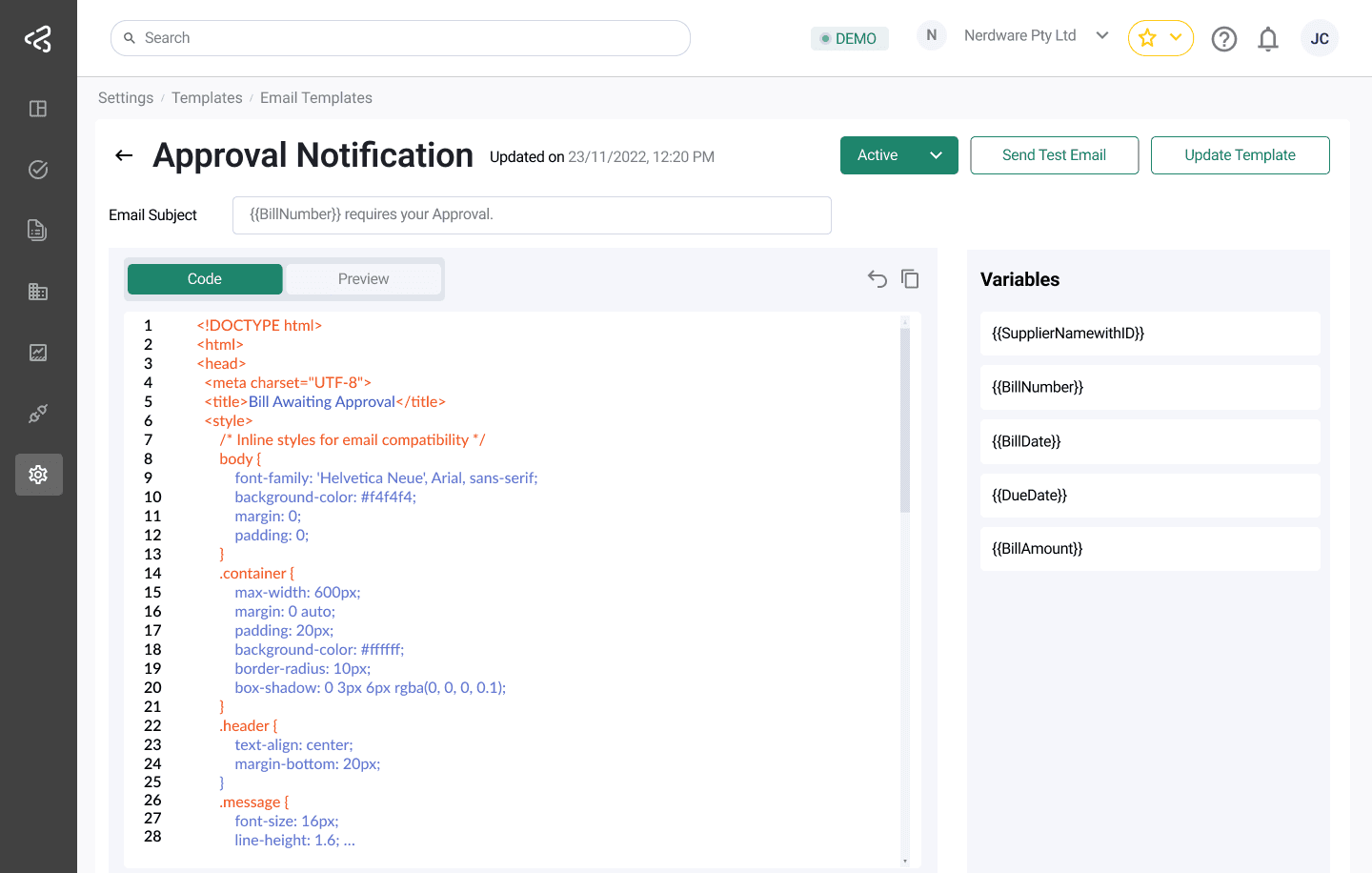
Clicking on a Template Name opens the Edit Template screen, where users can customize the email content.
Edit Template Screen
Email Subject
- An input field at the top of the screen
- Defines the subject line of the email notification
Template Editor Tabs
The editor includes two tabs:
1. Code
- Contains the HTML code for the email template
- Users can modify the HTML to customize layout, branding, and messaging
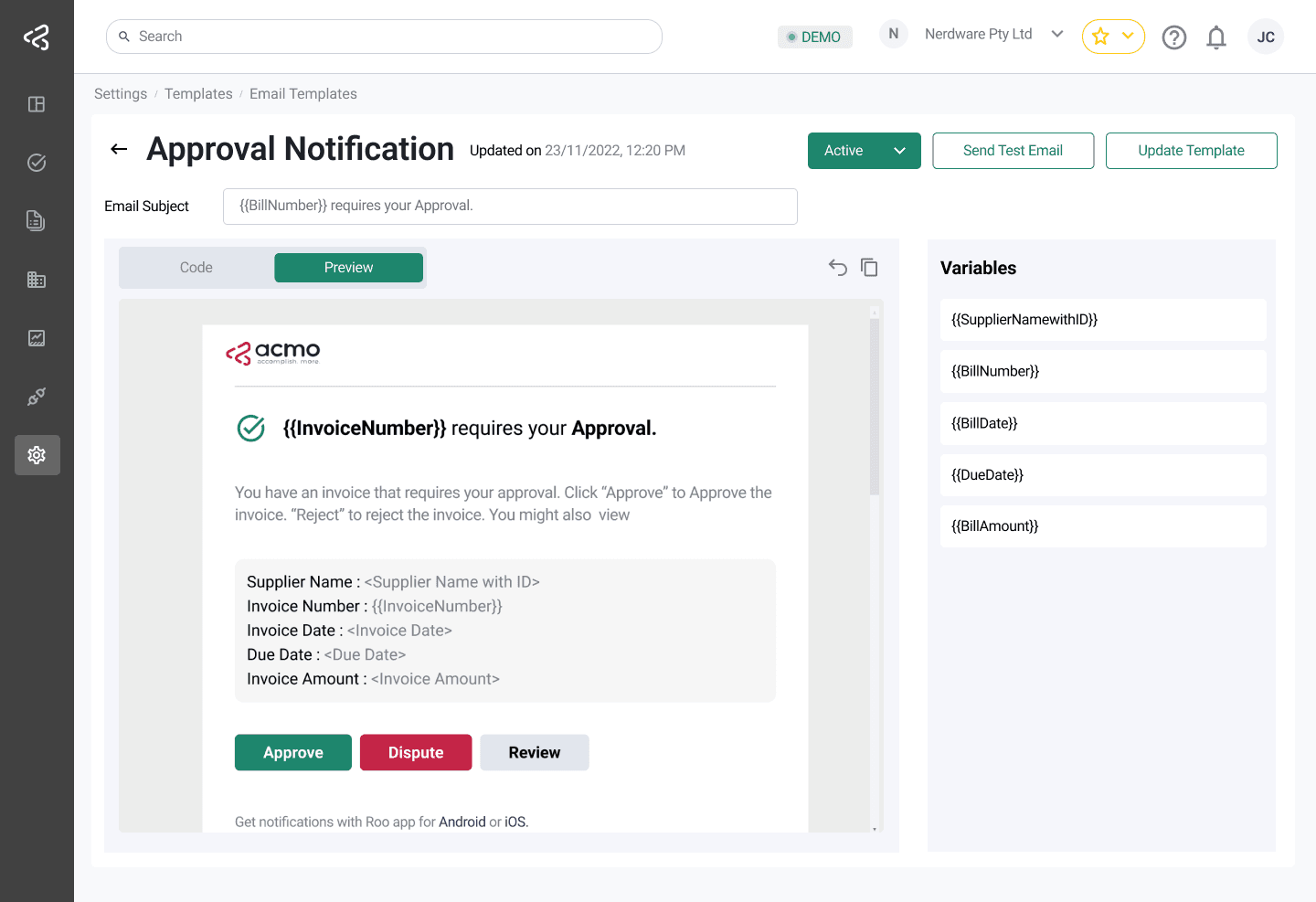
2. Preview
- Displays a live preview of the email
- The preview is rendered directly from the HTML code in the Code tab
- Allows users to review the final appearance before saving
Variables Panel
- Located on the right side of the screen
- Displays a list of available variables that can be used within the template
- Variables are read-only and cannot be edited
Example variables for a Password Reset template include:
codeexpiretenantId
These variables can be referenced in the HTML code to dynamically populate email content.
Template Actions (Editor Level)
To the right of the editor tabs, the following actions are available:
-
Reset to Default
Restores the template to its original default version -
Copy Code
Copies the HTML code to the clipboard using the copy icon
Top-Level Actions
The following action buttons are available in the top-right corner of the edit screen:
Send Test Email
- Sends a test email using the current template configuration
- The email is sent to the currently logged-in user’s email address
- Useful for validating layout, content, and variable rendering
Update Template
- Saves all changes made to the template
- Updates the template used for future system notifications
Summary
The Email Templates screen provides full control over system email notifications. With HTML-based editing, live previews, dynamic variables, and test email functionality, tenants can tailor email communications to match their branding and messaging requirements while maintaining system consistency.