Groups
The Groups screen under User Management allows administrators to organize users into logical groups. Groups simplify user administration by enabling bulk assignment of roles, access restrictions, and default settings.
Purpose
The Groups screen enables authorized users to:
- Create and manage user groups
- Assign users and roles to groups
- Apply access restrictions at the group level
- Configure default settings for group members
- Import groups in bulk
Access to this screen is controlled by role-based permissions.
Groups Listing
The main screen displays a table listing all groups in the system.
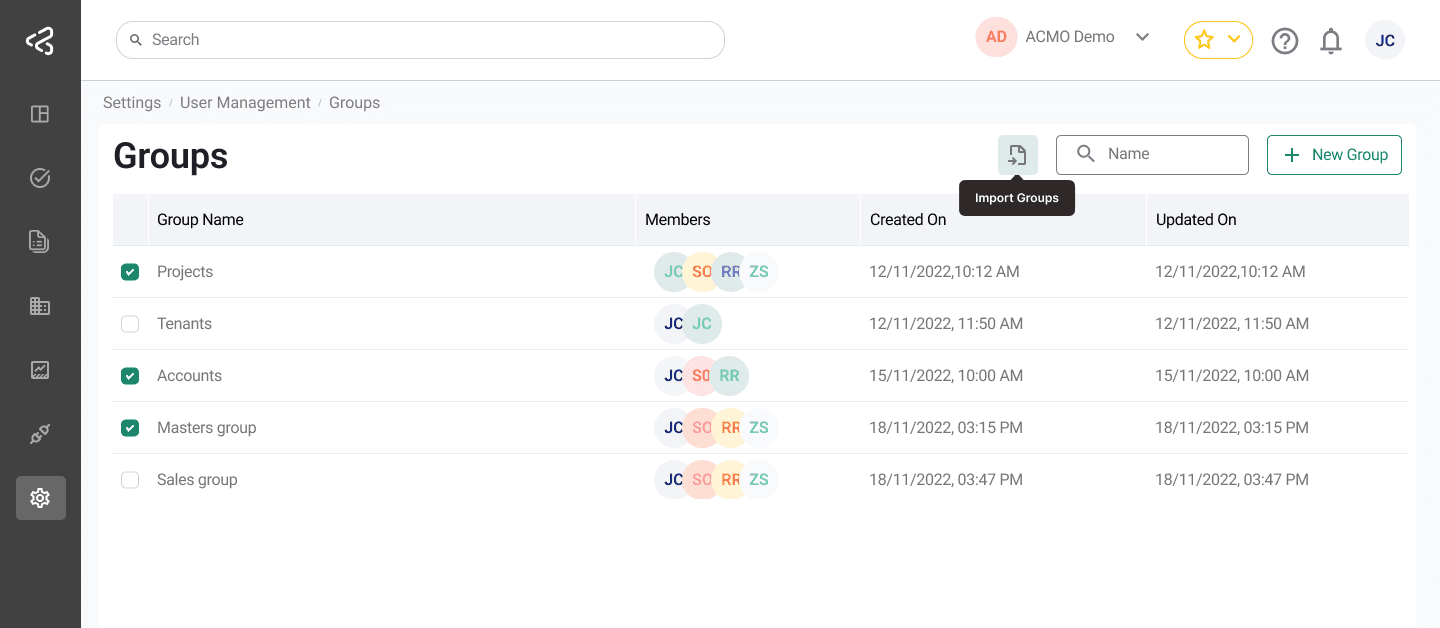
Table Columns
Each group is displayed with the following information:
-
Group Name
The name of the group. Clicking the group name opens the Edit Group panel. -
Members
The number of users who are part of the group. -
Created On
The date the group was created. -
Updated On
The date the group was last updated.
Filters and Actions
The following actions and filters are available above the table:
Import Groups
Import groups in bulk using an Excel file instead of adding groups individually. This feature saves you time and effort.
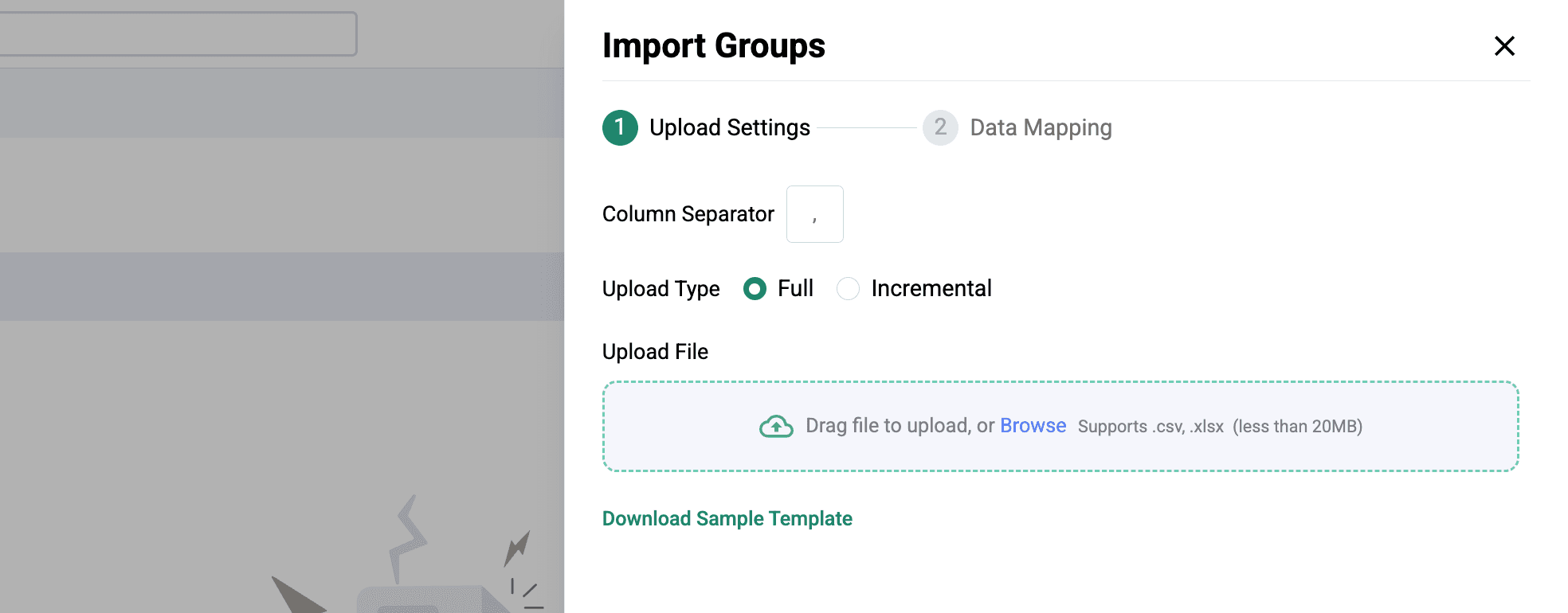
- An Import Groups icon is available
- Clicking the icon opens a panel with drag-and-drop functionality
- Groups can be imported using Excel or CSV files
A sample Excel file template download link is available within the panel.
Search
- Search groups by Group Name
Add New Group
- Clicking Add New Group opens the Add Group panel
- This panel is used to create and configure a new group
Add / Edit Group Panel
The same panel is used for both adding a new group and editing an existing group.
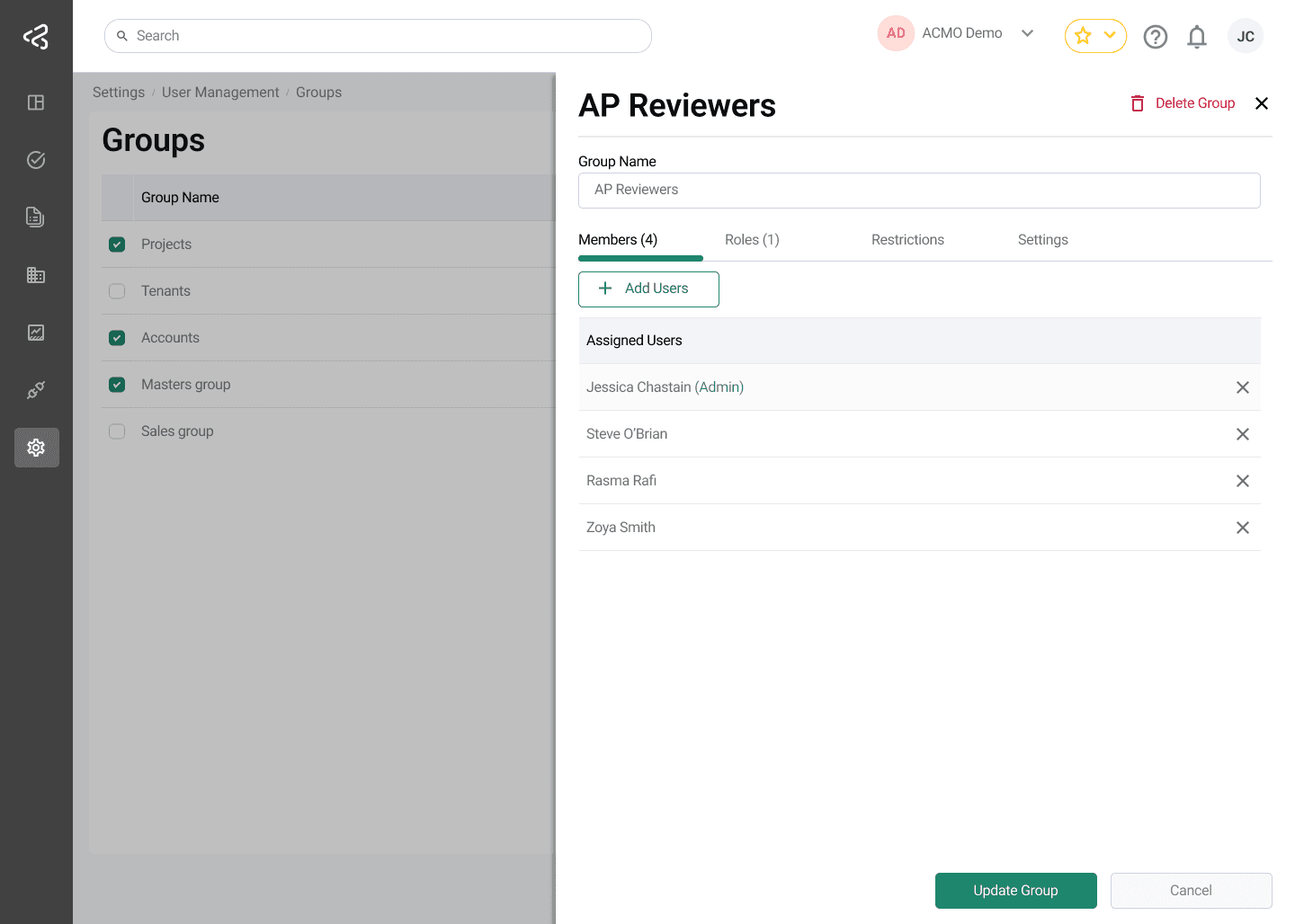
Group Name
- Input field to define the group name
Members Tab
- Used to add users to the group
- Users can be selected and assigned as group members
Roles Tab
- Used to assign roles to the group
- All users in the group inherit the assigned roles
Restrictions Tab
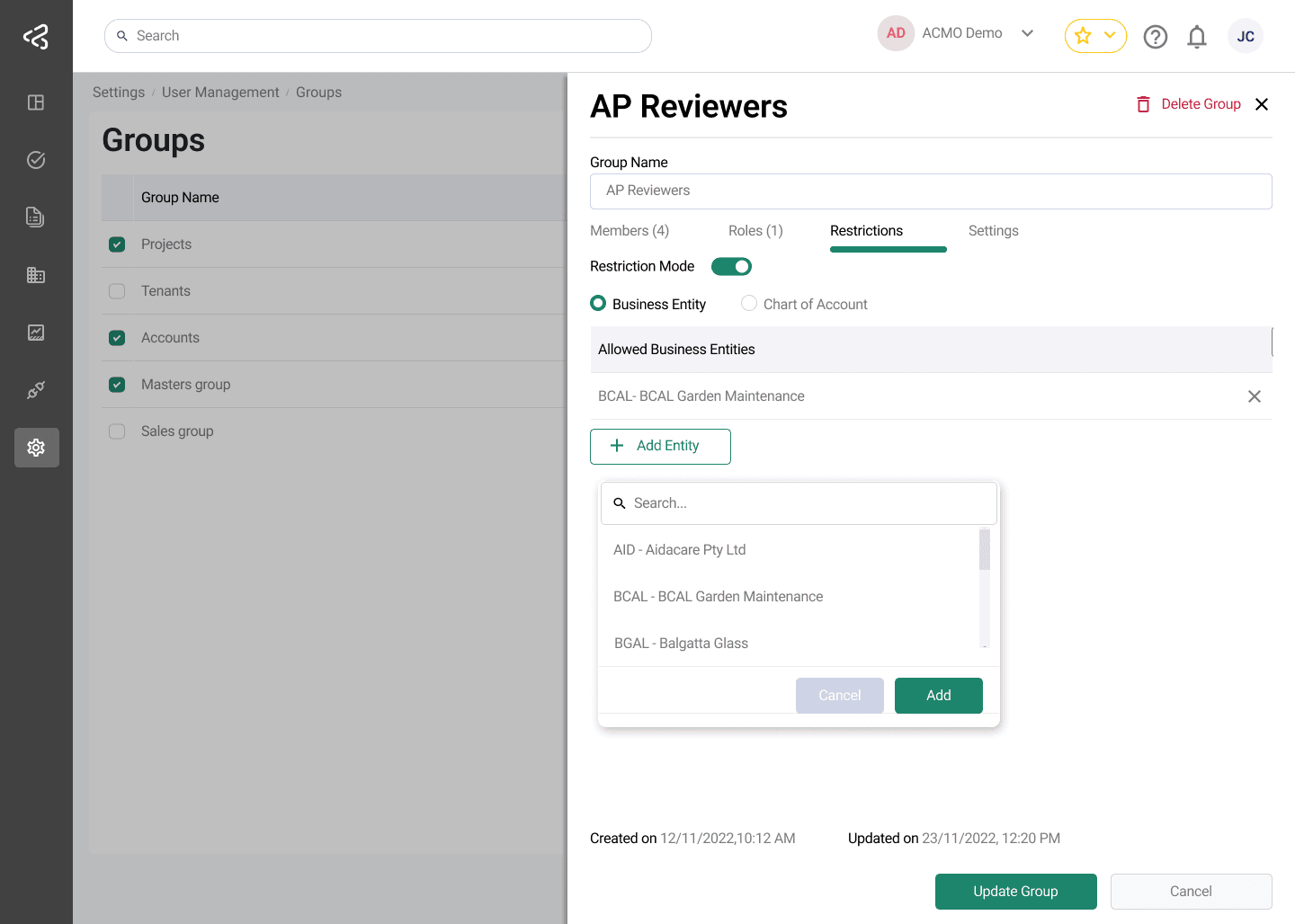
The Restrictions tab allows administrators to control data access for group members.
-
Restriction Mode
- Switch to enable or disable restrictions for the group
-
Restriction Type
- Radio buttons to select:
- Allowed Business Entities
- Allowed Chart of Accounts
- Radio buttons to select:
-
Selecting a restriction type opens a table where:
- Business entities or chart of accounts can be added
- Chart of accounts are filtered based on the selected business entities
Settings Tab
The Settings tab allows configuration of default behavior for group members.
-
Preset Widgets for Group Members
- Toggle switch to enable or disable preset widgets
-
When enabled:
- A list of available widgets is displayed with checkboxes
- Selected widgets are automatically enabled for group members when they log in for the first time
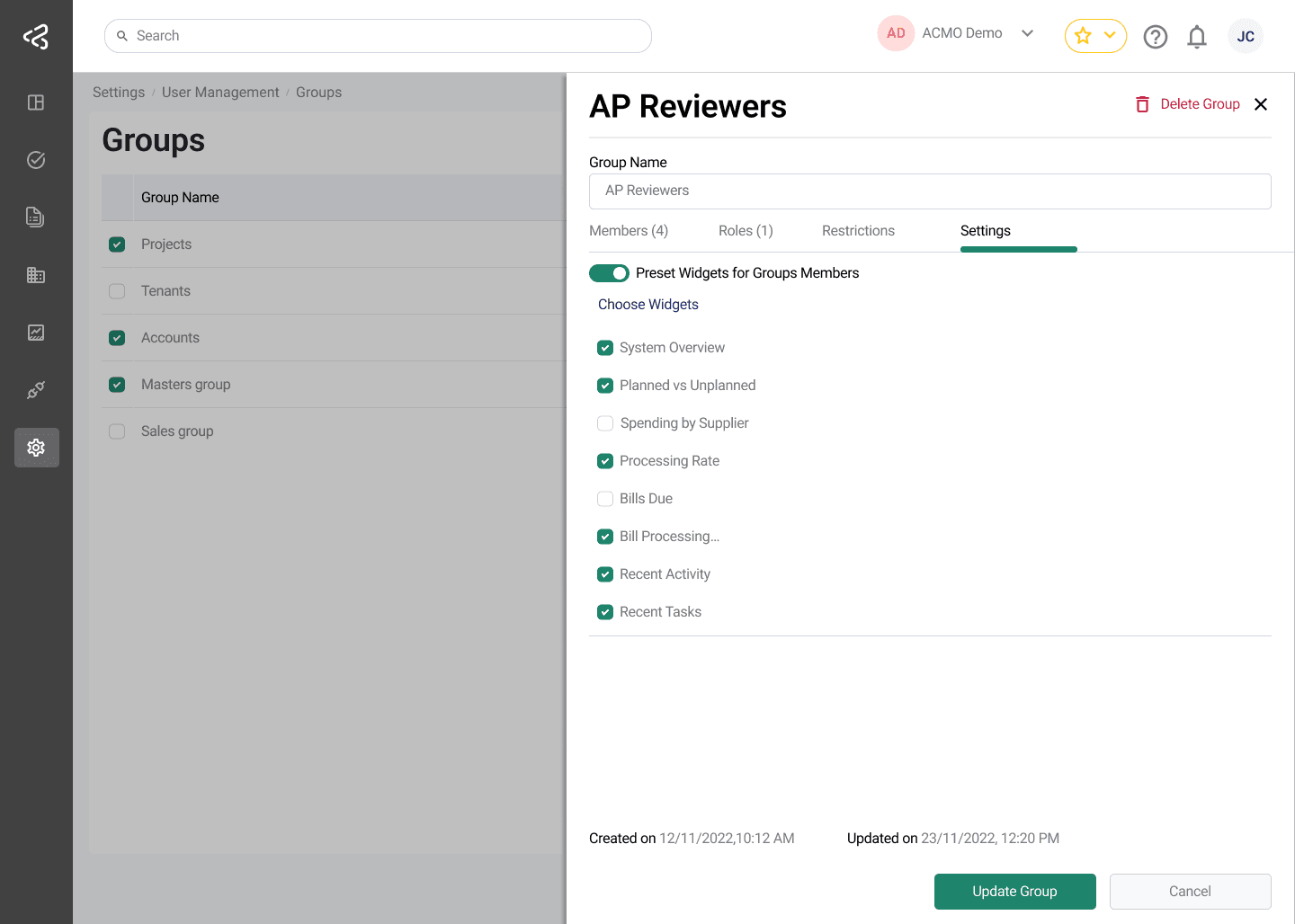
Delete Group
- The Edit Group panel includes an option to delete the group
- Deleting a group removes the group configuration but does not delete users
Editing a Group
- Clicking a Group Name in the table opens the Edit Group panel
- Users can:
- Update the group name
- Modify members and roles
- Change restrictions and settings
- Delete the group
Summary
The Groups screen provides a structured way to manage users at scale. By combining members, roles, access restrictions, and preset settings, groups help enforce consistent access control and streamline user onboarding across the ACMO Portal.