Settings Overview
The Settings screen in the ACMO Portal provides centralized access to configuration and administrative features that control the look, behavior, data, and operational rules of the platform. This screen is designed to help administrators and authorized users manage system-wide and module-specific settings efficiently.
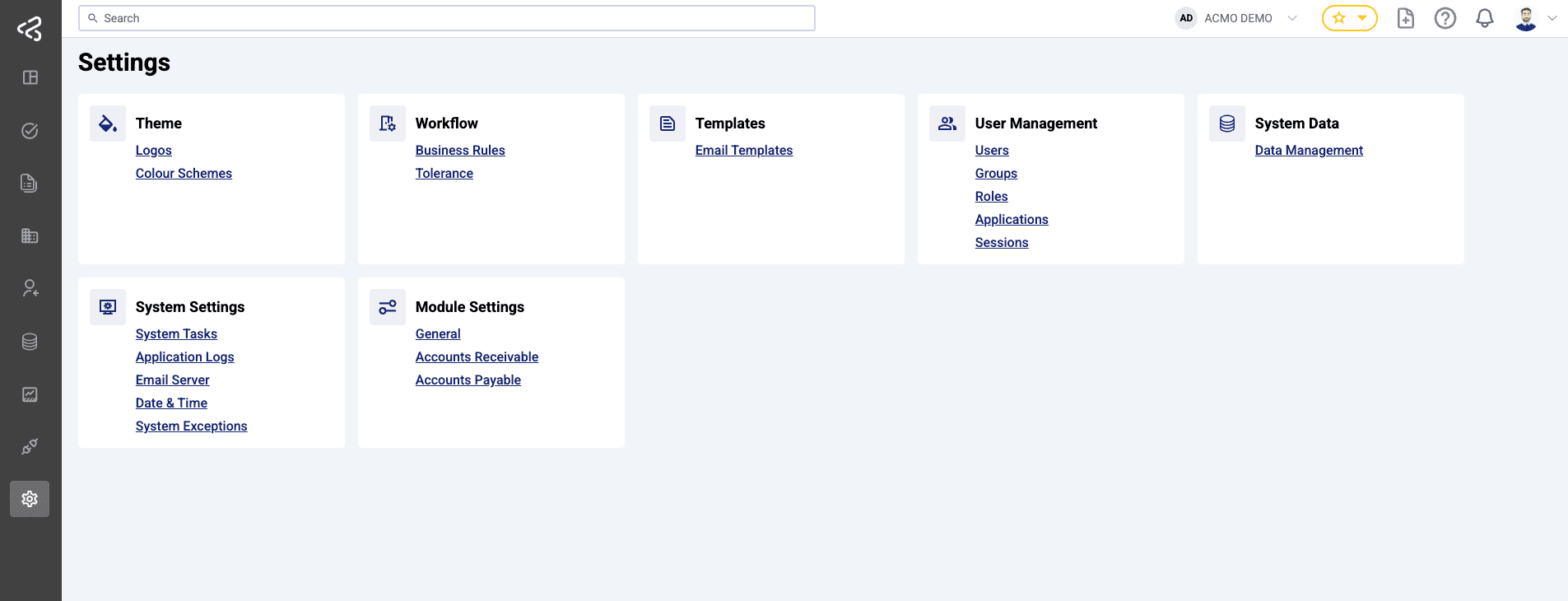
The Settings screen is accessed by clicking the cog icon (⚙️), which is the last icon in the left-side navigation menu.
Purpose
The Settings screen allows users to:
- Configure system appearance and branding
- Define workflows and business rules
- Manage users, roles, and permissions
- Configure system-level data and operational settings
- Manage module-specific configurations
- Control tolerances and operational thresholds
Access to each setting is governed by user roles and module subscriptions.
Layout and Structure
- The Settings screen is organized into 8 cards.
- Cards are displayed in a grid layout, arranged left to right.
- Each card represents a category of settings.
- Each card contains a list of related configuration options.
This layout provides a clear and intuitive way to navigate complex administrative features.
Settings Cards and Features
Theme
Controls the visual appearance and branding of the ACMO Portal.
Workflow
Defines operational rules and approval structures within the system.
Templates
Manages reusable communication formats.
User Management
Handles user access, security, and organizational structure.
System Data
Provides tools for managing core system data.
System Settings
Controls underlying system behavior and infrastructure-related configurations.
Module Settings
Contains configuration options specific to enabled ACMO modules.
Module settings are only visible if the user is subscribed to and authorized for the respective module.
Role-Based Access Control
- Visibility and access to cards and individual settings are controlled by user roles.
- Administrators can:
- Create and manage roles
- Assign permissions that determine which settings a user can view or modify
- Users only see settings that they are authorized to access.
This ensures security, clarity, and role-appropriate access across the platform.
Module-Based Visibility
Some settings are displayed conditionally based on module subscriptions:
- Accounts Payable appears under Module Settings only if the AP module is enabled for the user.
- Accounts Receivable appears only if the AR module is enabled.
- If a user has access to both modules, both settings are displayed.
This dynamic behavior ensures that users only see relevant configuration options.
Summary
The Settings screen serves as the administrative control center of the ACMO Portal. Its card-based layout, combined with role-based and module-based access control, ensures that users can efficiently manage configurations while maintaining security and clarity.
Detailed documentation for each individual setting is provided in subsequent sections.