Master Data Configuration
Master Data Configuration is a foundational setup required across all ACMO modules, regardless of whether the user is working with Accounts Payable (AP), Accounts Receivable (AR), or both.
Master data must be uploaded and configured to enable accurate transaction processing, validation, correct GL coding, automated matching, approvals, and seamless ERP integration. This configuration ensures consistency and reliability across all financial workflows.
Module-Based Data Availability
The master data cards displayed depend on the modules enabled for the user:
Accounts Receivable (AR)
The following master data cards are available:
- Business Entities
- Chart of Accounts
- Customers
- Invoices
- Bank Transactions
Accounts Payable (AP)
The following master data cards are available:
- Business Entities
- Chart of Accounts
- Tax Codes
- Payment Terms
- Suppliers
- Purchase Orders
- Goods Receipts
- Bills
- Spend Classification
If a user is signed up for both AP and AR modules, all applicable master data cards from both modules are supported and displayed.
Uploading Master Data
To configure or upload master data in the ACMO portal:
- Navigate to Integrations from the left-side menu.
- Select Lookup Data, then choose the appropriate master data type (e.g., Business Entities, Chart of Accounts, Purchase Orders, Bills).
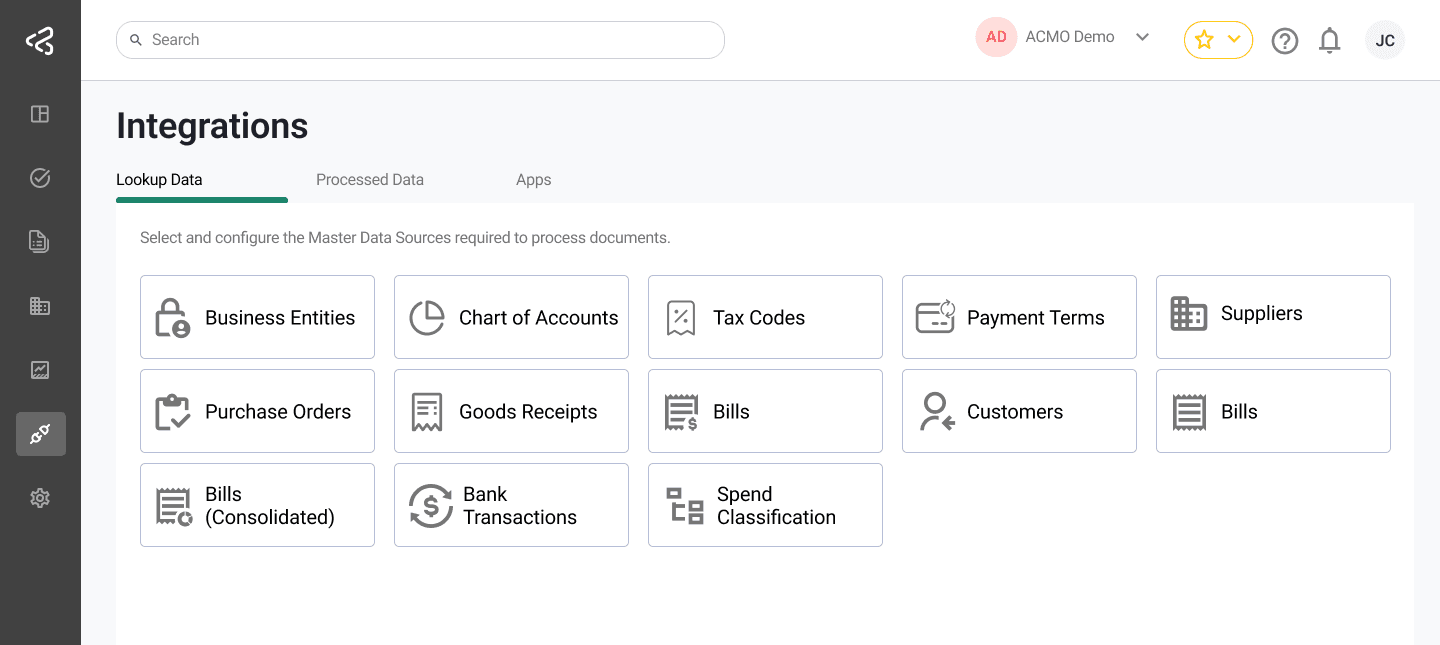
The ACMO Solution provides multiple methods for uploading and maintaining master data, allowing organisations to choose the approach that best fits their operational and integration needs.
File Upload
Upload master data using supported file formats. Suitable for initial data setup, bulk updates or periodic data refreshes.
- Drag and drop a valid file into the upload area, or click Browse to select a file manually.
- Supports
.xlsx,.csv, and.ofxformats. - If uploading a CSV file, select the correct Column Separator (e.g., comma, semicolon, or pipe symbol).
- Click Download Sample Template to obtain a sample file with the required structure and headers.
- Ensure your file matches this format to avoid validation or mapping errors.
- Select the appropriate Upload Type, either
FullorIncrementaloption to control how data is processed.
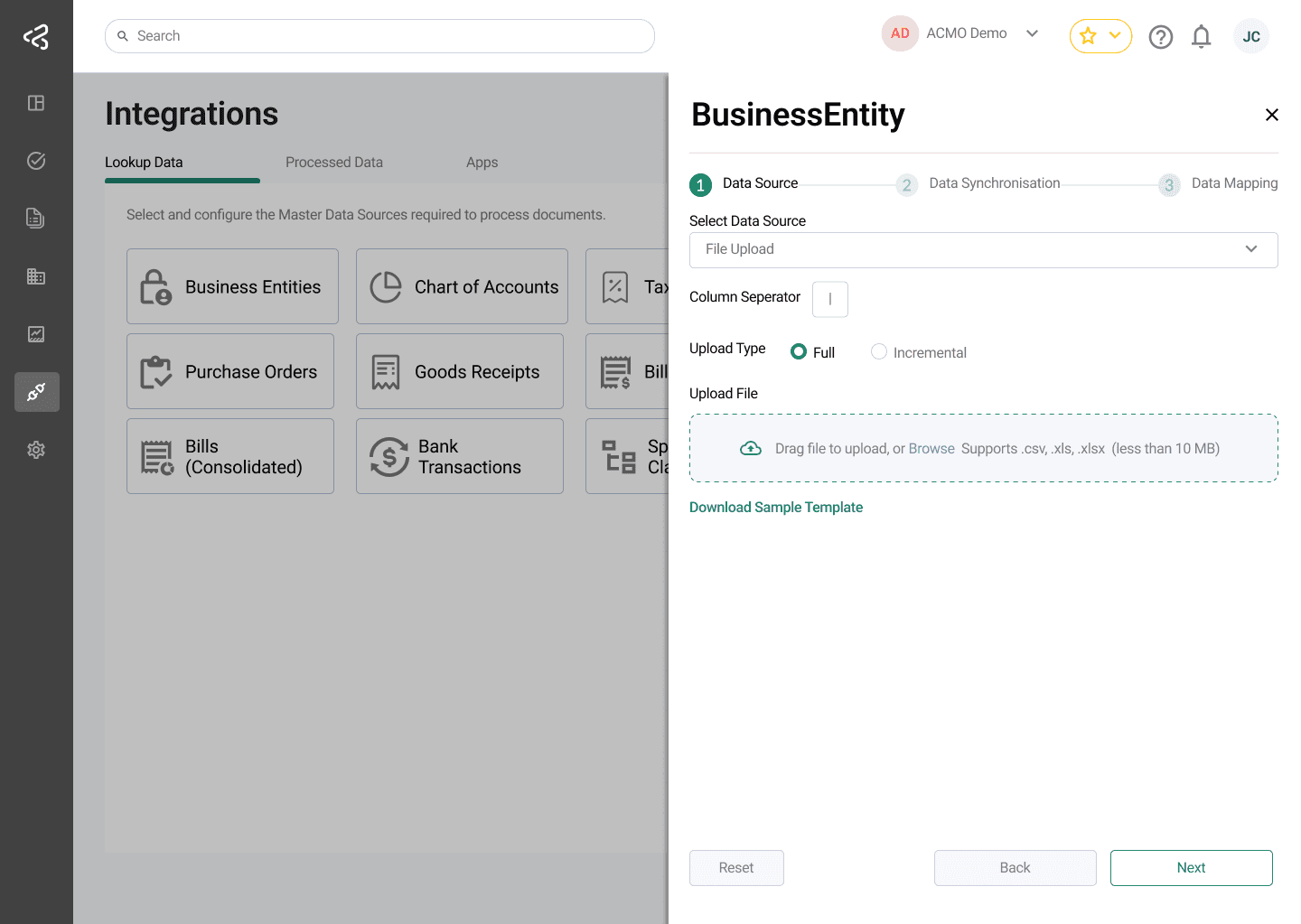
Full Upload
- Replaces all existing records for the selected data source.
- Recommended for: Initial data setup or Full dataset refreshes.
If a Full Upload is performed while data already exists, the existing data will be marked as inactive.
Incremental Upload
- Adds new records and updates existing records based on unique identifiers (e.g., Bill Number, PO Number).
- This option is recommended for:
- Submitting newly added or modified records
- Avoiding replacement of the full dataset
Data Mapping
Once the file is uploaded, data mapping ensures that each column in your file aligns with the ACMO system’s internal fields.
- Click Next to open the Data Mapping tab.
- Map each column from your uploaded file to the corresponding ACMO field (e.g., Bill Number, Supplier ID, Chart of Accounts).
- Verify that all mandatory fields (marked with an asterisk
*) are mapped correctly. - Click Save to complete the mapping.
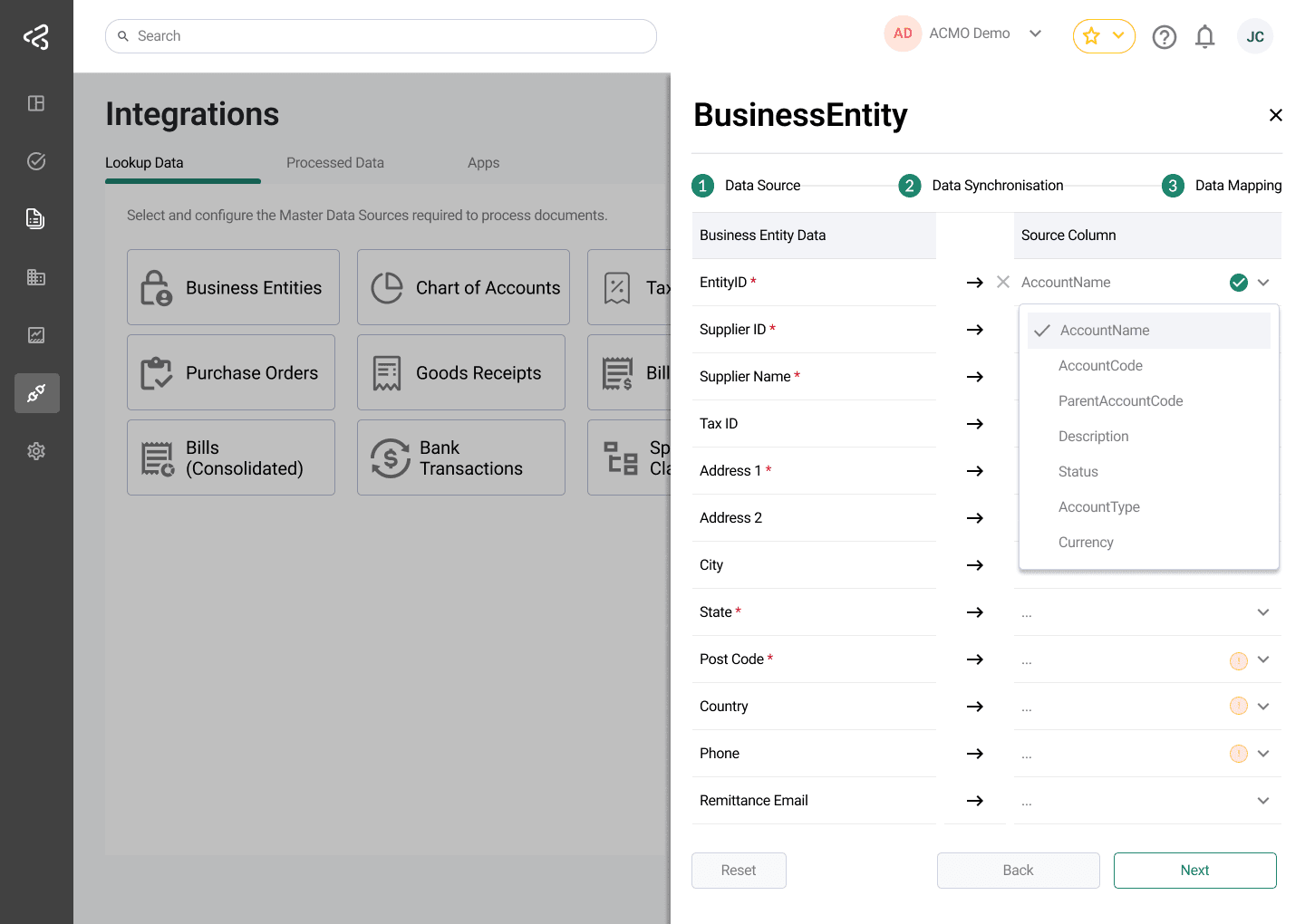
Upload Sequence
- Upload master data in the correct order to maintain data dependencies and relational integrity.
- For example, upload Business Entities and Chart of Accounts before uploading Bills, as bill records reference these datasets.
To ensure a successful upload, follow the serial order listed here when uploading data.
Reset Mapping
If uploading a file with a new structure or different column names:
- Click Reset Mapping before performing data mapping.
- This prevents mismatches and upload errors caused by outdated mappings.
APIs
The ACMO Solution supports master data upload and synchronisation through APIs, enabling seamless and automated integration with external systems such as ERPs, procurement platforms, or data hubs.
- Upload and synchronise master data programmatically using APIs.
- Authentication is handled using an API Key and Secret.
- Suitable for:
- Real-time or near real-time integrations
- Automated data synchronisation with external systems (e.g., ERP, procurement platforms)
- High-volume and continuous data updates
API access is managed through Applications, which can be configured directly within the ACMO portal.
Learn Creating and Managing Applications to access APIs securely.
Manual Entry (Using UI)
The ACMO Solution allows users to create and maintain master data directly through the user interface using the Manual data source option. This method is ideal for small data volumes, quick updates, or one-off corrections without preparing files or integrations.
Activating Manual Entry
To enable manual entry for a master data type:
- Navigate to the relevant master data screen.
- Select Manual from the Select Data Source menu.
- Click Activate to enable manual editing.
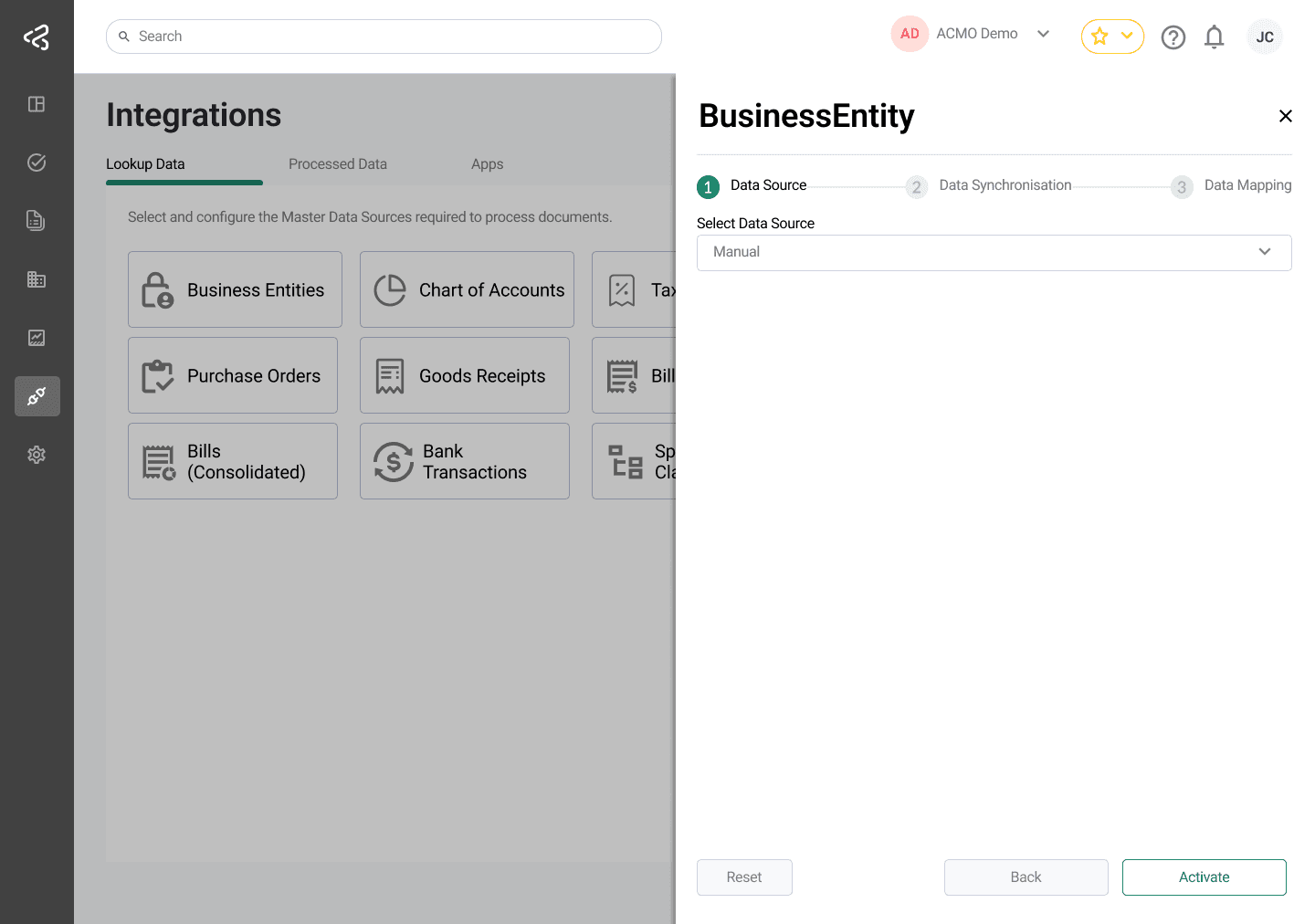
Once activated, users are redirected to the Manual Editing screen.
Manual Editing Screen
The manual editing screen displays a table containing all editable fields for the selected master data type.
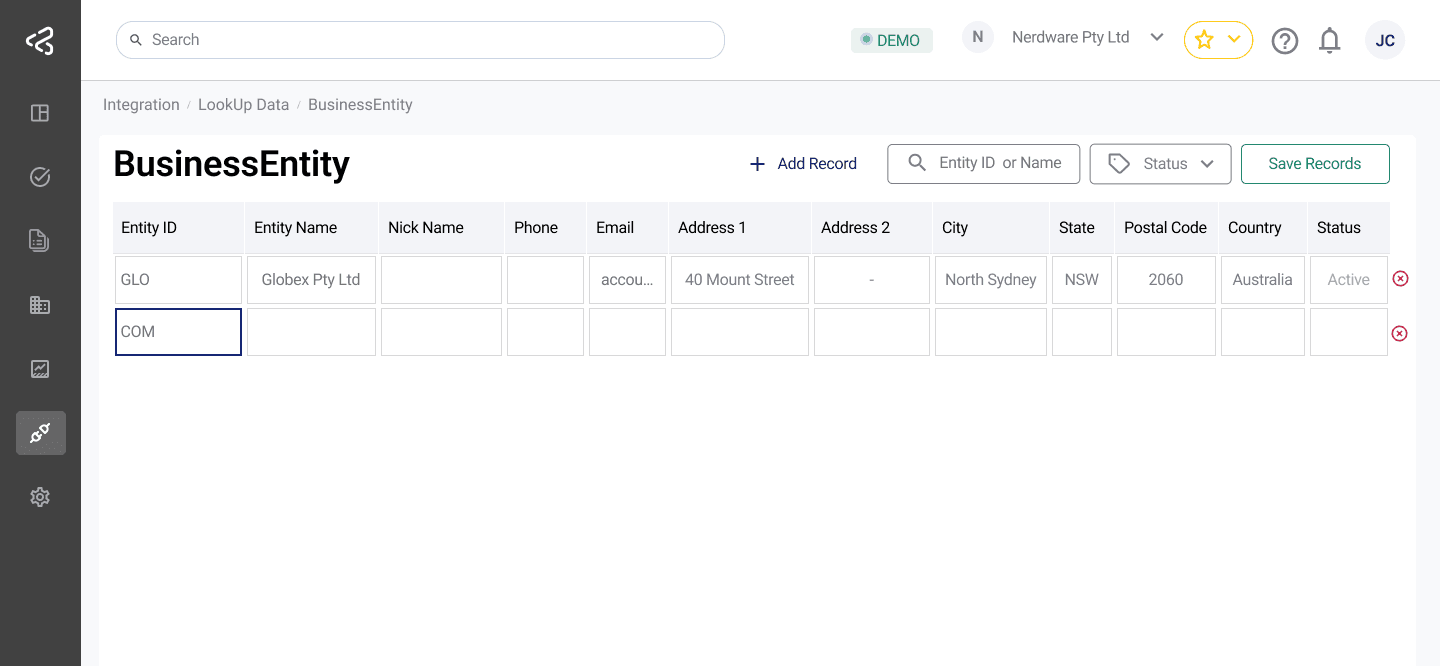
From this screen, users can:
-
Add Records
- Click the Add Record button to insert a new row.
- Enter the required values in the editable fields.
- Click Save to persist the new records.
-
Delete Records
- Click the X icon next to a row to mark it for deletion.
- Click Save to apply the changes.
-
Search and Filter
- Use the available filters to quickly search for specific records.
- Filters help locate data based on key attributes without scrolling through the full dataset.
All changes made through manual entry must be saved to take effect.