ACMO Mobile App
The ACMO Mobile App enables users to review and approve bills on the go while extending automated finance workflows connected to existing ERP systems. The app provides mobile access to approval tasks, real-time notifications, and detailed bill insights without compromising security or auditability.
The ACMO Mobile App is available on both iOS and Android platforms, allowing users to approve bills anytime, anywhere.
Download the app:
- Apple App Store (iOS): https://apps.apple.com/app/acmo
- Google Play Store (Android): https://play.google.com/store/apps/details?id=com.acmo.app
Key features include:
- Secure login using email address
- Push notifications for bill approvals
- Mobile access to approval workflows
- PDF viewing and audit trail access
- Bill-level comments and collaboration
- Quick document upload and document scanning
- Secure session takeover support
Getting Started
Supported Platforms
The ACMO Mobile App is supported on:
- iOS devices via the Apple App Store
- Android devices via the Google Play Store
Supported Users
The mobile app is intended for Lite Users responsible for reviewing and approving bills. The app focuses on approval-related actions, while system configuration and administration are handled through ACMO and connected ERP systems.
Logging In
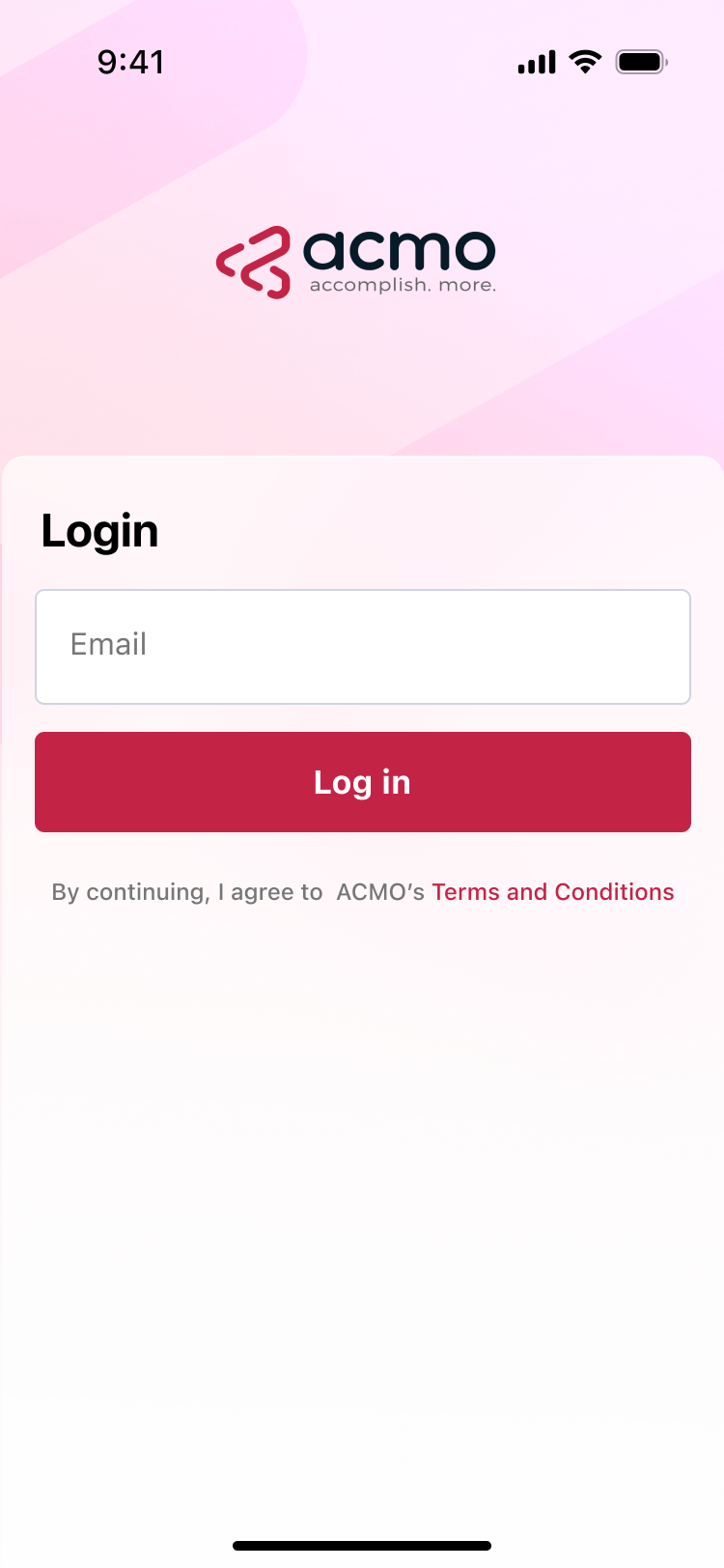
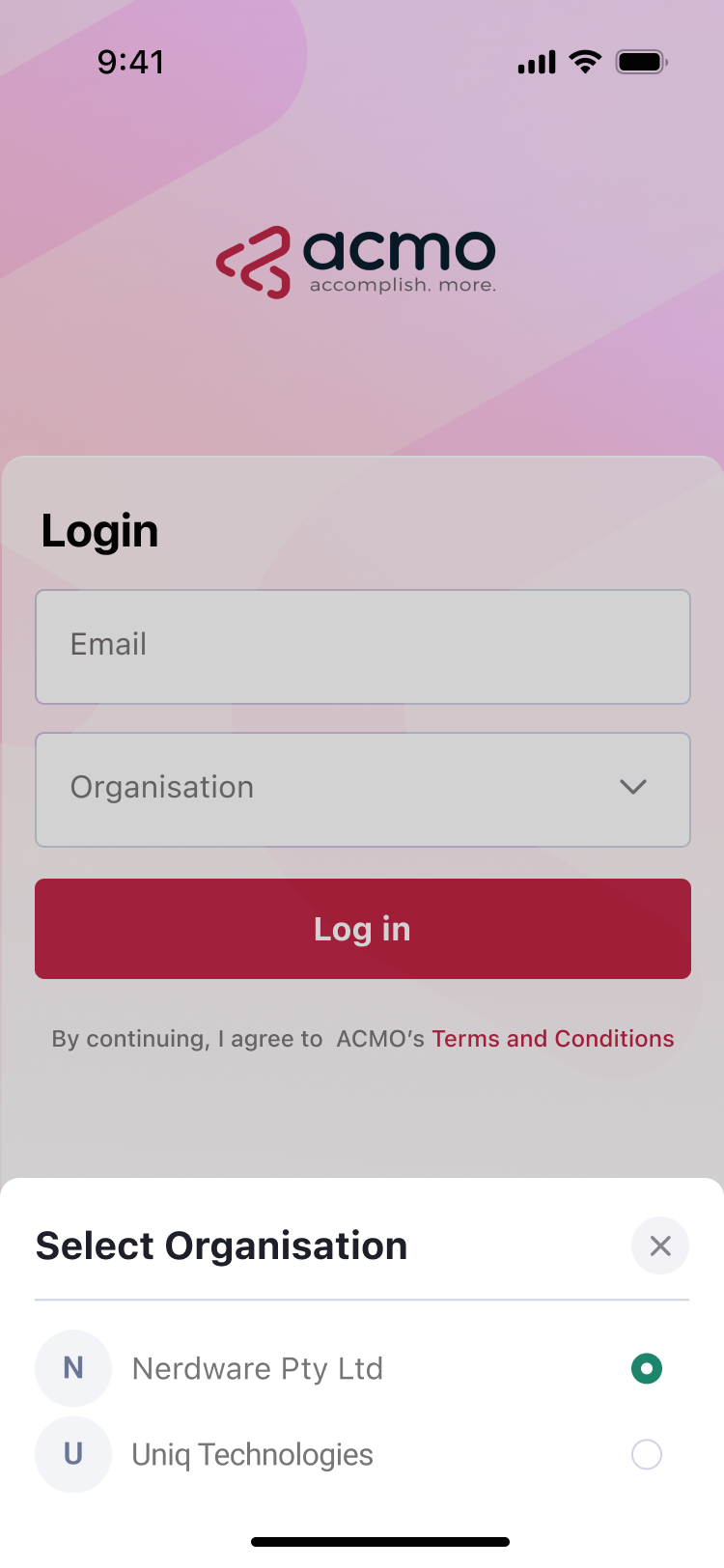
To log in to the ACMO Mobile App:
- Download and install the app from the App Store or Play Store
- Open the ACMO Mobile App
- Enter your email address
- Select organisation if required
- Upon successful authentication, the app navigates directly to the Bill Approval Task Listing screen
Bill Approval Task Listing
Approval List Screen
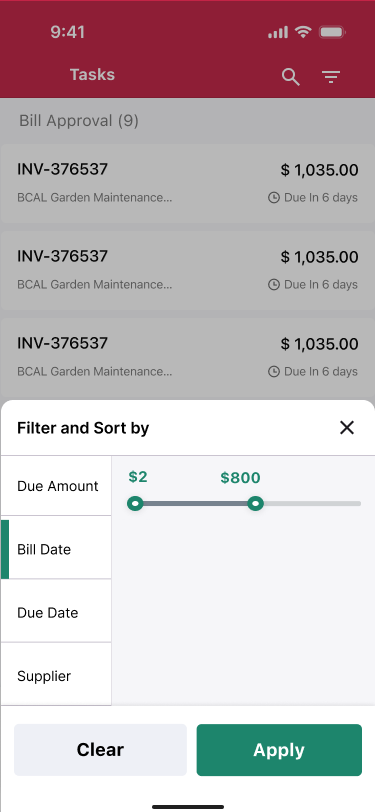
After login, users are taken directly to the Bill Approval Task Listing screen.
This screen displays:
- A list of bills awaiting approval
- Key bill identifiers for quick reference

Selecting a Bill
- Tapping a bill in the list opens the Bill Details and Approval screen
Bill Details and Approval
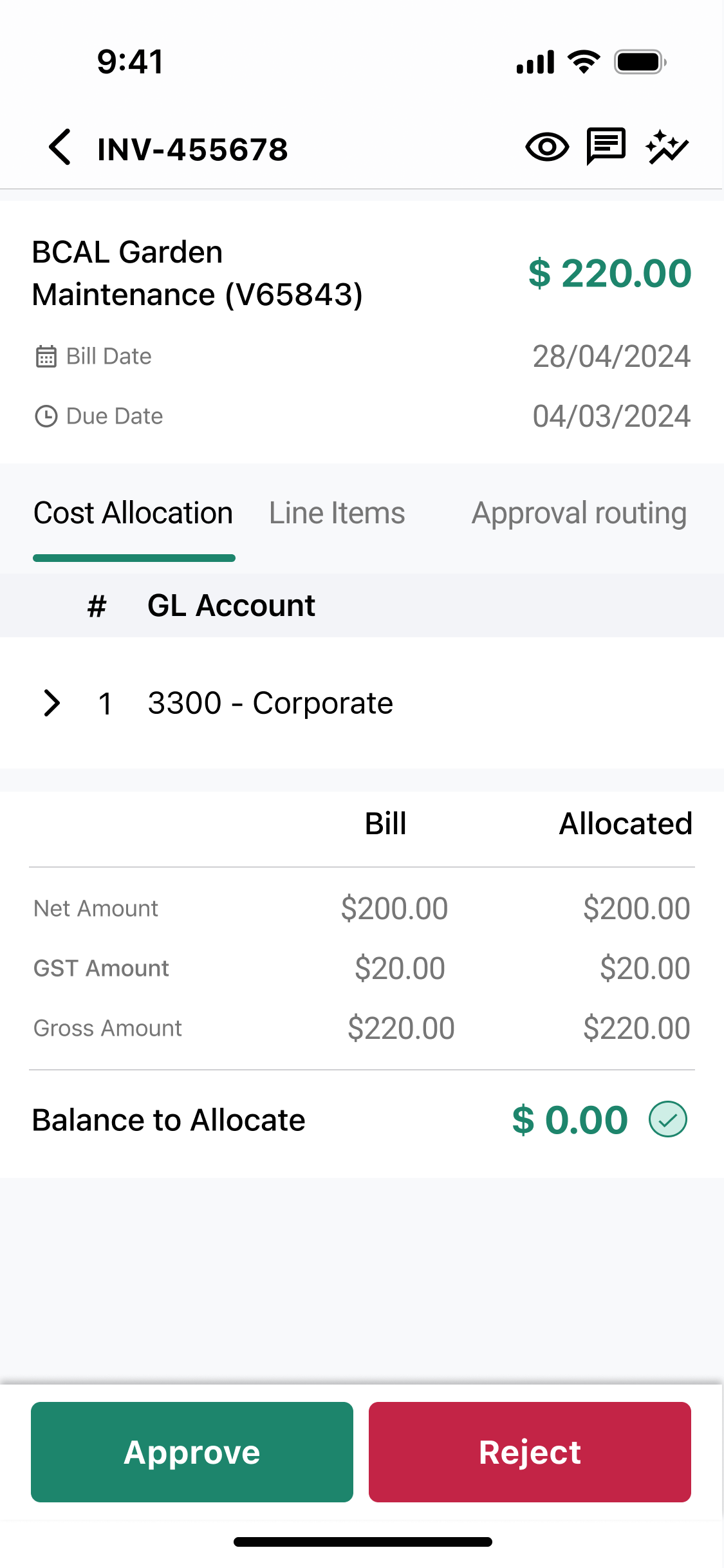
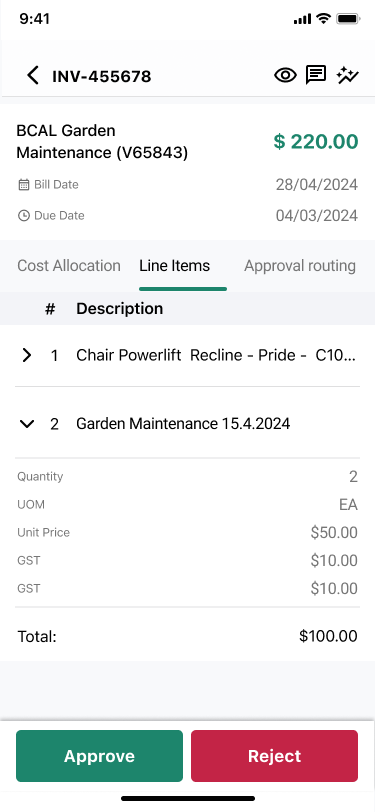
Bill Summary
The bill summary section provides a high-level overview, including:
- Supplier name
- Bill ID
- Total amount
- Bill date
- Due date
Bill Detail Tabs
Cost Allocation
Shows how the bill amount is allocated across cost centers, departments, or projects.
Line Items
Displays all line items associated with the bill.
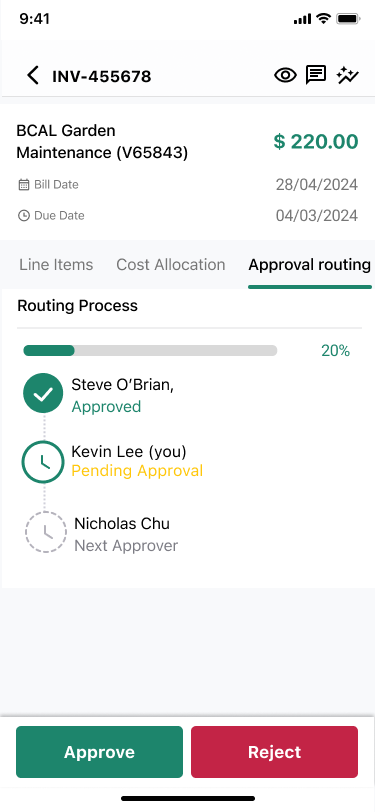
Approval Routing
Displays the approval workflow, including:
- Current approval stage
- Previous and upcoming approvers
Bill Actions
From the Bill Details screen, users can:
- Approve the bill
- Reject the bill
- Leave a comment
- View the PDF document
- View the audit trail
PDF Viewer and Audit Trail
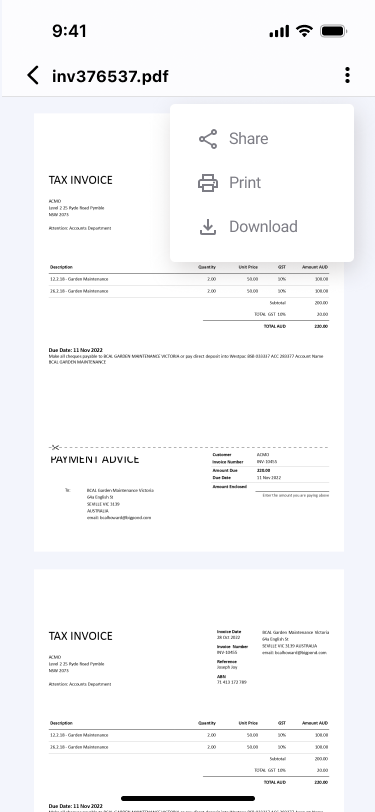
Viewing PDF Documents
Users can open and view the original bill PDF directly within the mobile app.
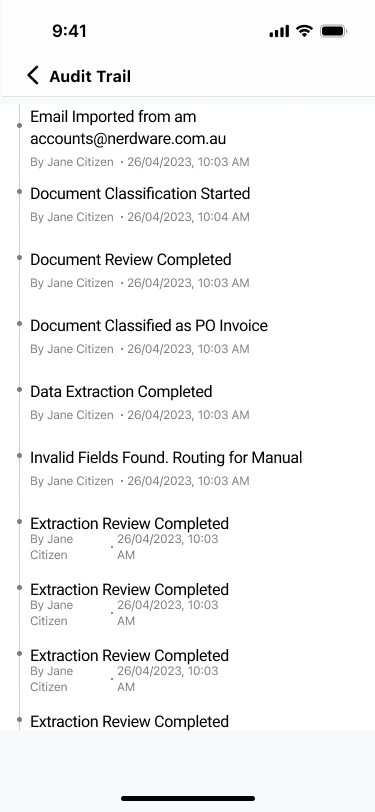
Audit Trail
The audit trail displays:
- A complete history of bill actions
- Timestamps for each action
- Approver names and status changes
Comments and Collaboration
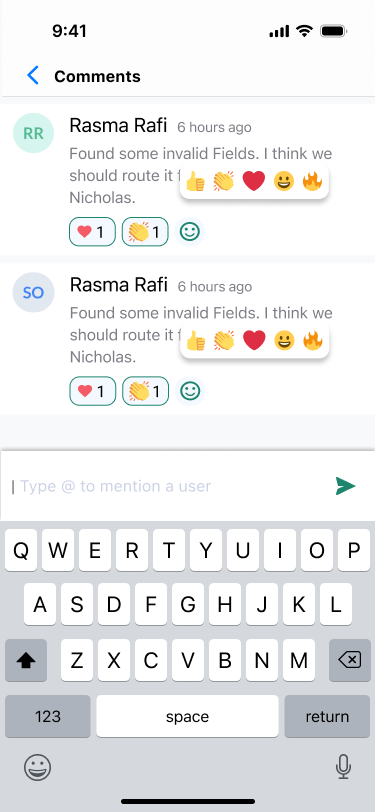
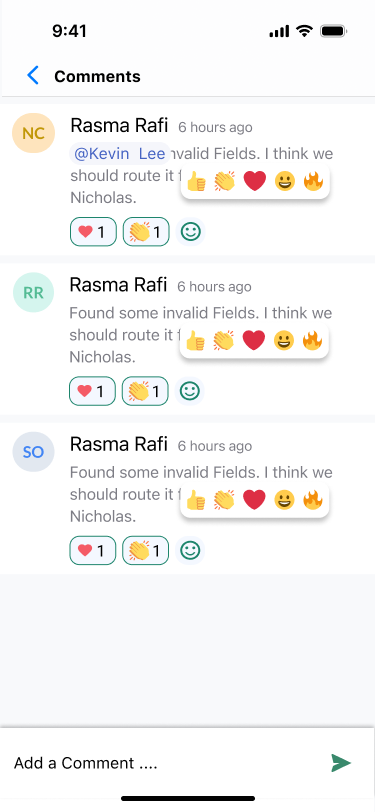
Users can collaborate directly on each bill using the Comments feature available within the Bill Details screen.
Adding a Comment
Users can add a comment on a bill by tapping the Comments icon.
- Comments can be added to any bill that is pending for approval
- All users with access to the bill can view and participate in the discussion
Reacting to Comments
Users can react to comments using emoji reactions to provide quick feedback without typing a reply.
This enables users to:
- Acknowledge updates
- Highlight concerns
- Provide quick responses during the approval process
Mentioning Users
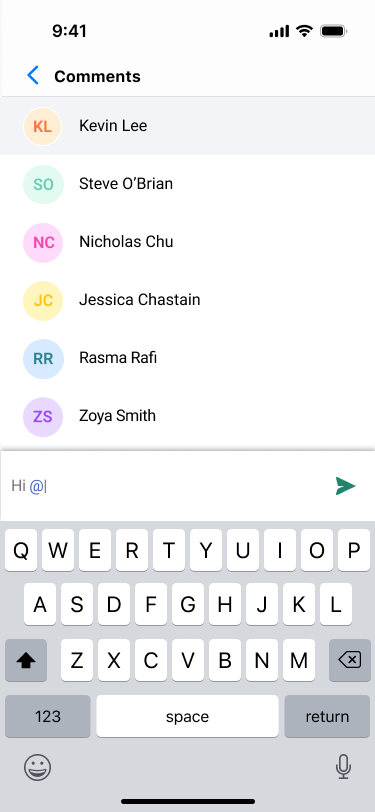
Users can notify specific team members within a comment by using the @ mention feature.
To mention a user:
- Type @ in the comment box
- A list of users will automatically appear
- Start typing the first few letters of the user’s name (for example, the first three letters)
- The user list will be filtered dynamically in the popup menu
- Select the appropriate user from the list
Mention Notifications
When a user is mentioned in a comment:
- A notification is automatically triggered for that user
- The notification includes the comment in which they were mentioned
- Tapping the notification navigates directly to the related bill and comment
Notifications
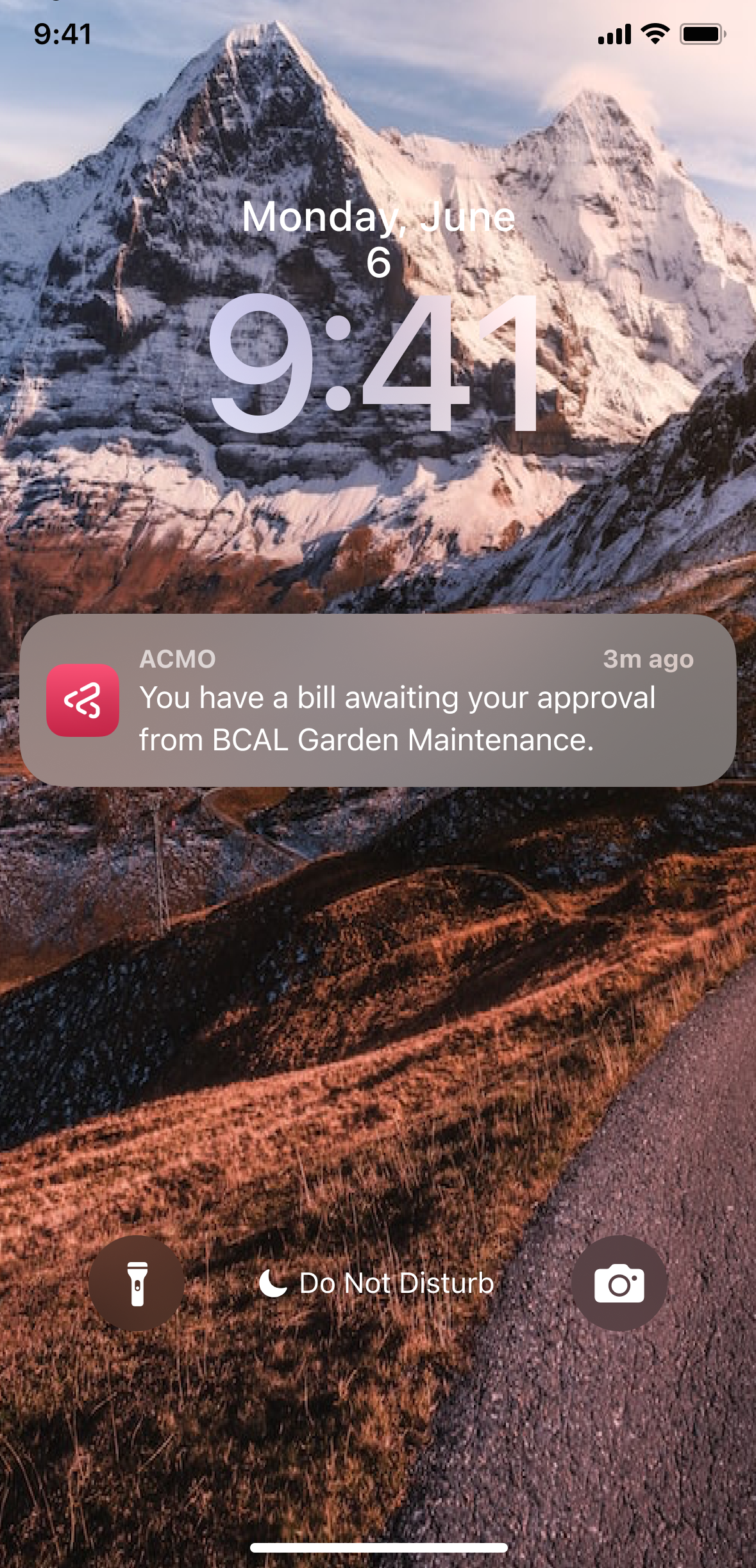
Push Notifications
The mobile app sends push notifications for:
- New bill approval requests
- Updates to existing approval tasks
- User mentions in bill comments
Enable notifications to receive real-time updates on approval status and comment mentions.
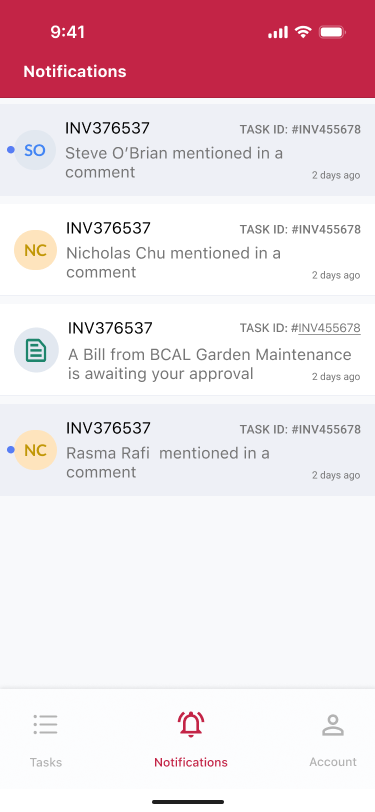
Notifications Screen
The Notifications screen displays:
- All new notifications
- Previously received notifications
- Direct navigation to related bill approval tasks
Quick Upload and Document Scanning
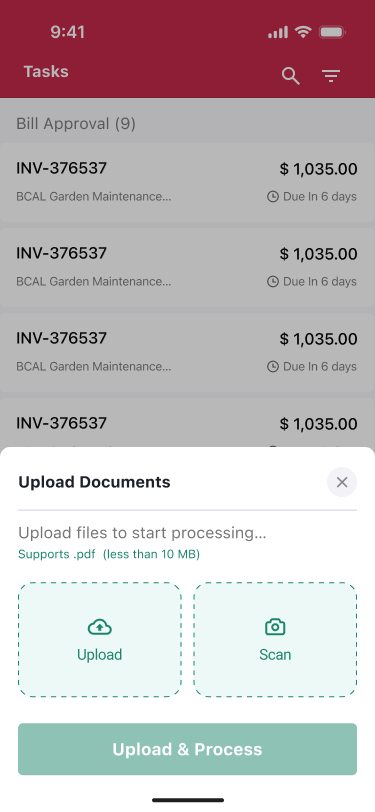
Quick Upload Menu
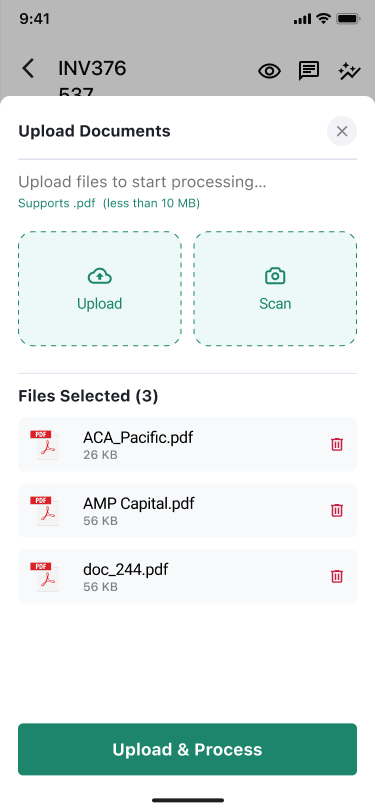
The Quick Upload menu allows users to:
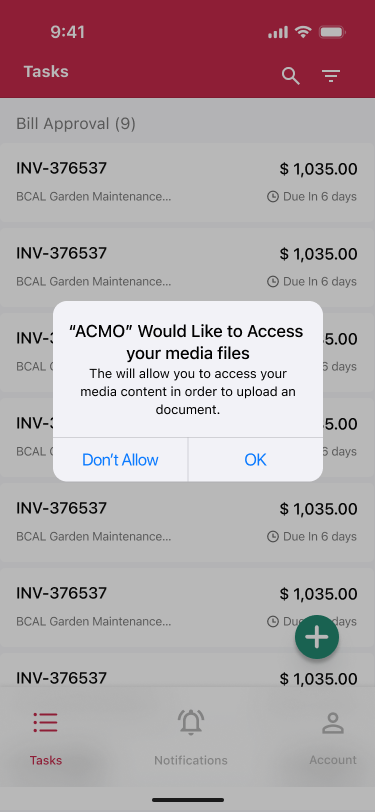
- Upload files directly from their mobile device
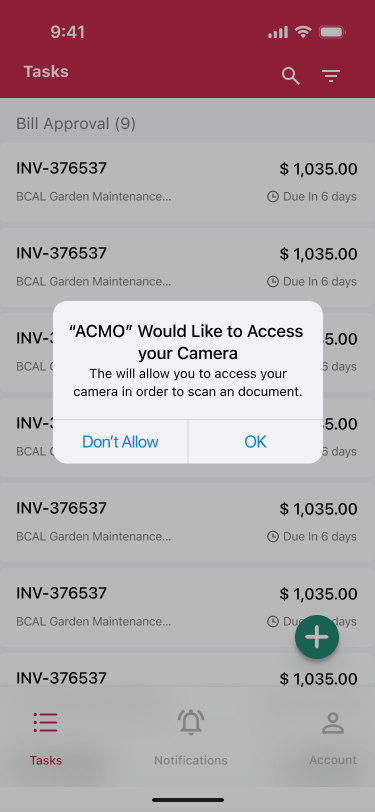
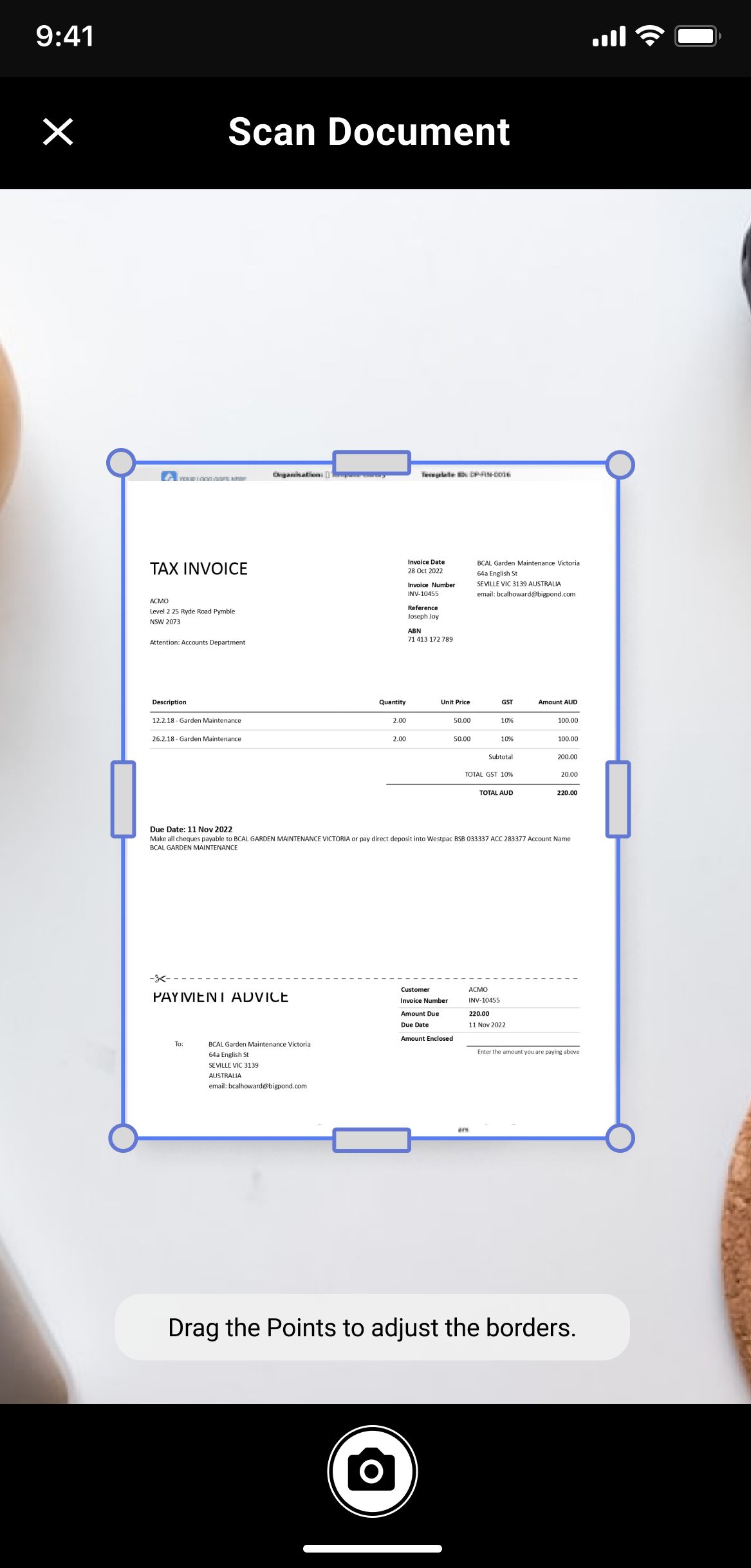
- Scan documents using the phone camera
Document Processing
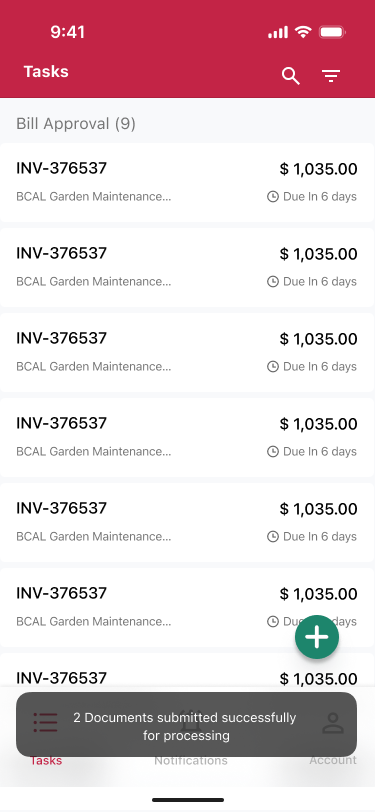
Uploaded or scanned documents are automatically processed to:
- Extract document data
- Enable faster bill processing and approvals
Enable media and camera access to upload and scan documents.
Account and Profile Management
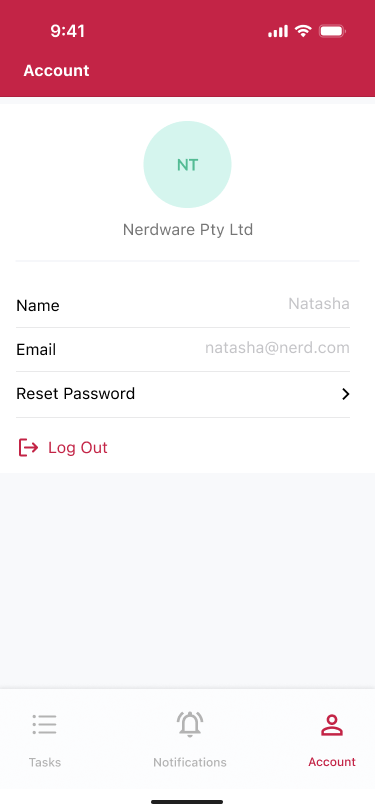
Account Screen
The Account screen displays user profile information, including:
- Email address
- User name
Account Actions
From the Account screen, users can:
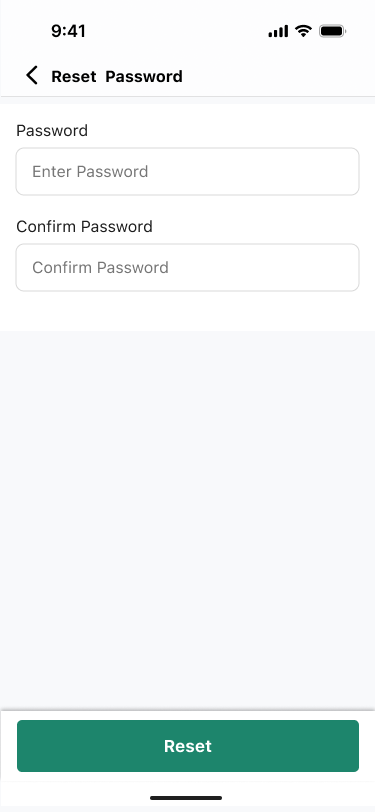
- Reset their password
- View profile details
- Log out of the mobile app