Document Ingestion Channels
The ACMO All-in-One (AIO) Business Suite supports multiple document ingestion channels to accommodate different operational models, supplier behaviours, and system landscapes.
Document ingestion channels define how documents enter the ACMO platform for processing and workflow orchestration. These channels are designed to be flexible, allowing organisations to continue using familiar document submission methods while enabling automation and standardisation within ACMO.
ACMO currently supports five types of ingestion channels:
- Sync Client (Desktop Application)
- Portal Upload (ACMO Web Portal)
- API Upload (Application Client)
- Peppol eInvoicing
Email Ingestion
ACMO can ingest documents received via email by connecting to existing customer mailboxes or by provisioning dedicated mailboxes for individual tenants. This allows organisations to retain long-standing supplier and customer email addresses that are already in use, minimising change management and disruption.
Email ingestion can be configured to monitor an entire mailbox or a specific folder within a mailbox, including shared mailboxes. Once emails and attachments are collected and processed by ACMO, they can be automatically moved to a designated processed folder within the mailbox to maintain traceability and mailbox hygiene.
How It Works
Users can use:
- An email address configured and managed by the ACMO team, or
- Their own organization’s email address, which is mapped to ACMO for document ingestion
This email address can be shared with suppliers, customers, or internal teams to send documents such as:
- Bills
- Remittance advices
Supported Document Types
Documents sent via email are automatically extracted and processed, regardless of how they are attached. Supported formats include:
- PDF files
- Image files (JPEG, PNG, TIFF, etc.)
- Forwarded emails with attachments
- Scanned documents attached to emails
Once received, ACMO automatically identifies the document type and routes it for processing.
Sync Client Ingestion
ACMO supports document ingestion via the Sync Client, which acts as a bridge between the ACMO platform and local or network-based file systems. The Sync Client can be installed on Windows, Linux, and macOS operating systems.
How It Works
ACMO provides a Sync Client desktop application available for:
- Windows
- macOS
- Linux
Once installed and configured:
- This approach allows users to drop documents into a monitored folder on a desktop, shared computer, or network share.
- Documents placed in the monitored location are automatically detected and submitted for processing.
This channel is ideal for:
- High-volume document ingestion
- Backend or system-generated files
- Continuous, unattended processing workflows
Detailed setup and configuration information is available on the Sync Client documentation page.
Portal Upload
Users can also upload documents directly through the ACMO web portal. This option is suitable for ad hoc submissions or low-volume scenarios, allowing users to manually upload documents that need to be processed without relying on email or file-based ingestion.
How It Works
Users can access the Upload Document feature within the ACMO Portal and submit files using a simple drag-and-drop interface or by browsing their local system.
Open Upload
Click the document upload icon to open a modal (popup) where you can choose the files you want to upload.

Select Files
You can drag and drop files into the upload area, or click Browse to select files from your file explorer.
- Maximum file size: 20 MB
- Allowed file type: PDF only
- Maximum files per upload: 10 files
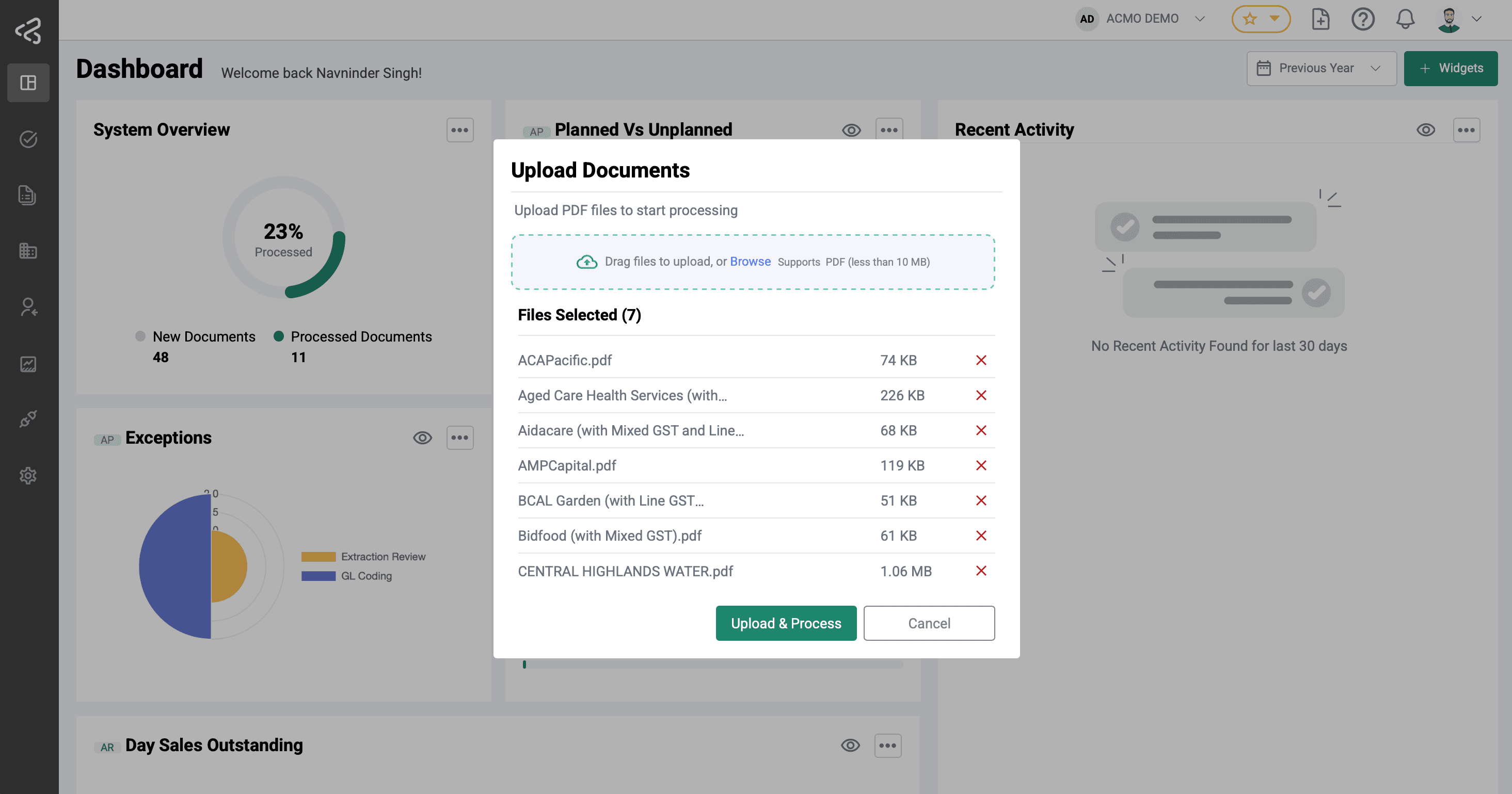
Complete Upload
Click the Upload & Process button to start the upload. The UI will indicate which file is currently uploading and will display a green checkmark once the upload is complete.
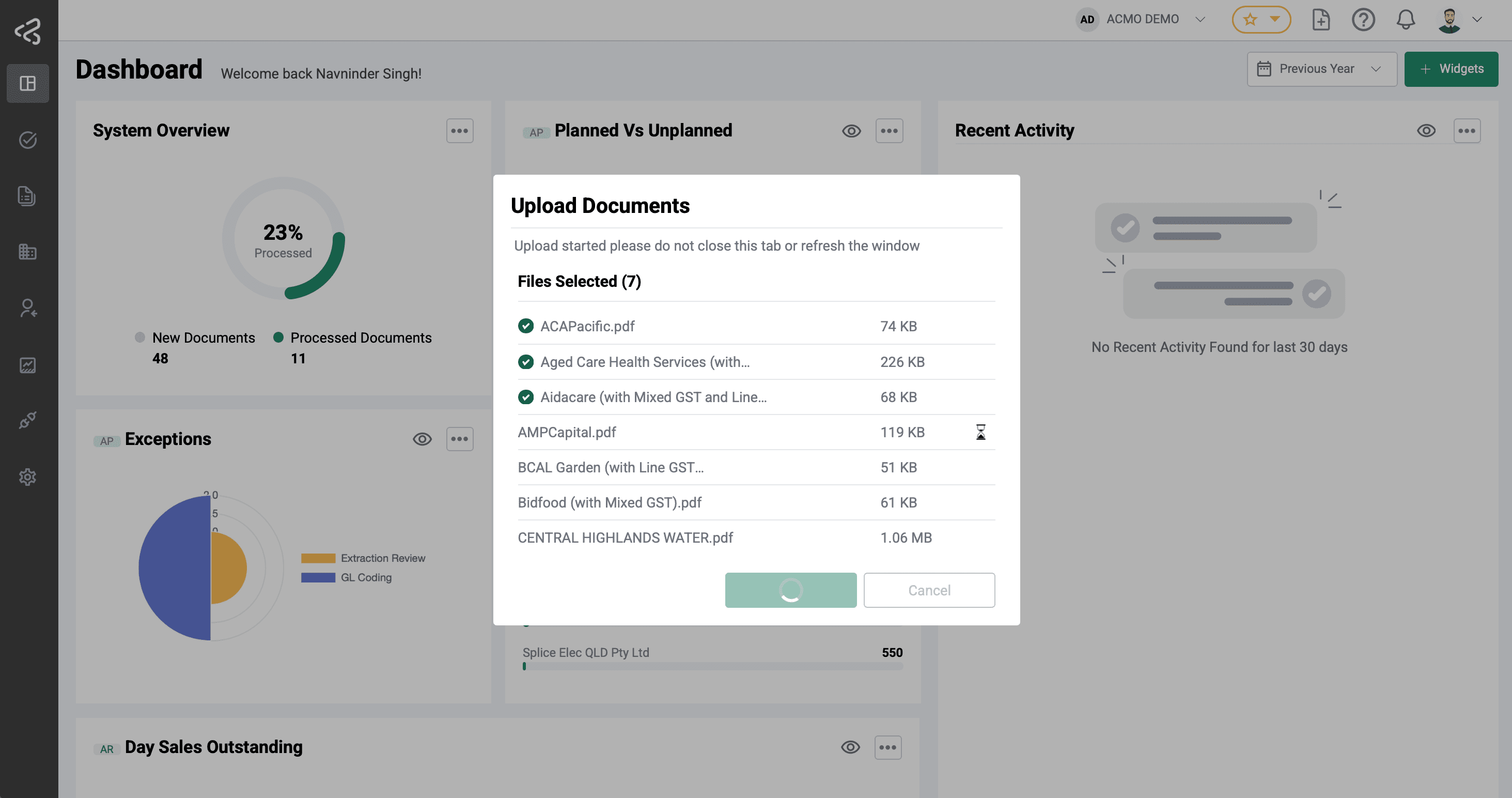
Do not close or refresh the browser tab. Please wait until all uploads have finished.
Key capabilities include:
- Uploading one or multiple files at a time (up to 10 files per upload)
- Drag-and-drop user experience
- Automatic document type detection
- Immediate processing after upload
API Upload (Application Client)
Documents are ingested through a secure REST API endpoint using an Application Client created in the Customer Portal. Each application client is issued a Client ID and Client Secret, which are used to authenticate API requests.
This channel allows users to upload documents programmatically using API tools such as Postman or through custom-built integrations.
For detailed instructions, see how to Create An Application Client in the Customer Portal.
Key characteristics
- Authentication via Client ID and Client Secret
- Supports direct document upload through an API endpoint
- Suitable for automated and system-to-system integrations
- No user interaction or manual upload required
Typical use cases
- Integration with third-party systems (ERP, billing, or document management systems)
- Automated document ingestion pipelines
- High-volume or scheduled uploads
Access requirements
- An Application Client must be created in the Customer Portal
- Valid Client ID and Client Secret must be included in API requests
- API access permissions are managed at the application client level
Peppol eInvoicing
ACMO supports the ingestion of Peppol eInvoices for compliant, structured invoice processing. Peppol-based documents are received electronically and processed through the relevant ACMO workflows in line with configured business rules and validations.
Choosing the Right Channel
| Channel | Best For | Automation Level |
|---|---|---|
| External suppliers and customers | Medium | |
| Portal Upload | Manual or ad-hoc uploads | Low |
| Sync Client | High-volume, automated ingestion workflows | High |
| API Upload (Application Client) | System-to-system integrations and programmatic uploads | High |
| Peppol eInvoicing | Compliant, structured eInvoice exchange with trading partners | Very High |
Each ingestion channel is designed to fit different operational needs, and organizations can use one or multiple channels simultaneously based on their workflow requirements.
Next Steps
- Configure Email Ingestion addresses
- Upload documents via the ACMO Portal
- Set up Sync Client connections for automated ingestion
For detailed configuration steps, refer to the Master Data Configuration.