Getting Started
The ACMO Solution is accessed through a secure online portal. The environment you use depends on your organisation’s deployment stage and configuration.
Portal Environments
The ACMO portal is available in the following environments:
UAT- Used for testing, validation, and user acceptance before going live.PROD- Used for day-to-day business operations and live transaction processing.
Once your account is created by an administrator, you will receive an email notification containing:
- A link to the appropriate portal environment
- A temporary password (if not using Single Sign-On)
Login
To log in to the ACMO portal:
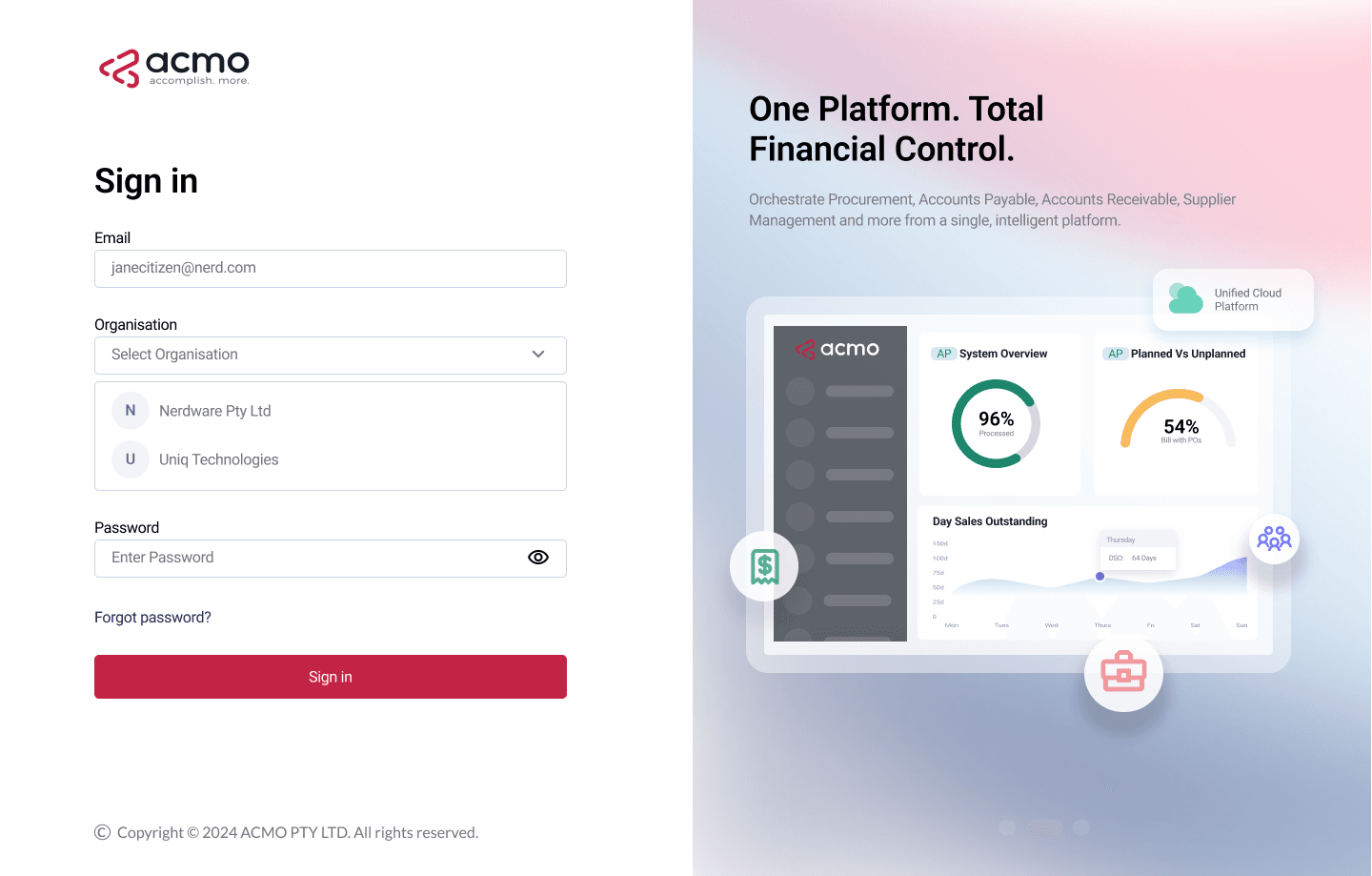
- Click the portal link provided in your welcome email.
- Enter your email address and password.
- Select your organisation if required.
- If this is your first login:
- You will be prompted to set a new password.
- Enter a secure password and confirm it.
- Click Continue or Submit to access the portal.
Single Sign-On (SSO)
If your organisation has enabled Single Sign-On (SSO):
- Entering your email address on the login page will redirect you to your organisation’s authentication provider (e.g., Microsoft, Okta).
- After successful authentication, you will be logged into the ACMO solution automatically.
- No separate ACMO password is required.
Forgot Password
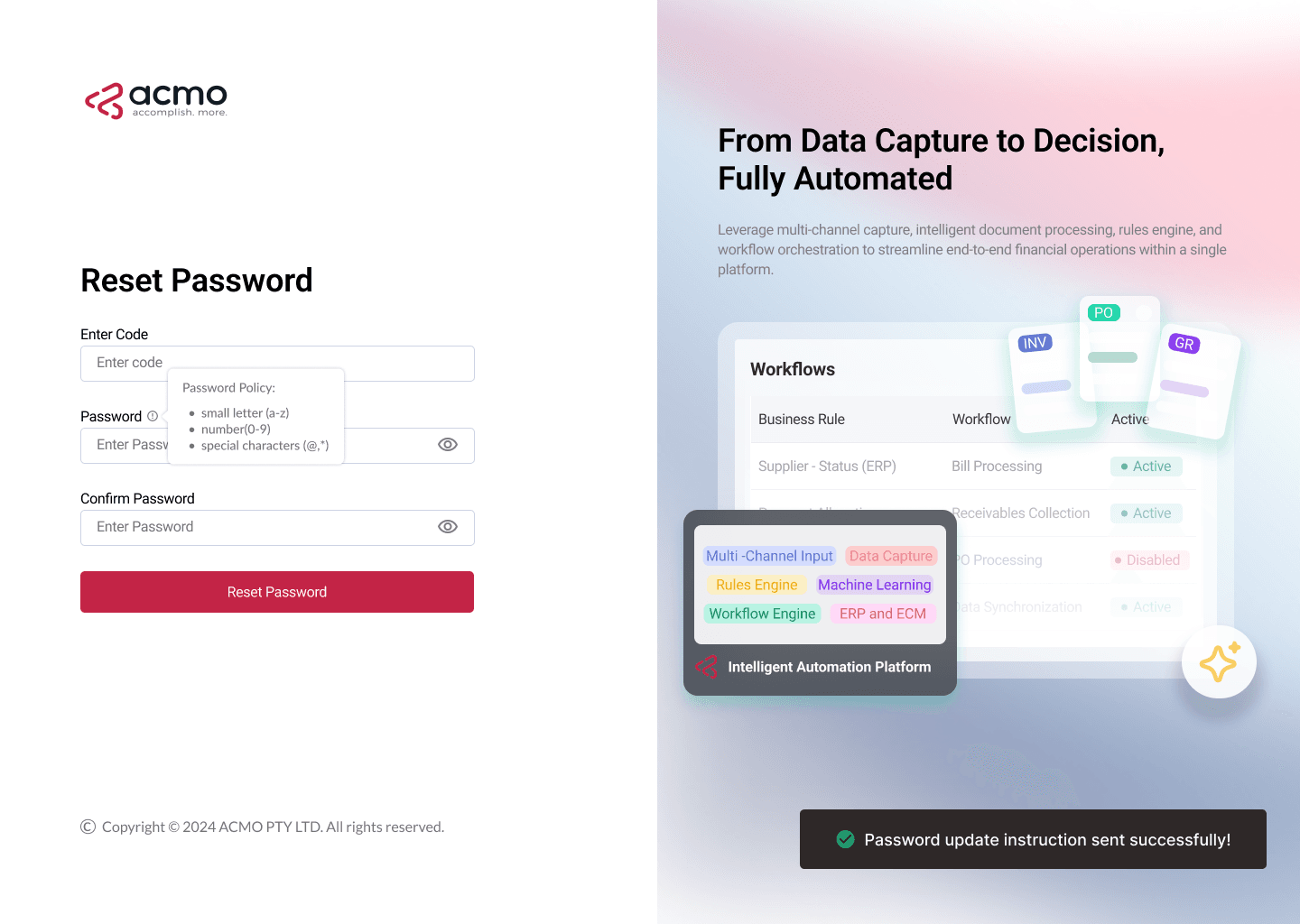
If you forget your password:
- Enter your email address.
- Click the Forgot Password link on the login page.
- Follow the instructions sent to your email to reset your password.
If you do not receive the reset email or are unable to log in, contact your system administrator for assistance.
Quick Login
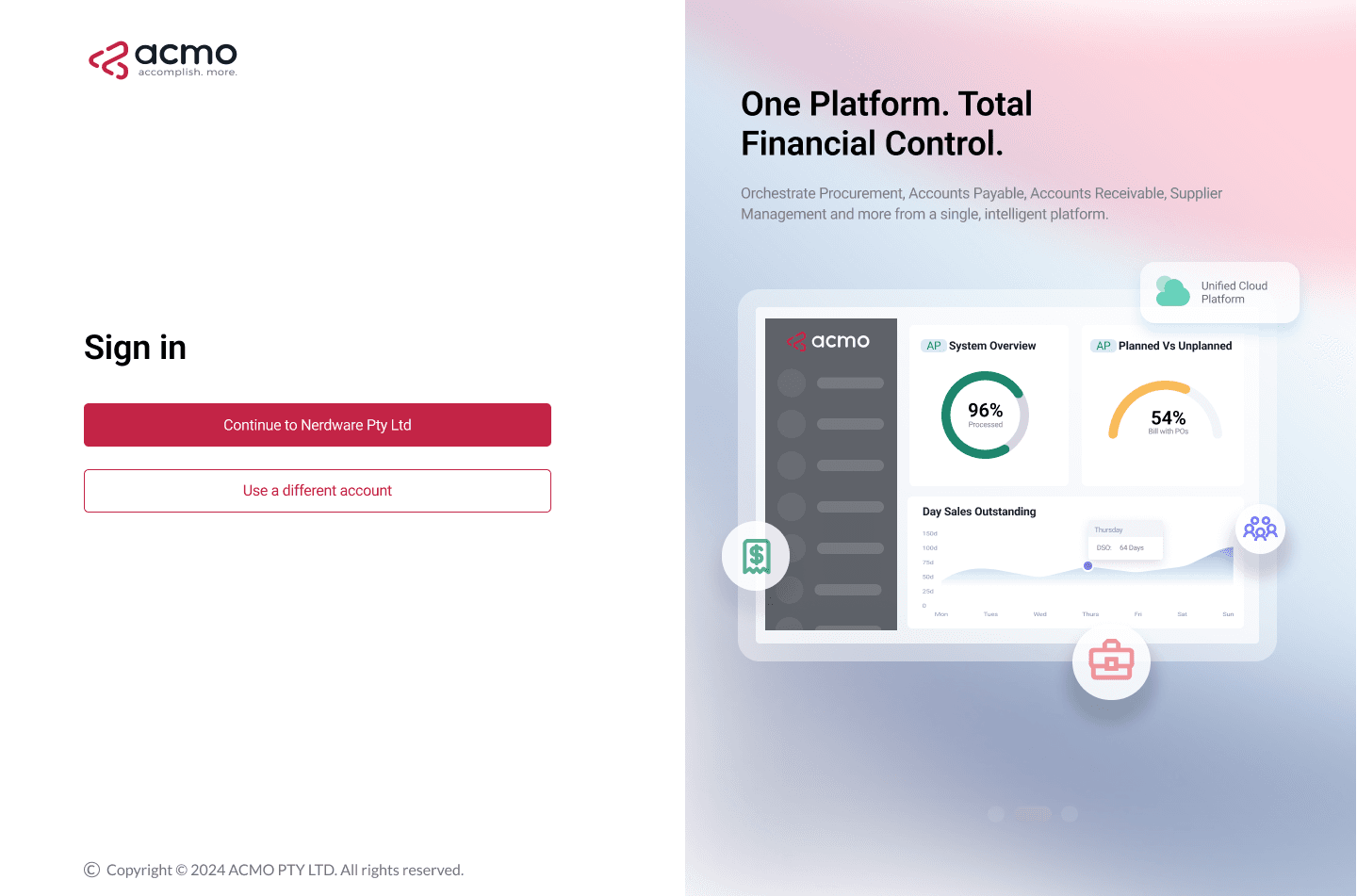
If you have previously logged in successfully, you can use the Quick Login feature for a faster experience.
First-time logins will always follow the standard login flow.
For a quicker login experience:
- Log in using the last organisation that you used.
- This will skip the robots check and selecting an organisation.
Dashboard and Navigation
After logging in, users are directed to the Dashboard, which serves as the central workspace for the ACMO solution.
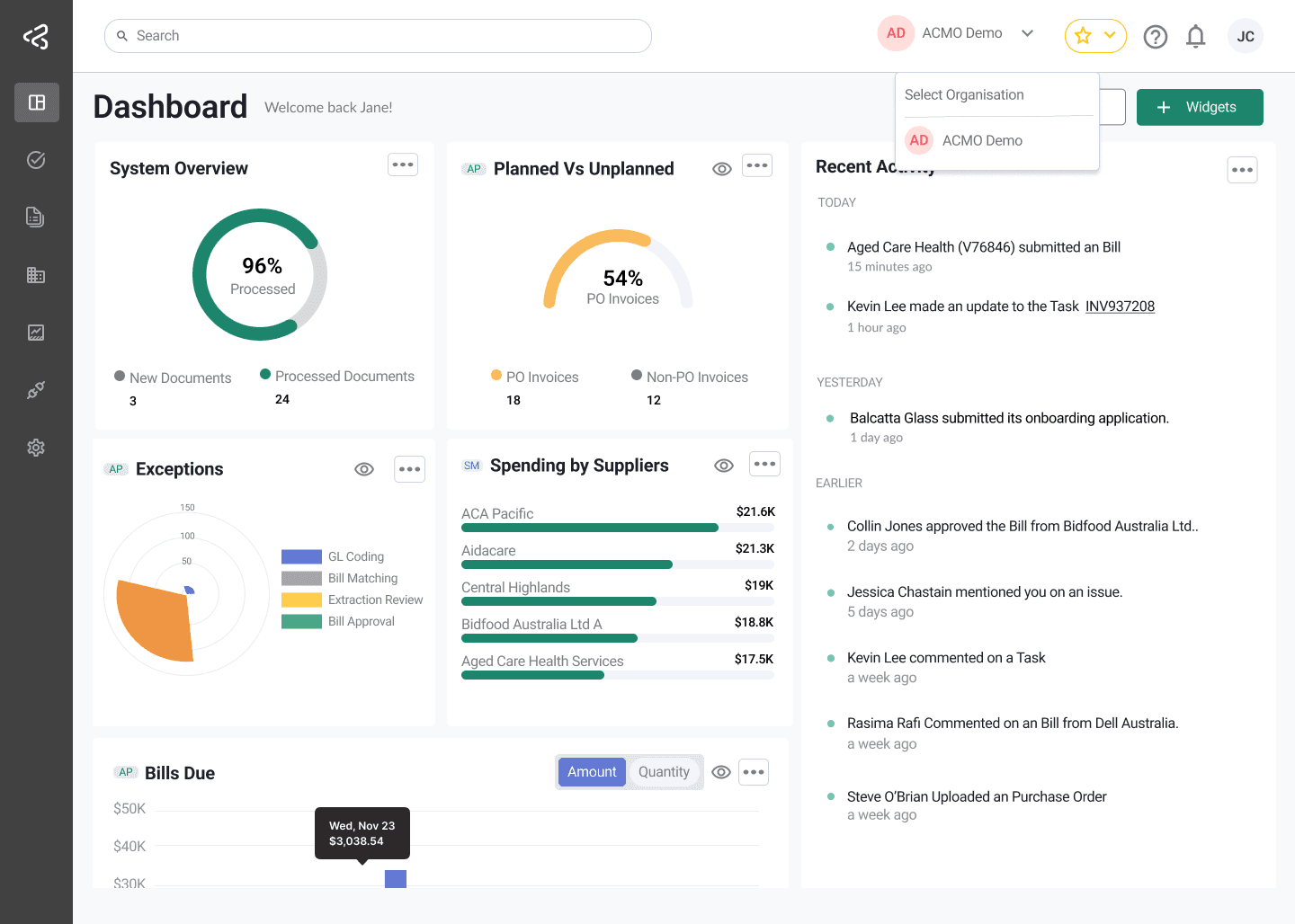
Explore dashboard widgets and learn how to interpret them in the Dashboard and Widgets section.
Top Navigation Features
-
Bookmarks - Quickly access frequently used pages.
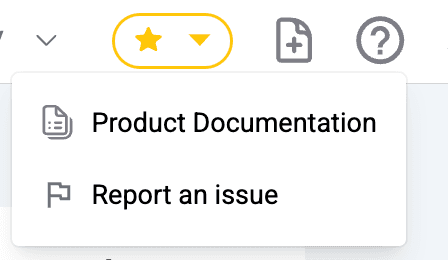
-
Help - View help topics or report an issue or visit this documentation page.
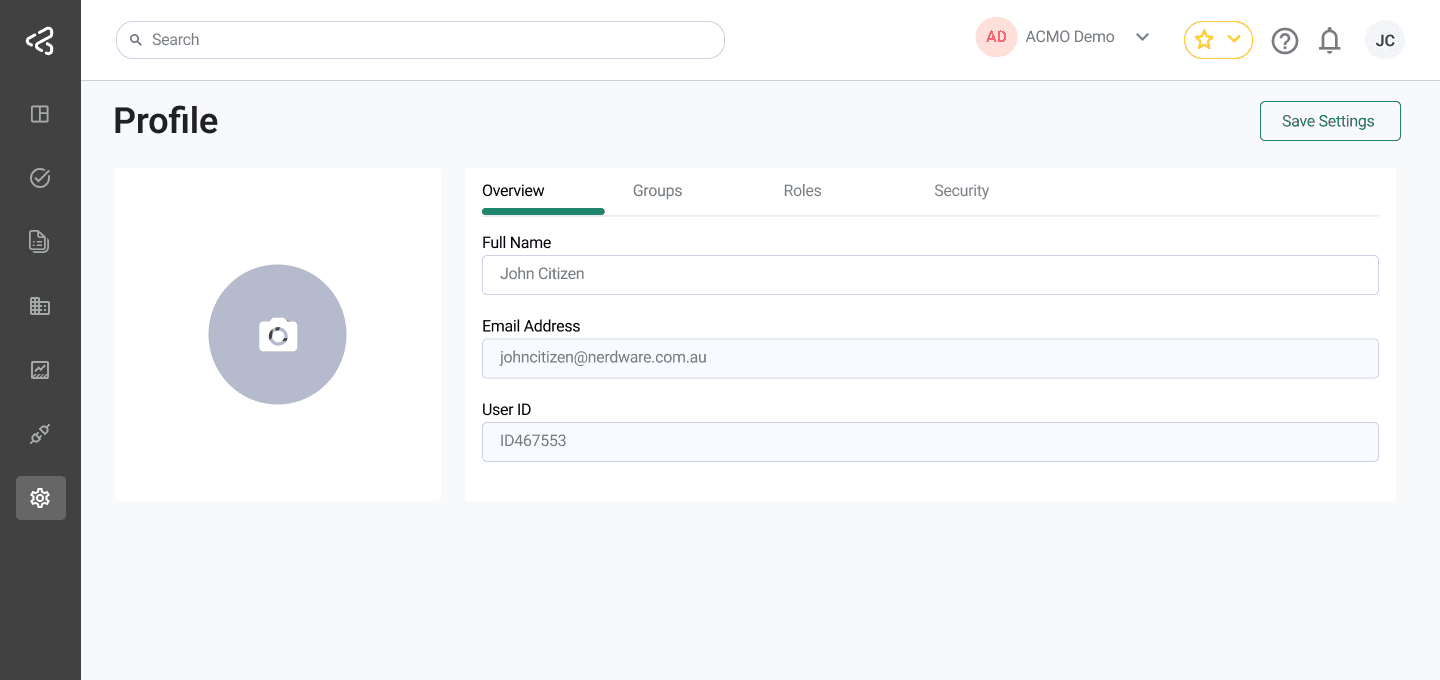
User Profile
Accessed by clicking your profile icon, allowing you to:
- Update your display name and profile picture.
- Reset your password.
- View assigned groups and roles.
Menu Navigation
Menu options are role-based and vary depending on the permissions assigned by your administrator.
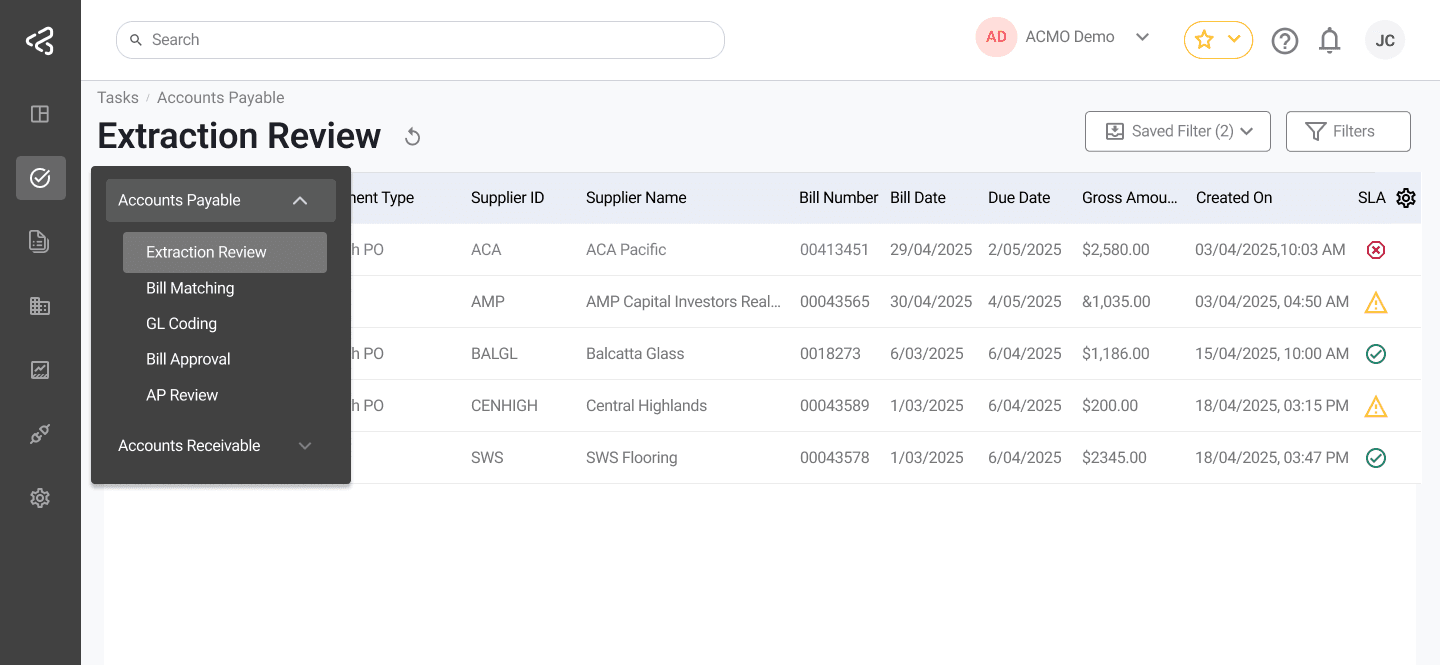
The left-side menu panel provides access to key areas such as:
- Tasks
- Reports
- Settings
- Other module-specific features