Cash Allocation
The Cash Allocation task in the Accounts Receivable (AR) module allows users to review, match, and allocate incoming payments against open invoices. It supports both manual review and system-assisted matching to ensure accurate and timely reconciliation of receivables.
Accessing Cash Allocation
- Navigate to: Tasks → Accounts Receivable → Cash Allocation
- This opens the Cash Allocation Listing screen.
Cash Allocation Screen
The listing screen is divided into two tabs:
Pending
Displays payments that are yet to be fully allocated.
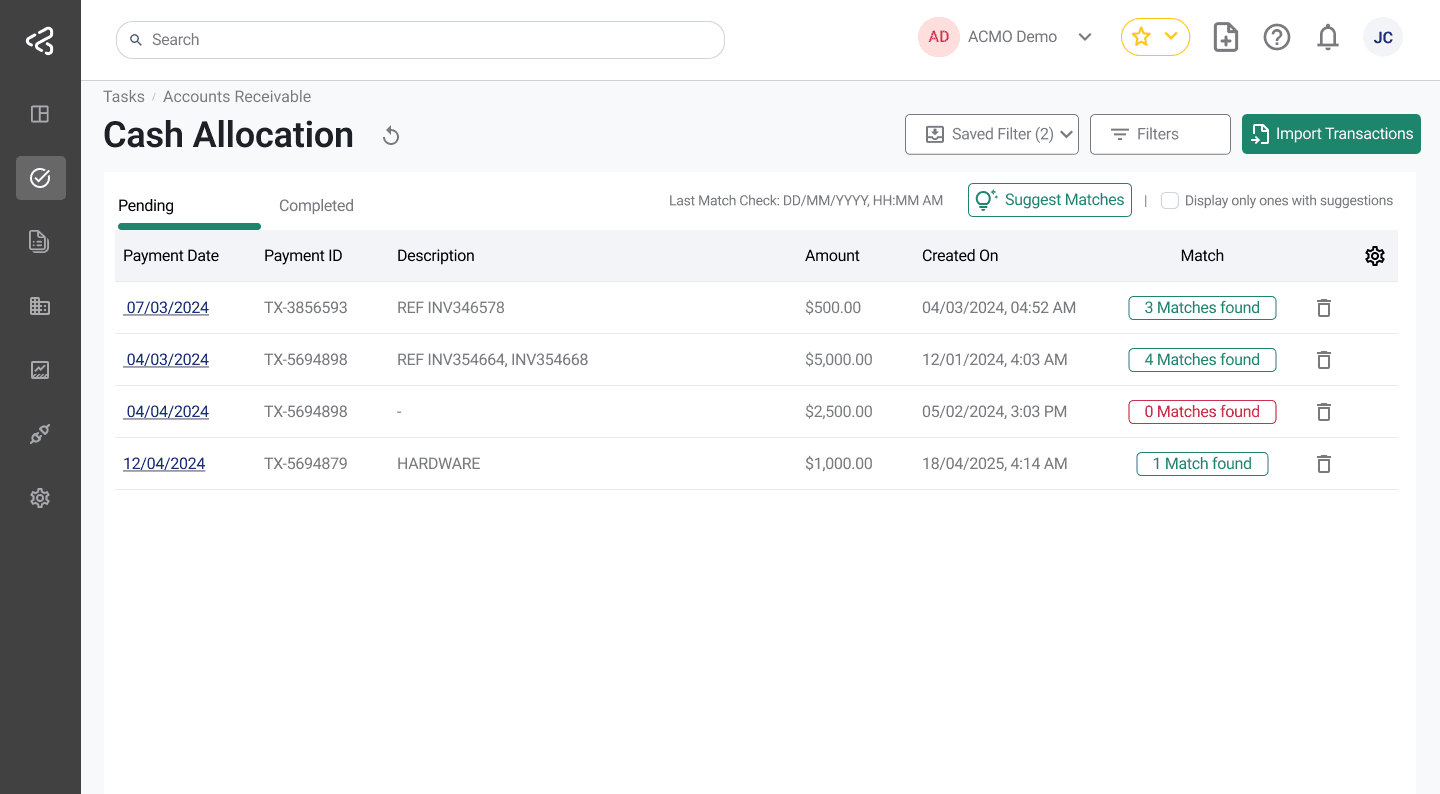
| Column Name | Description |
|---|---|
| Payment Date | Date on which the payment was received. Clickable to open the Cash Allocation screen. |
| Payment ID | Unique identifier of the payment. |
| Description | Payment description or reference. |
| Amount | Total payment amount received. |
| Created On | Date when the payment record was created in the system. |
| Match | Number of invoice matches found by the system. |
| Actions | Option to delete a pending allocation. |
Completed
Displays payments that have already been allocated.
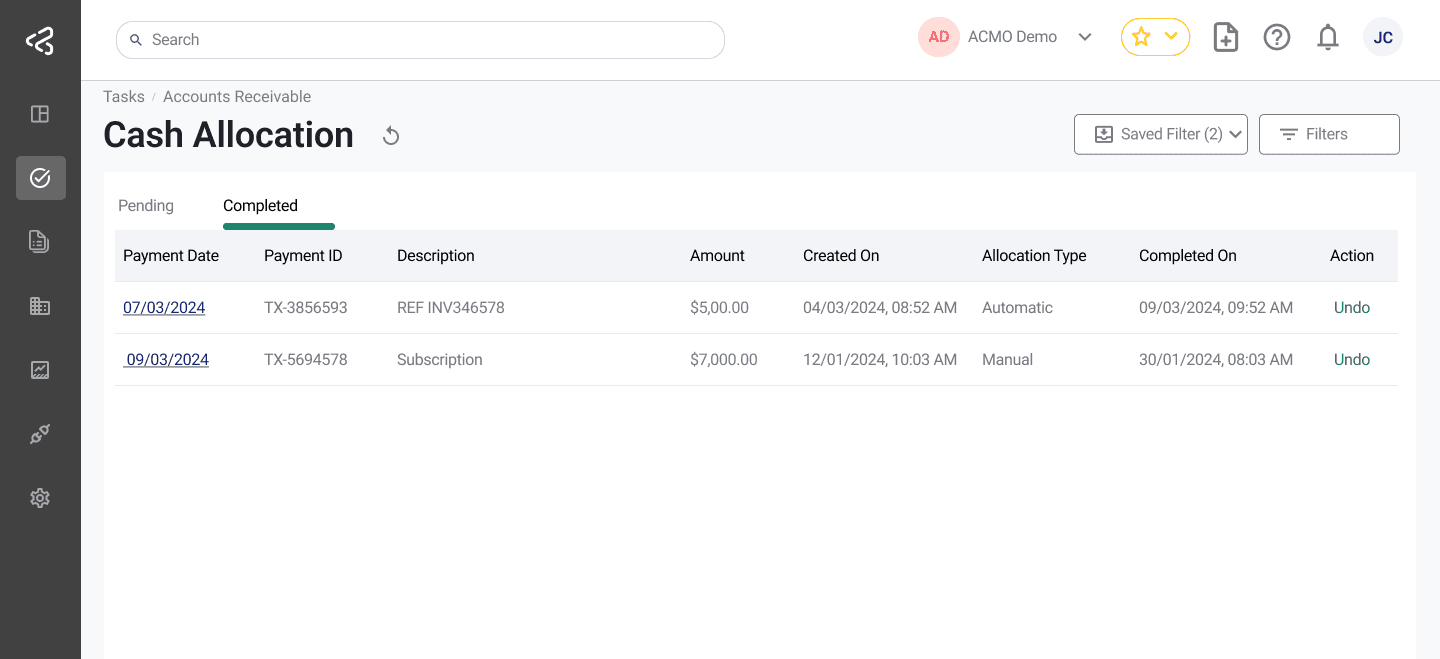
| Column Name | Description |
|---|---|
| Payment Date | Date on which the payment was received. Clickable to open the completed allocation details. |
| Payment ID | Unique identifier of the payment. |
| Description | Payment description or reference. |
| Amount | Total payment amount. |
| Created On | Date when the payment record was created. |
| Allocation Type | Type of allocation performed (Manual or Automatic). |
| Completed On | Date and time when allocation was completed. |
| Completed By | User name if completed manually, or Automatic if completed by the system. |
| Action | Undo Allocation - moves the allocation back to the Pending state. |
Key Actions
-
Import Transactions
Use the Import Transactions button to import bank transactions into the system. -
Suggest Matches
Run Suggest Matches to allow the system to automatically identify and propose matching invoices for pending payments.
Allocate Cash (Pending)
Clicking on a Payment Date in the Pending tab opens the Cash Allocation Task screen, where users can:
Review and Allocate Payments
- View suggested invoice matches generated by the system.
- Filter invoices by:
- Invoice number
- Remittance
- Order number
- Customer name
- Amount
Resolve Variances
- Select one or more invoices to allocate the payment.
- Handle underpayments or overpayments by:
- Writing off balances to a Chart of Accounts.
- Carrying forward balances against the customer account.
Review Allocation (Completed)
Clicking on a Payment Date in the Completed tab opens the Completed Cash Allocation Task screen, where users can:
- Review allocation details.
- View a summary of:
- Total payment amount
- Allocated balance
- Undo the allocation using the Undo button in the top-right corner, which moves the payment back to the Pending state for reprocessing.
Summary
The Cash Allocation task provides a complete workflow for managing incoming payments—from importing transactions and reviewing system-suggested matches to final allocation and reversal when needed—ensuring accurate and flexible accounts receivable management.
See also: Settings - Auto Allocation