Users
The Users screen under User Management provides administrators with the ability to manage all users within the ACMO Portal. This includes creating new users, editing existing users, assigning roles and groups, controlling access, and managing user security settings.
Purpose
The Users screen enables authorized users to:
- View all users, including active and inactive accounts
- Create and manage user profiles
- Assign users to groups and roles
- Control license types and access levels
- Manage user security and authentication options
- Import users in bulk using an Excel file
- Export the users list for review outside the portal
Access to this screen is controlled by role-based permissions.
Users Listing
The main screen displays a table listing all users in the system.
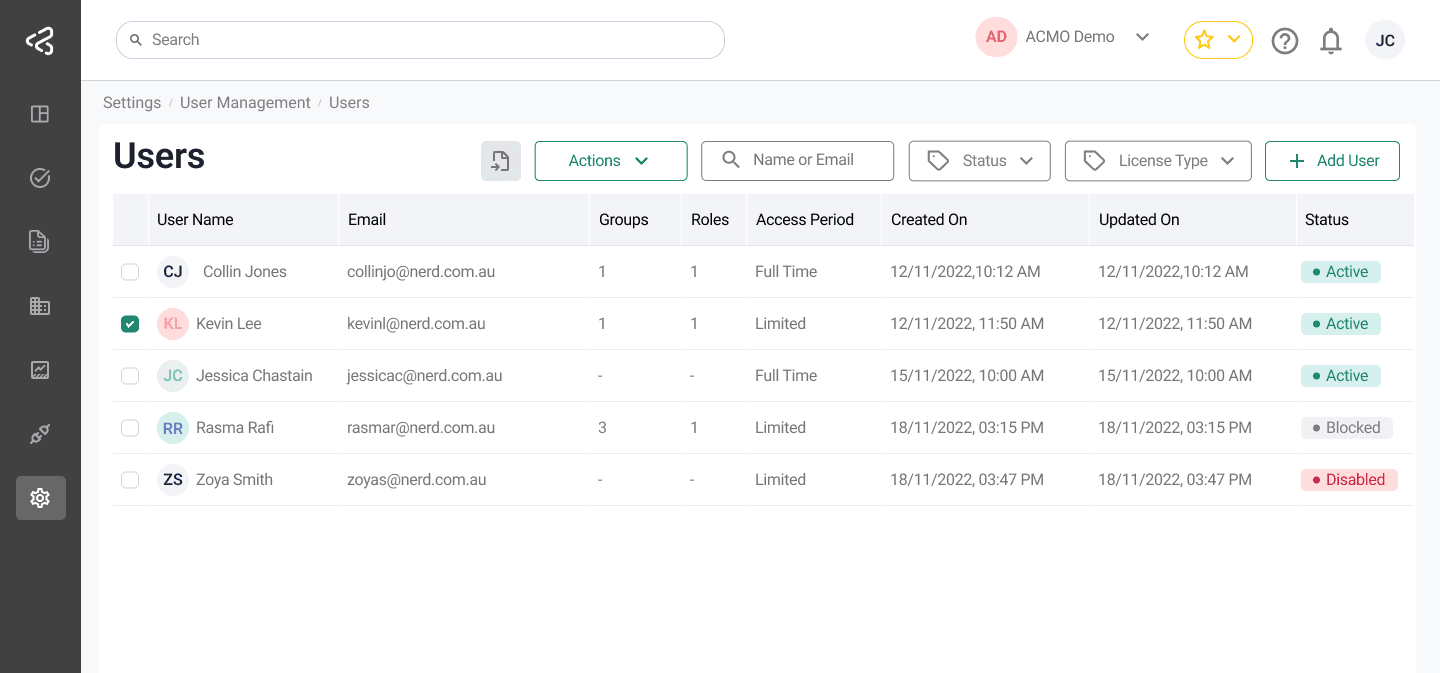
Table Columns
Each user is displayed with the following information:
-
User Name
The user’s display name. Clicking the name opens the Edit User panel. -
Email
The user’s email address. -
Groups
The number of groups the user is assigned to. -
Roles
The number of roles the user is assigned to. -
License Type
Indicates the user’s license:- Full User
Can access the full web application. - Lite User
Can access:- The mobile app (for bill approvals)
- The web app (limited to bill approval task screens)
- Full User
-
Created On
The date the user account was created. -
Updated On
The date the user account was last updated.
Filters and Actions
Filters and actions are available above the table to help manage users efficiently.
Filters
-
Search
Search users by name or email -
License Type
Filter by Full User or Lite User -
Status
Filter by Active or Inactive users
Add User
- Clicking Add User opens the Add User panel
- This panel is used to create a new user account
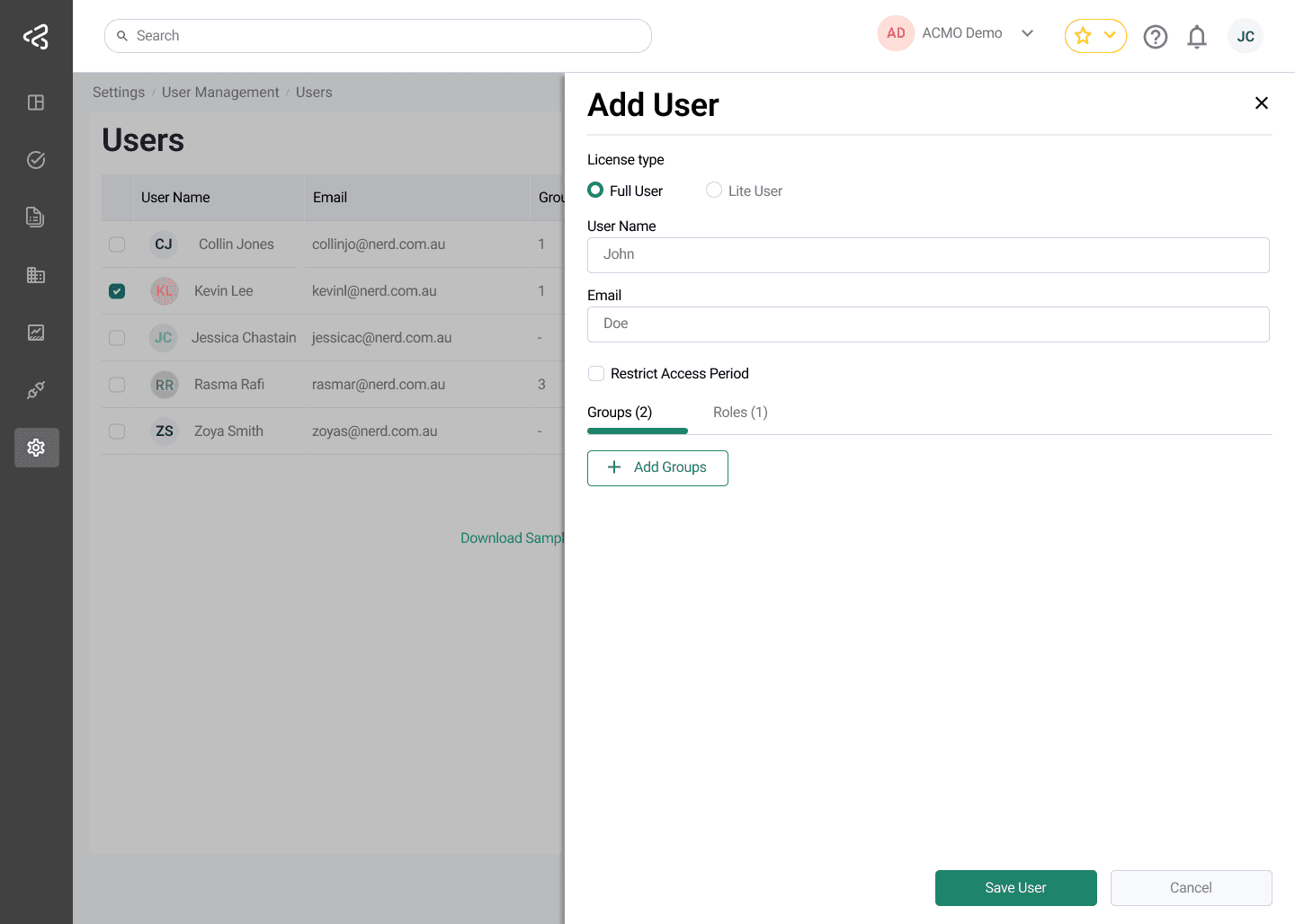
Add User Panel Fields
-
License Type
Radio buttons to select:- Full User
- Lite User
-
User Name
Input field for the user’s name -
Email
Input field for the user’s email address -
Restrict Access Period
Checkbox to restrict user login to a specific date range- When enabled, Start Date and End Date fields are displayed
-
Groups Tab
- Assign the user to one or more groups
- Groups are added using an Add Group popover
-
Roles Tab
- Assign the user to one or more roles
- Roles are added using an Add Role popover
User Provisioning
- When the user is saved:
- A temporary password is sent to the user via email
- If SSO is enabled, the user can authenticate using their organization’s Microsoft account
Editing a User
Clicking a User Name in the table opens the Edit User panel.
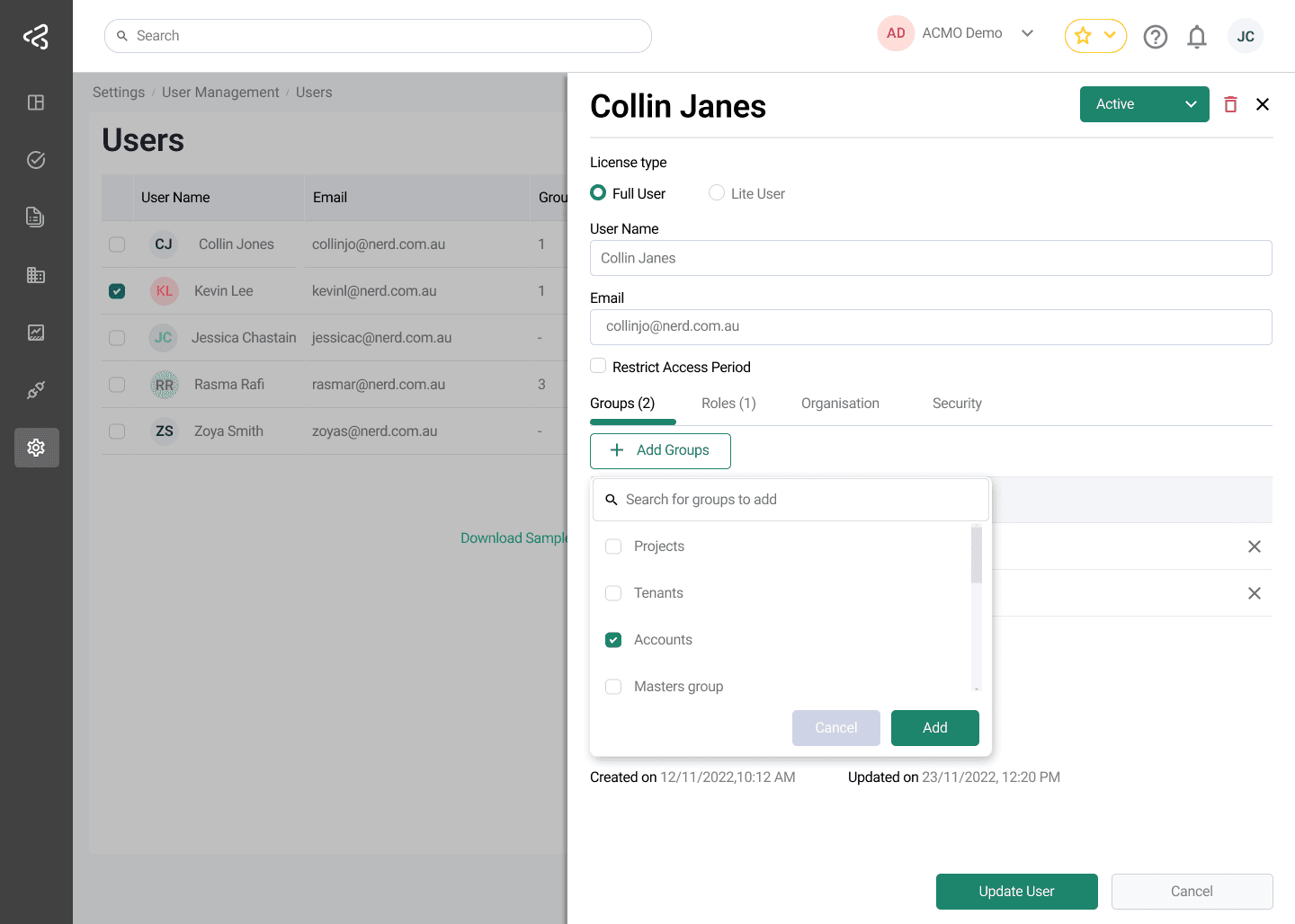
Edit User Panel Header
- Displays the user’s name
- Includes:
- Active / Inactive status dropdown
- Delete (trash) icon to remove the user
If there is only one admin user in the system, that user cannot be deleted.
Edit User Panel Tabs
In addition to the standard user details, an extra tab is available:
Security Tab
The Security tab allows administrators to manage user authentication settings:
-
Multi-Factor Authentication (MFA)
- If MFA is enabled, it can be disabled for the user (for example, if the user loses access to their authenticator)
- To re-enable MFA, the user must log in and enable it from their Profile Settings page
-
User Must Change Password on Next Login
- A toggle switch is available
- When enabled, the user is required to reset their password the next time they log in
Bulk Actions

Assign Groups and Roles to Multiple Users
- Users can be selected using the checkbox on the left side of each table row
- Once selected, an Actions menu becomes available
- This allows assigning multiple users to groups or roles in a single action
Import Users
Import users in bulk using an Excel file instead of adding users individually. This feature saves you time and effort.
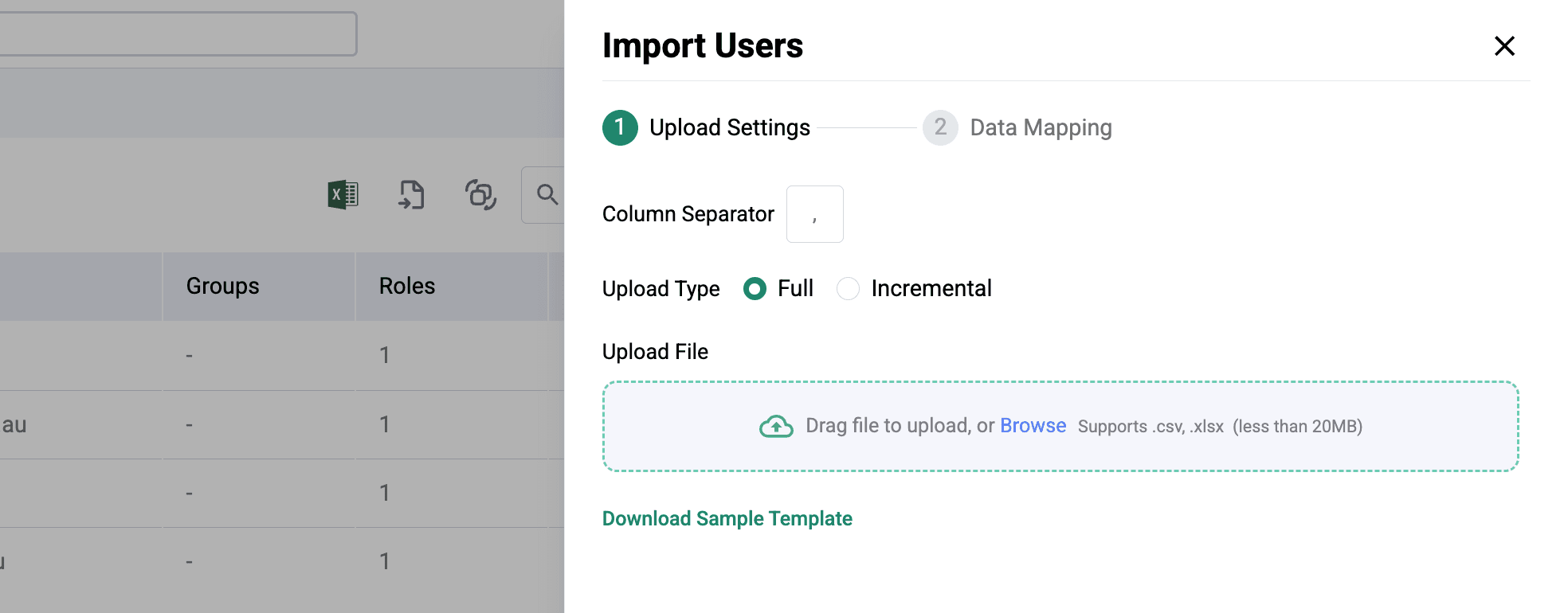
- An Import icon is available on the screen
- Clicking it opens an import panel
- Users can be imported in bulk using an Excel file
A sample Excel file template download link is available within the panel.
Export Users
- An Export icon is available above the Users table.
- Clicking it downloads the current users list, making it easier to review and manage user access information outside the portal.
- The exported file reflects any filters currently applied to the table.
Mirror Tasks
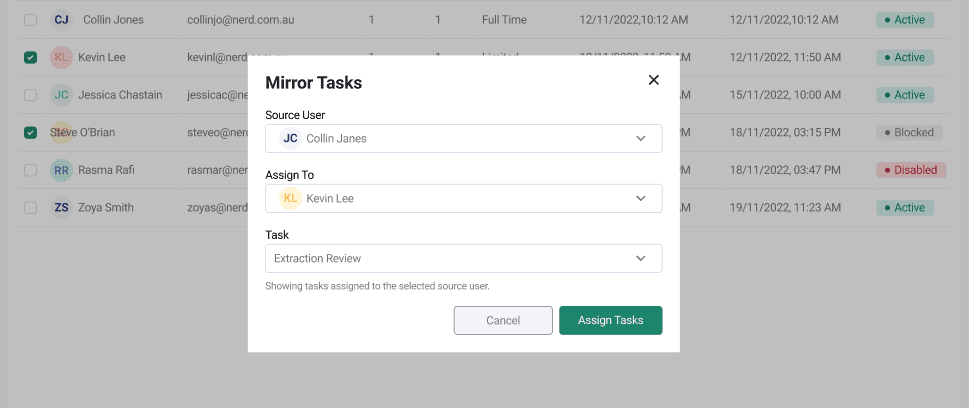
Mirror Tasks allows a user to be granted visibility into another user’s task queue, supporting delegation and coverage scenarios (for example, when a colleague is on leave) without permanently reassigning tasks.
How It Works
- From the Edit User panel, administrators can configure Mirror Tasks to link one user to another.
- Once configured, the Assign To user gains access to the tasks assigned to the Source user, in addition to their own.
Mirror Tasks provides visibility and access for delegation purposes; it does not change task ownership.
License Limits
You can add users only within the limits defined by your license.
For example, if your license allows 5 Full Users and 2 Lite Users:
- Adding a 6th Full User will not be allowed
- Adding a 3rd Lite User will not be allowed
Upgrade your license or change existing user license types before adding additional users.
Deleting a User
To delete a user, open the Edit User panel and click the trash icon to initiate the deletion process.
If you want to disable the user instead, use the Disable option and click on Update.
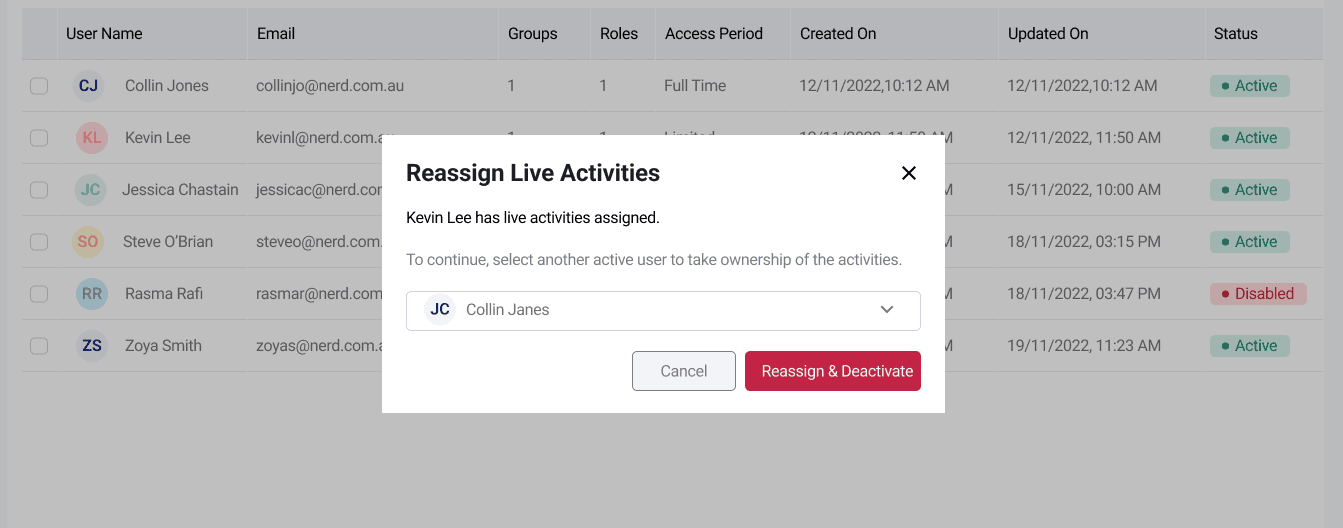
When you attempt to delete or disable a user who has tasks assigned to them:
- A confirmation window will appear before the action is completed.
- The window will require you to select another active user to take over the tasks.
- All activities assigned to the user being removed will automatically be transferred to the selected user.
Activities That Will Be Reassigned
The reassignment includes the following activities:
- Extraction Review
- Bill Matching
- GL Coding
- Bill Approval
- AP Review
Once reassigned, the selected user will be responsible for completing these activities.
Selecting a User for Reassignment
The reassignment window includes a user selection field that allows you to:
- Search for users by name.
- Browse through the list of active users.
Simply select the appropriate user and confirm the action to proceed with deleting or disabling the user.
Important Notes
- A user cannot be deleted or disabled until their assigned activities are reassigned.
- Only active users can be selected to receive reassigned tasks.
- Reassigning tasks ensures that work continues without disruption.
Summary
The Users screen provides comprehensive tools for managing user access within the ACMO Portal. With support for different license types, role and group assignments, security controls, bulk operations, task mirroring for delegation, and list export, administrators can efficiently manage users while maintaining security and compliance.