Bill Matching
The Bill Matching task is used to validate PO Bills (bills linked to a Purchase Order) by comparing invoice details against approved procurement records. This step ensures that suppliers are paid only for what was ordered and received, helping prevent overbilling, duplicate payments, and processing errors.
Depending on system configuration, ACMO supports both 2-way and 3-way matching, with built-in tolerance checks and real-time validation.
When Is Bill Matching Required?
- Bill Matching is triggered only for PO Bills
- Non-PO Bills bypass this task and follow GL Coding and Approval instead
- Matching requirements (2-way or 3-way) are controlled through Module Settings
Accessing the Bill Matching Task
- Navigate to Tasks → Accounts Payable from the left-hand menu.
- Click the Bill Matching tab to view all bills awaiting matching.
- Select a bill from the list to begin matching.
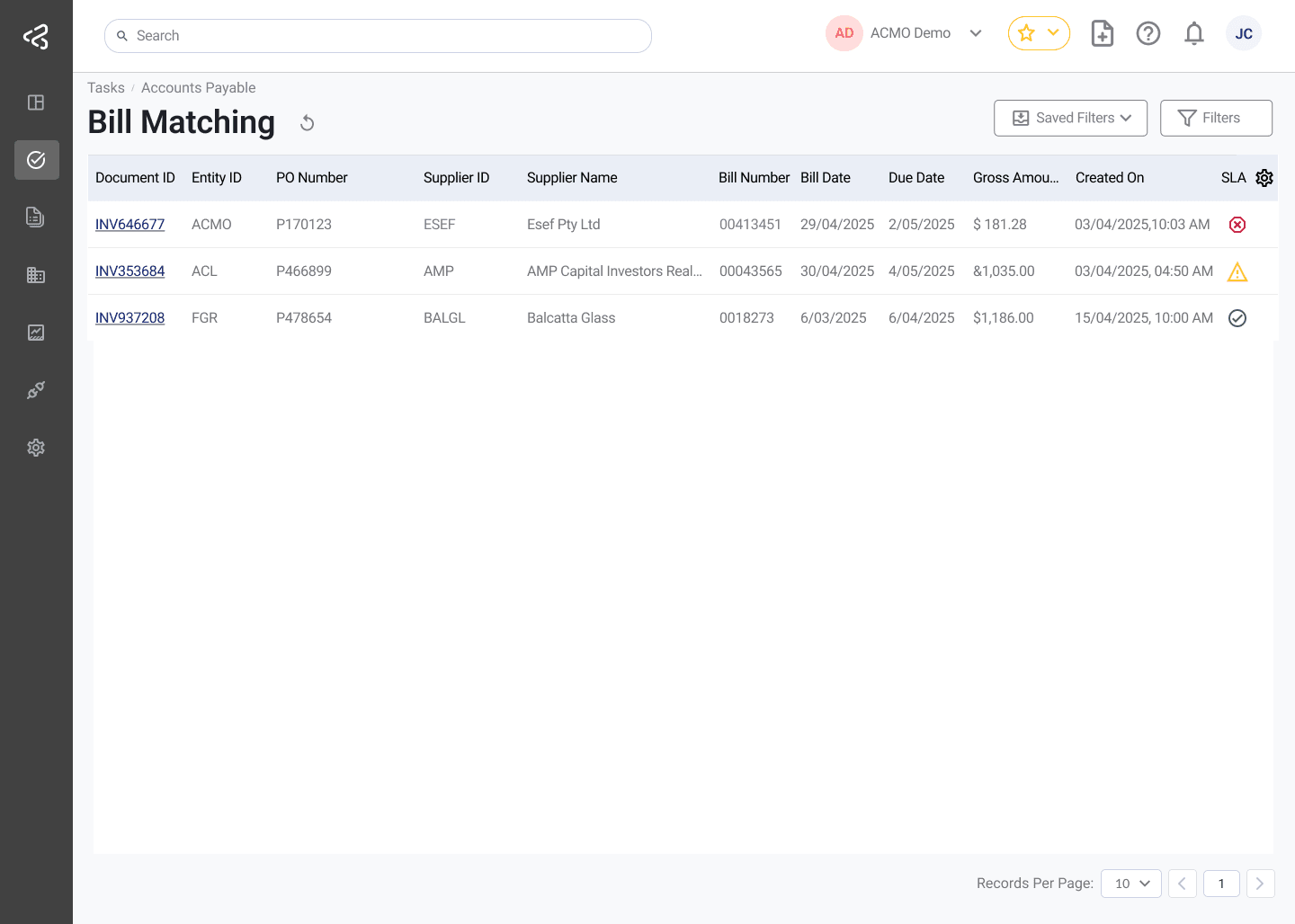
Use the comments icon in the table to quickly view any comments added to a task; the icon will appear in a row only when comments are available.
This task uses the standard filter set. For detailed information, refer to the Task Filters documentation.
Understanding the Bill Matching Screen
Once a bill is opened, the screen presents a side-by-side view to help you easily compare information.
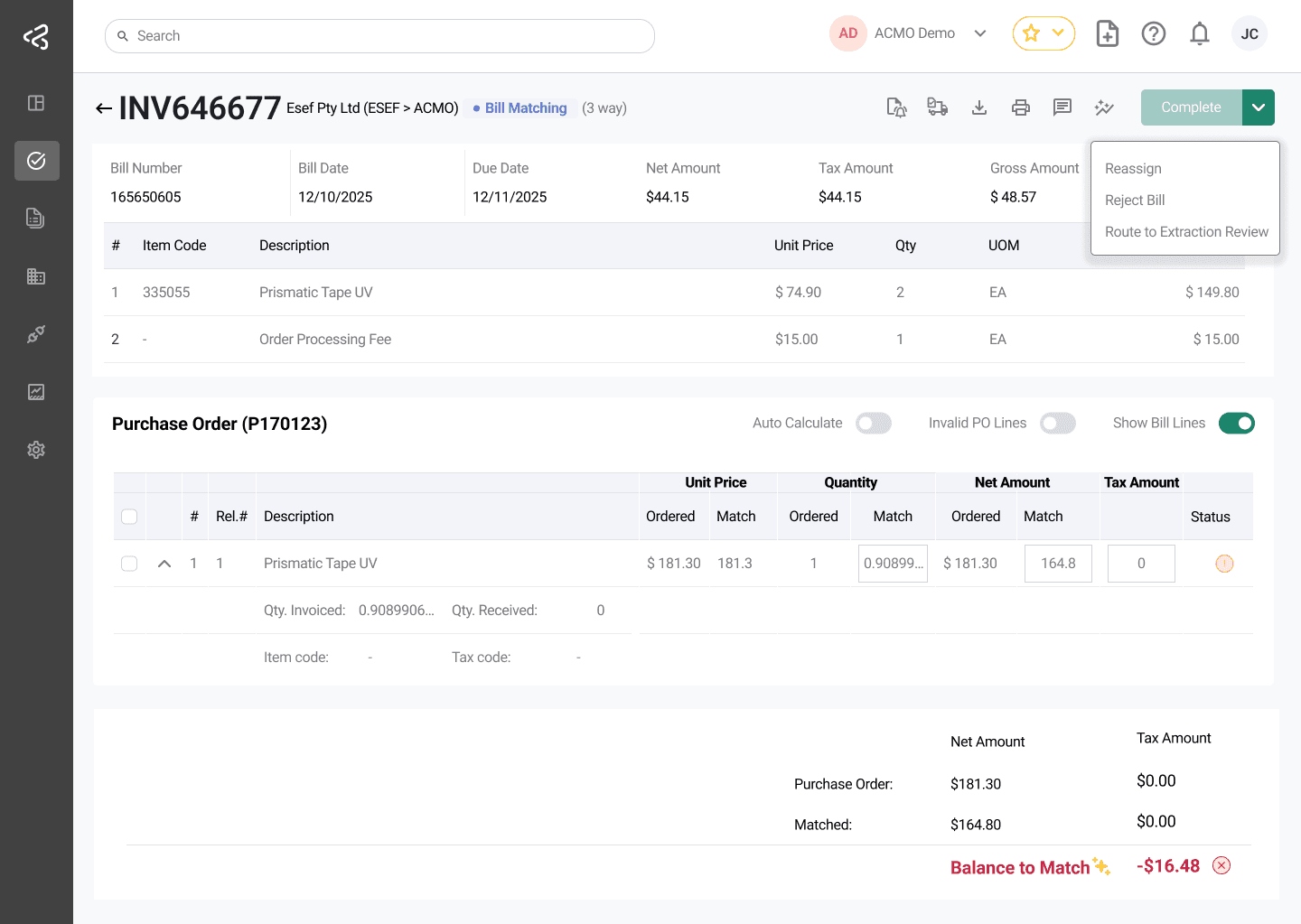
Bill Details
At the top of the screen, review the bill header information to confirm you are working on the correct document:
- Bill Number
- Supplier Name
- Bill Date
- Due Date
- Net Amount
- Tax Amount
- Gross Amount
You can click View Bill at any time to open the original uploaded invoice for reference.
Bill and PO Line Items
- Bill line items are shown first.
- Linked Purchase Order line items appear below.
- Use the Show Bill Lines toggle to hide or display bill items for a cleaner view.
Each PO line displays:
- Description
- Quantity Ordered
- Quantity Received (shown only for 3-way matching)
- Unit Price
- Tax Code
- Matching status indicators
Filtering PO Lines
When a Purchase Order contains a large number of lines, use the built-in filters above the PO line table to quickly narrow the list down to only the lines you need to work on.
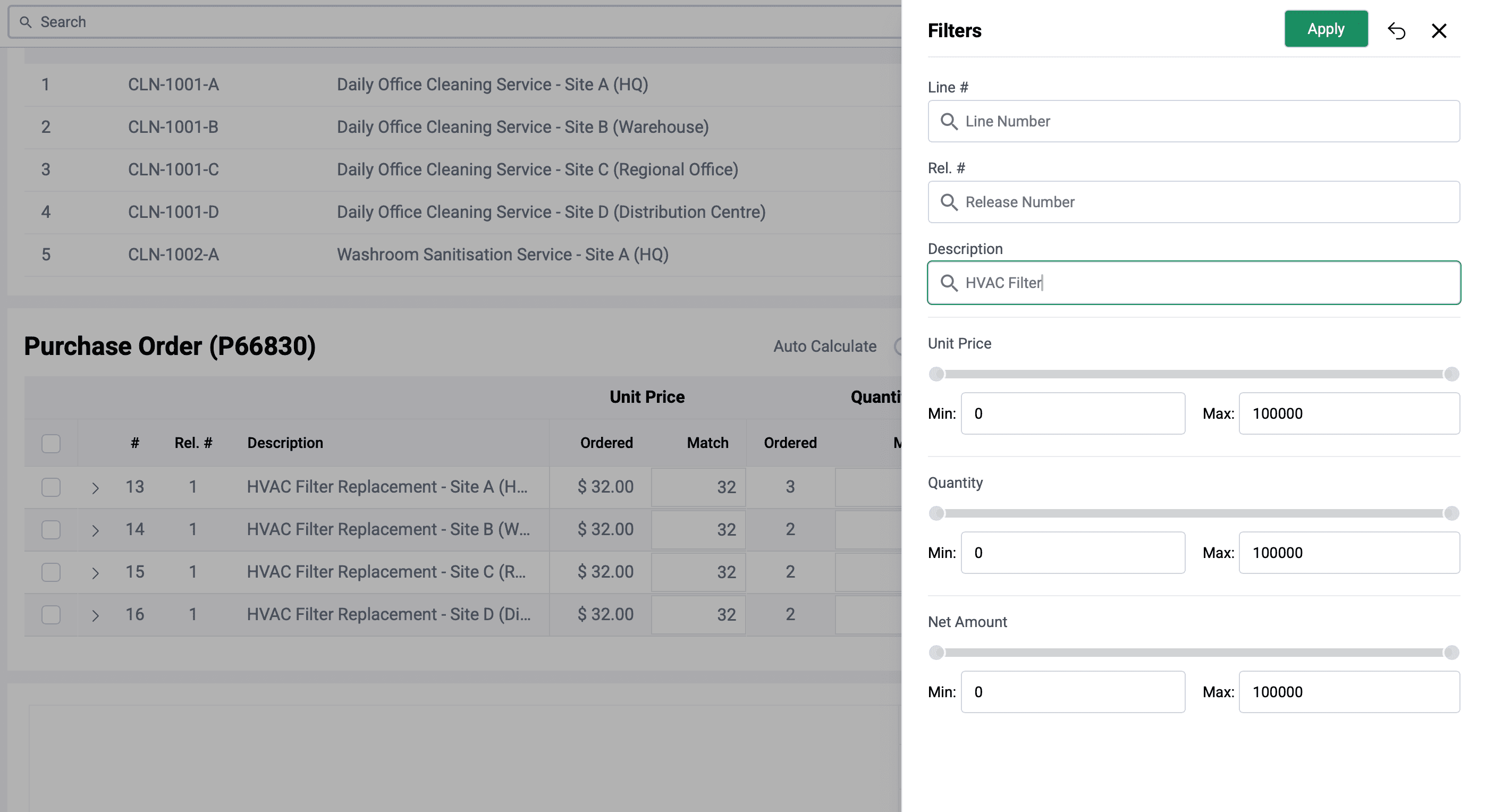
Users can filter based on:
- Line Number
- Release Number
- Description
- Unit Price
- Quantity Ordered
- Net Amount
Unit Price, Quantity Ordered, and Net Amount are filtered using a slider, allowing you to set a minimum and maximum value to narrow the results.
These filters run entirely on the client side, so results are applied instantly without calling the server.
Only one filter can be active at a time. Applying a new filter automatically clears the previously applied filter, unlike the standard task filters where multiple filters can be combined. See Filters for more details.
Matching Types Explained
The matching logic depends on how your organisation has configured the Accounts Payable module.
| Matching Type | How It Works |
|---|---|
| 2-Way Match | The bill is matched directly against the Purchase Order. Goods Receipt is not required. |
| 3-Way Match | The bill must match the Purchase Order and an associated Goods Receipt. Quantity received must be available. |
Performing the Matching
Enter Quantity
In the Match column, enter the quantity from the PO line that corresponds to the billed quantity.
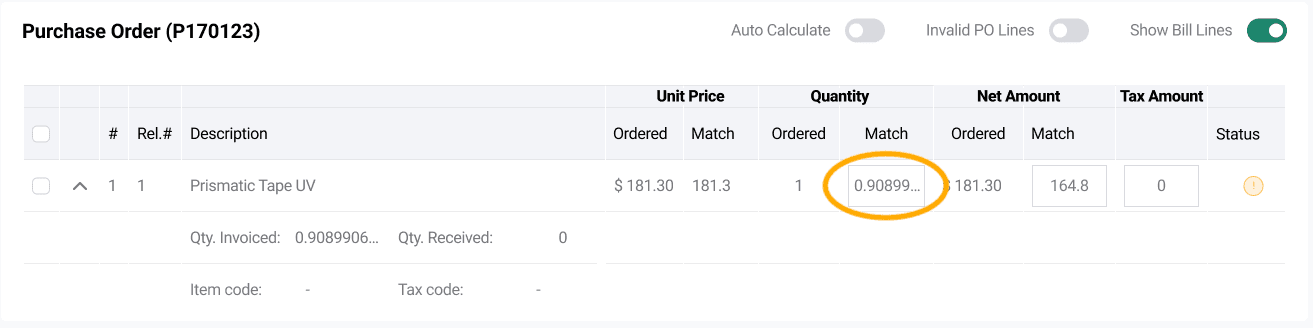
ACMO automatically calculates the matched amount if Auto Calculate is enabled.
For partial bills:
- Match only the quantity billed (for example, 3 out of 10 units).
- Leave the remaining quantity open for future invoices.
- ACMO supports multiple bills against the same PO.
Select Lines
Use the checkbox at the beginning of PO lines to select only the lines you want to match.
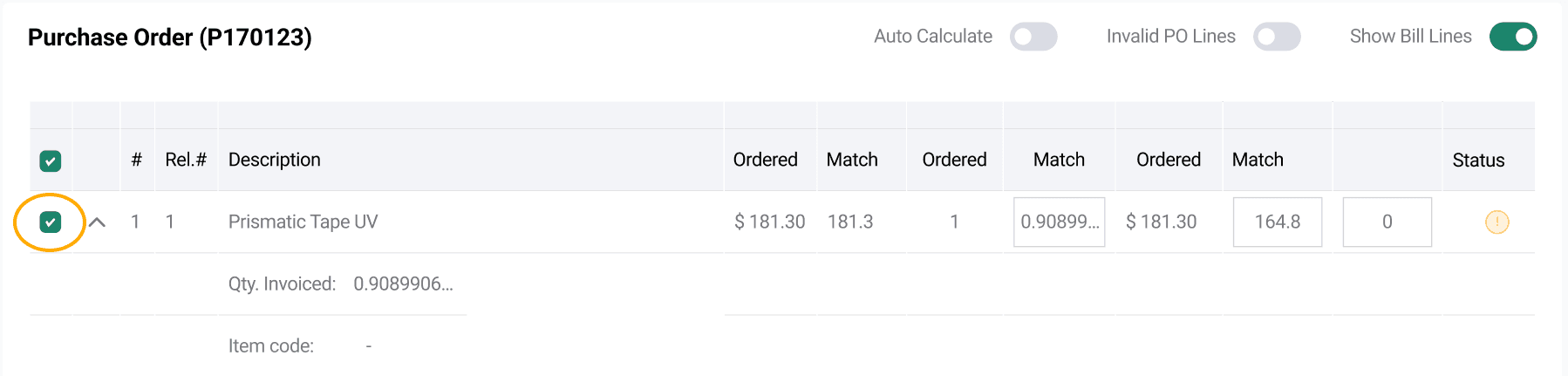
- This is useful for split invoices or staged deliveries.
- If there is only a single line available, the solution preselects it for you.
Validate Lines
Watch the matching indicators:
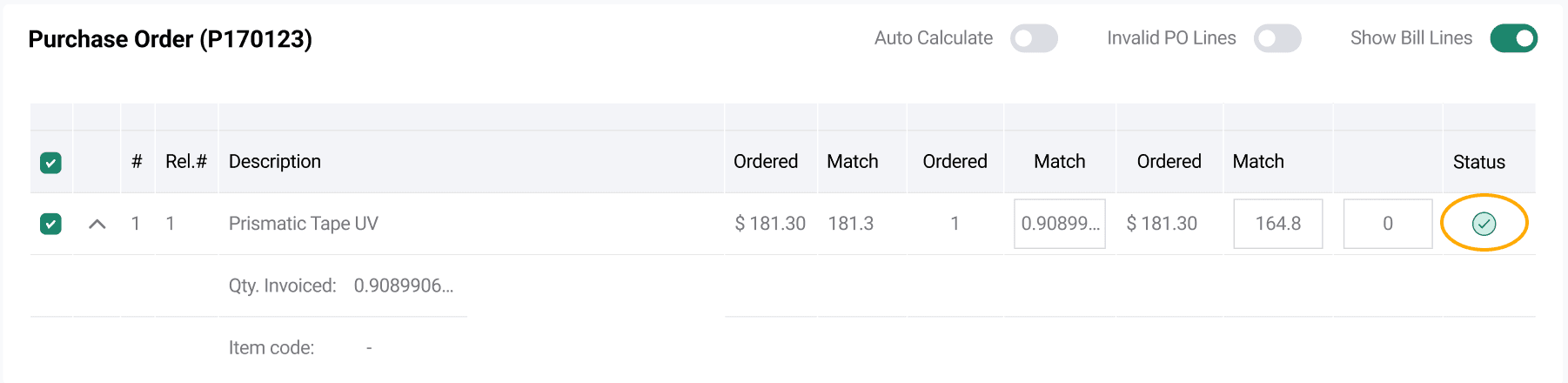
- A green checkmark means the line is successfully matched.
- Warning or empty icons indicate issues that must be addressed.
Review the Balance to Match displayed at the bottom-right:

- $0.00 means the bill is fully matched.
- Any other value indicates a mismatch that must be resolved.
When validating multiple PO lines, enable Invalid PO Lines to view only invalid entries.
Complete Matching
Once all checks are complete, click Complete in the top-right corner to finish the task.

For a consolidated view of the bill’s full lifecycle—including extracted data, matching, coding, approvals, comments, and audit trail—see Bill Document.
Floating Action Bar
The Floating Action Bar is available on the Bill Matching task screen to improve usability when working with a large number of PO lines. When the list of PO lines exceeds the visible screen area, users no longer need to scroll back to the top to complete actions.
- Reduces unnecessary scrolling
- Improves efficiency when handling large datasets
- Provides quick access to critical actions at all times
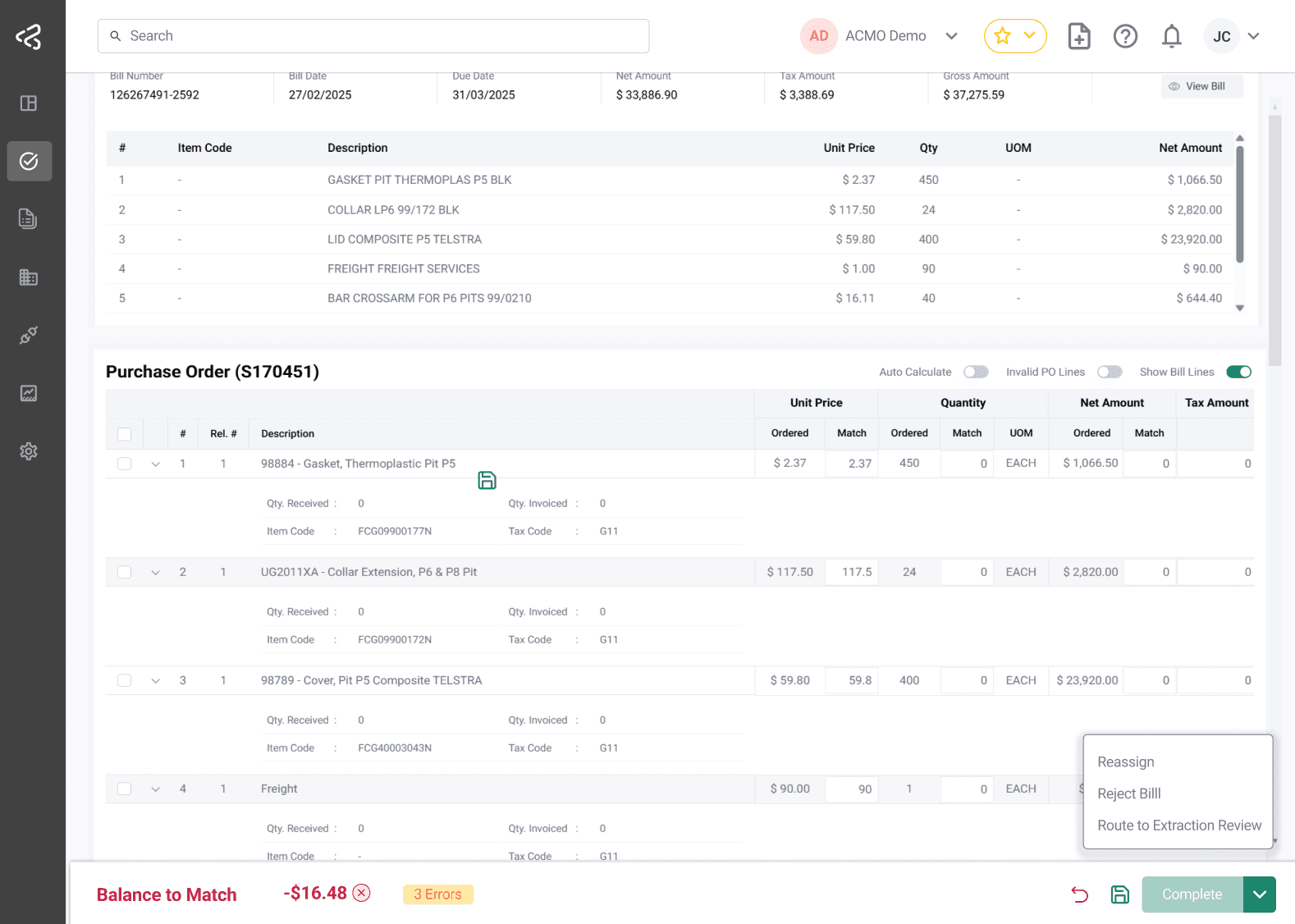
Save and Clear options are available only when Allow Save is enabled in General Settings.
Features
-
Always Accessible Actions
Key actions remain visible while scrolling through the task -
Balance to Match (Left Side)
Displays the remaining balance that needs to be matched -
Action Controls (Right Side)
- Complete button to finish the task
- Save Task option (if enabled in settings)
Common Bill Matching Errors and How to Resolve Them
ACMO validates your inputs in real time and prevents completion if matching rules are not met.
⚠️ Matched total does not align with the bill gross amount
- The total value of matched PO lines does not equal the bill amount.
- Review quantities, prices, and tax codes to ensure they align with the invoice.
⚠️ Matched quantity is more than open quantity
- The quantity entered exceeds what is still available on the PO or Goods Receipt.
- Adjust the quantity to match only what is open and eligible.
⚠️ No Goods Receipt Found (3-Way Match Only)
- The PO requires 3-way matching, but no Goods Receipt exists.
How to proceed:
- Click the Request GR icon near the Complete button.
- ACMO sends an automated email to the original PO requestor requesting confirmation or entry of the Goods Receipt.
- You can move on to other tasks and return to this bill once the GR is available.
Unable to Complete Matching?
If matching cannot be completed due to missing information, incorrect billing, or dependency on another team, additional actions are available from the task options menu in the top-right corner.
Reassign
- Use Reassign to send the task to another user or group (e.g., Purchasing Team or PO Requestor).
- Optionally add a comment explaining the issue, such as:
- “Waiting for Goods Receipt for PO line #2”
Use the comments feature to collaborate with team members and resolve missing details before reassigning.
Reject
- Use Reject if the bill cannot be processed.
- Provide a clear reason, such as:
- Bill amount exceeds PO value
- No matching PO lines found
- Duplicate or incorrect invoice
- Rejected bills are closed and must be re-uploaded if they need to be processed again.
Route to Extraction Review
- Select Route to Extraction Review to send the bill back to the Extraction Review task.
- This option is useful when:
- Key bill details were extracted incorrectly
- Supplier or Purchase Order information needs to be revalidated
- Line items require correction before matching can continue
- Once routed back, the bill appears again in the Extraction Review task list and must be reviewed and completed before it can return to the Bill Matching stage.
- Routing a bill back ensures that upstream data issues are corrected early, reducing repeated matching errors.
The Bill Matching task ensures strong financial control by validating supplier invoices against approved purchasing records, helping organisations process PO-based invoices accurately and efficiently.