Bill Approval
The Bill Approval task applies only to non-PO bills that have completed GL Coding. This step allows approvers to review the final cost distributions and either approve the bill for payment or raise a dispute for further review.
Accessing Bill Approval
- Navigate to Tasks > Accounts Payable from the main left-hand menu.
- Click the Bill Approval tab to view bills pending approval.
- Select a bill from the list to open the approval screen.
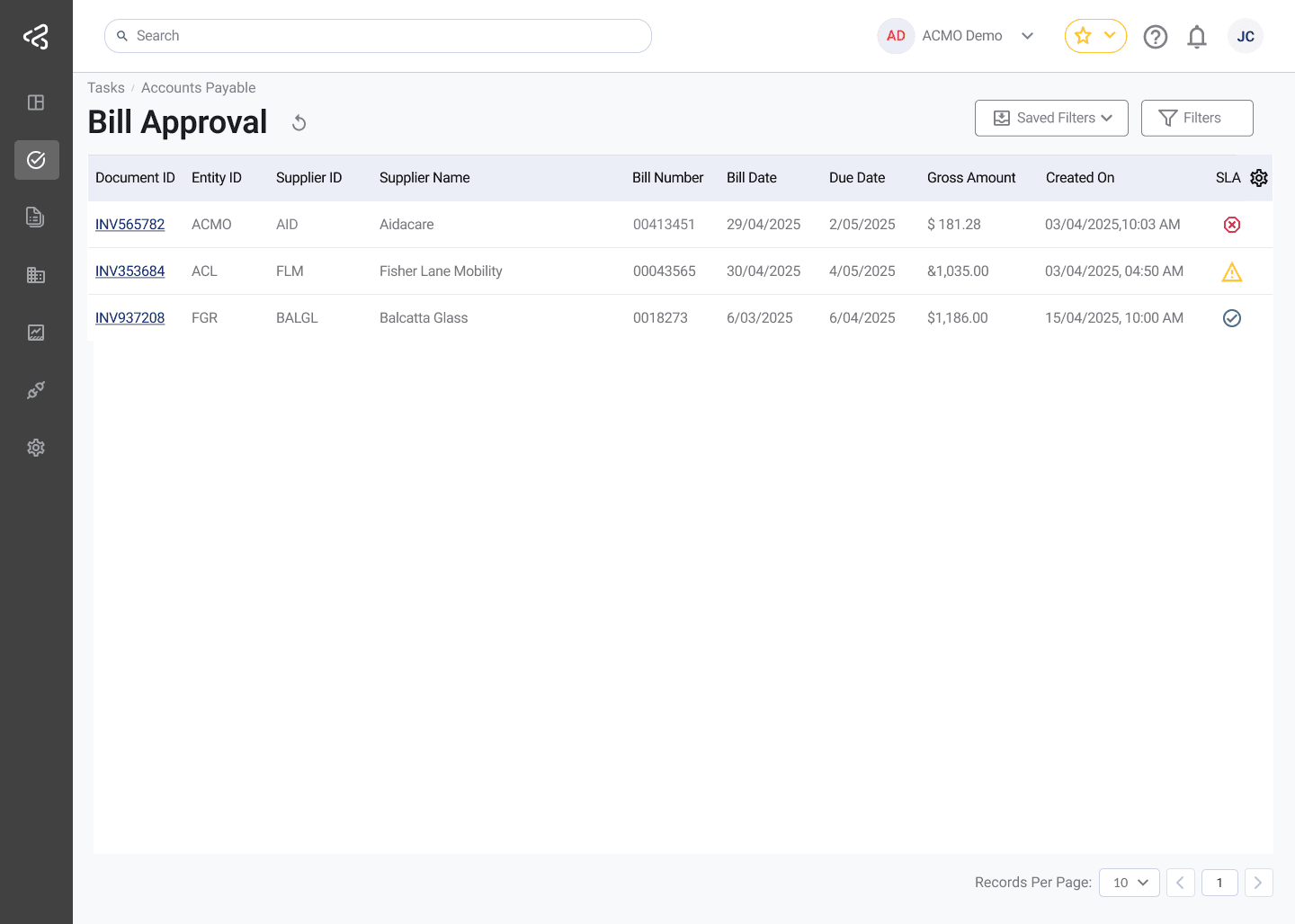
Use the comments icon in the table to quickly view any comments added to a task; the icon will appear in a row only when comments are available.
This task uses the standard filter set. For detailed information, refer to the Task Filters documentation.
Reviewing the Bill
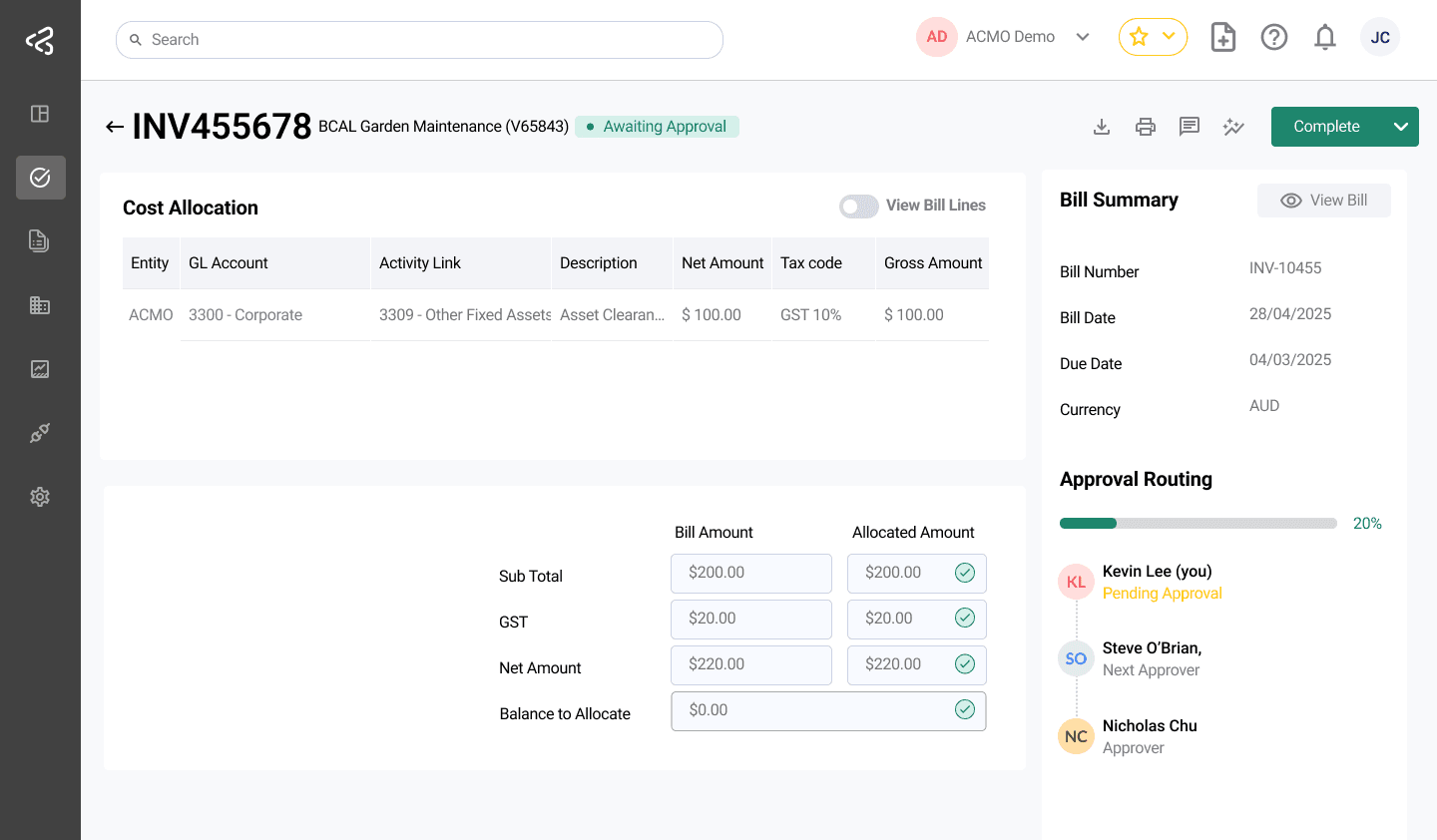
Approvers review the final cost allocations to ensure the bill is accurate, complete, and compliant before approval. This review is read-only and focuses on validation rather than modification.
Review Distributions
Verify the configured cost account distributions for each line (e.g., GL Account, Project, Activity Link etc.).
Review Description
Confirm that the Description provided for each allocation clearly explains the nature of the expense.
Review Cost Allocations
Review the Allocated Amounts and Tax Codes to ensure they are correct and applied consistently.
At the bottom of the table, validate that:
- The Bill Amount, Tax, and Allocated Amount totals align.
- The bill is fully allocated with no remaining balance or discrepancies.
Reference Original Bill Details
Use the View Bill Lines action available on the allocation table to:
- View the original bill line items extracted and confirmed during Extraction Review
- Cross-check allocations against the source bill data
- Validate that amounts and descriptions accurately reflect the original invoice
Bill Summary
This section provides a consolidated view of key bill information and access to the original document.
-
Review the Bill Summary panel on the right-hand side, including:
- Bill Number
- Bill Date
- Due Date
- Currency
-
Click View Bill to open the original bill document and cross-check details against the cost allocations.
Approval Routing
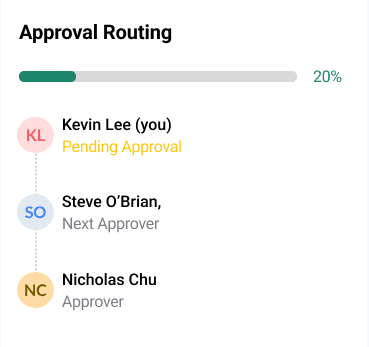
This section shows how the bill progresses through the approval workflow.
-
View the full approval sequence under Approval Routing.
-
Identify your position and current status within the workflow.
Approval and Dispute
There are two actions available to approvers when reviewing a bill.
Complete (Approve)
Use this option to approve the bill and move it forward in the workflow.
- Click Complete to submit your approval.
- The bill moves to the next approver, if applicable.
- If you are the final approver, the bill is marked as Fully Approved and becomes ready for payment processing.
For a consolidated view of the bill’s full lifecycle—including extracted data, matching, coding, approvals, comments, and audit trail—see Bill Document.
Reject (Dispute)
Use this option when the bill requires further investigation or clarification.
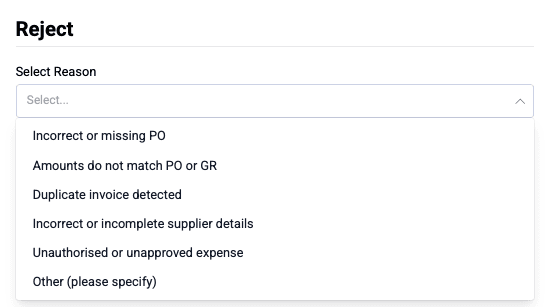
- Selecting Reject marks the bill as Disputed.
- The bill is routed to AP Review for follow-up.
- A Dispute Reason is mandatory when rejecting.
- The provided reason is recorded and made available to the AP Reviewer to support resolution.
Notifications
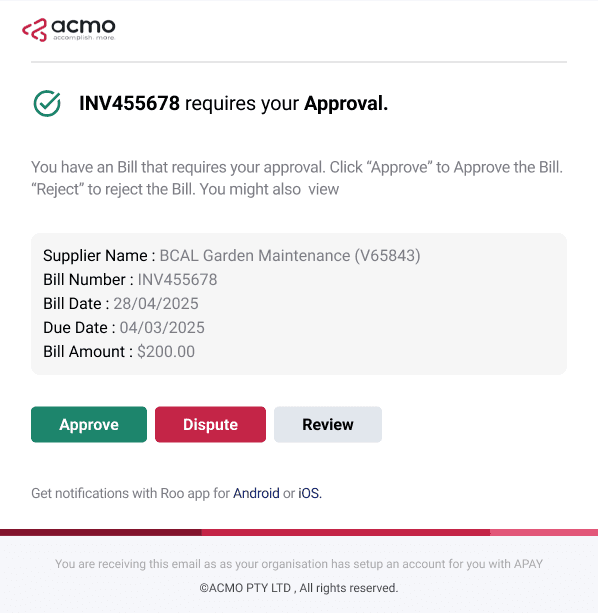
If notifications are enabled in Module Settings, users are notified about bills awaiting approval and can perform actions directly using links in the email.
Make sure notifications are enabled in the module settings, see Enable Notifications.
-
Users receive notifications through:
- Push notifications on the mobile app
-
Email notifications include quick action links that allow users to:
- Approve the bill
- Reject (dispute) the bill
- Review the bill
-
Selecting Review opens the bill directly in the ACMO portal’s Bill Approval screen.
-
Selecting Approve:
- Instantly approves the bill by securely connecting to the ACMO portal
- Requires the user to be signed in
- If the user is signed out, they are prompted to sign in before the action is completed
-
Selecting Reject follows the same authentication flow as approval:
- The bill is marked as Disputed
- The user is prompted to provide a dispute reason
-
Once all required approvals are completed:
- The bill reaches a Fully Approved status
- It proceeds to downstream payment processing in the ERP system