GL Coding in AP Automation
GL Coding applies to non-PO bills and ensures that each bill is accurately classified before approval. In this task, users allocate bill amounts across the required financial dimensions based on organisational configuration. Proper GL coding supports accurate reporting, budget control, and regulatory compliance.
Accessing GL Coding
- Navigate to Tasks > Accounts Payable from the main left-hand menu.
- Click the GL Coding tab to view bills awaiting coding.
- Select a bill to open the GL Coding screen.
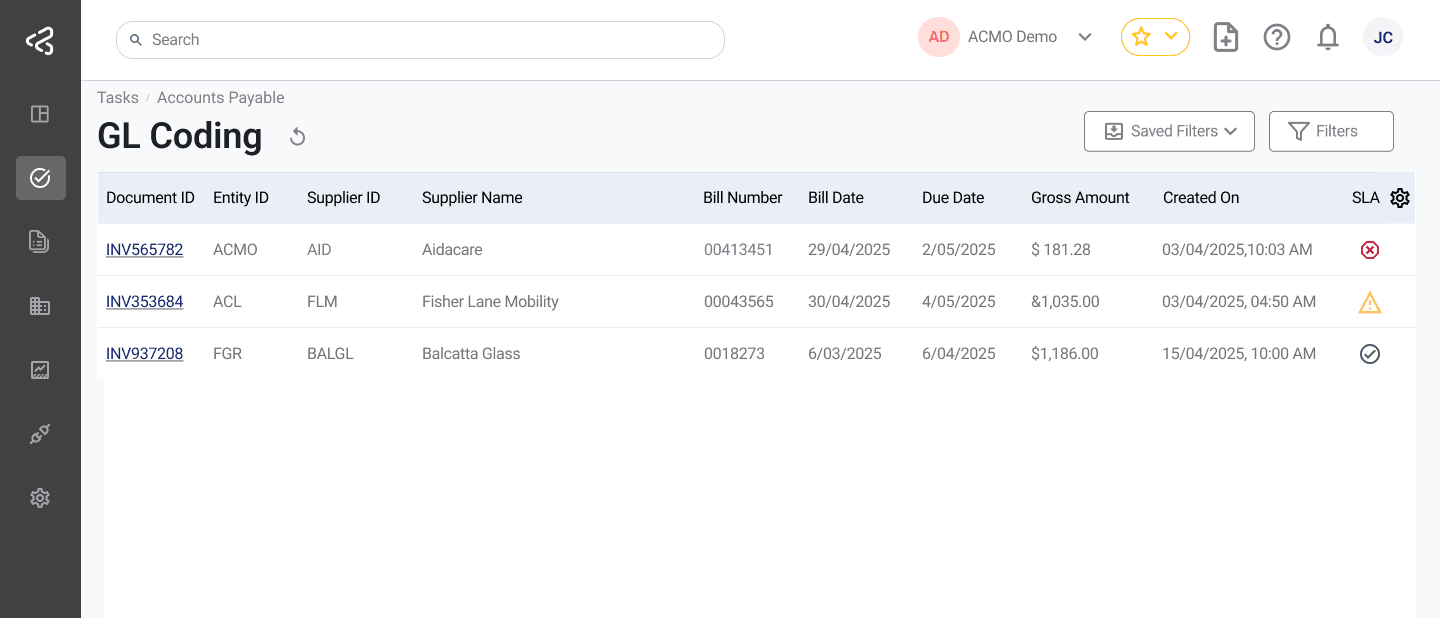
Use the comments icon in the table to quickly view any comments added to a task; the icon will appear in a row only when comments are available.
This task uses the standard filter set. For detailed information, refer to the Task Filters documentation.
Performing GL Coding
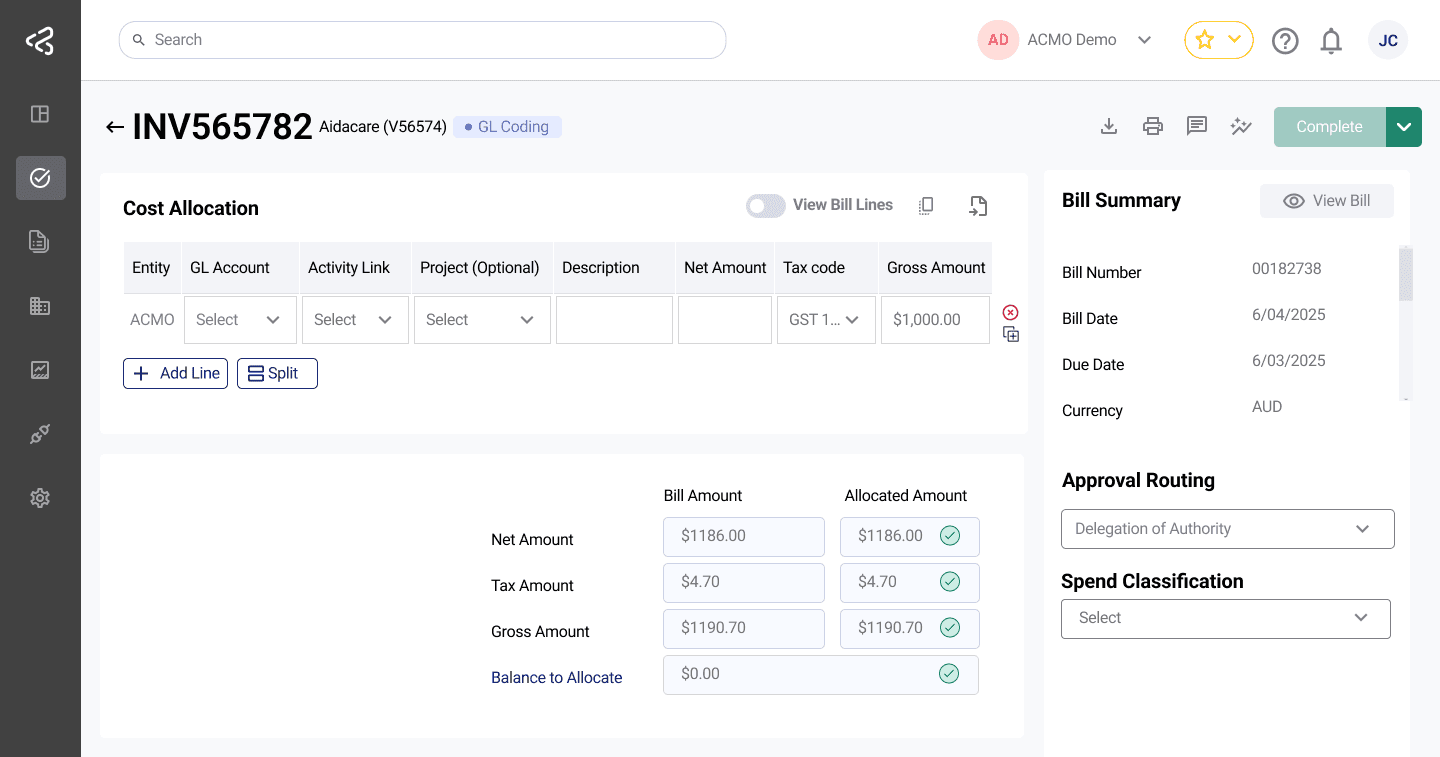
Allocate non-PO bill amounts across the required financial dimensions configured for your organisation. This includes selecting the appropriate entity, accounts, and supporting attributes, validating tax treatment, and distributing costs as needed. Accurate GL coding ensures that expenses are correctly classified and ready to follow the configured approval workflow.
Entity ID
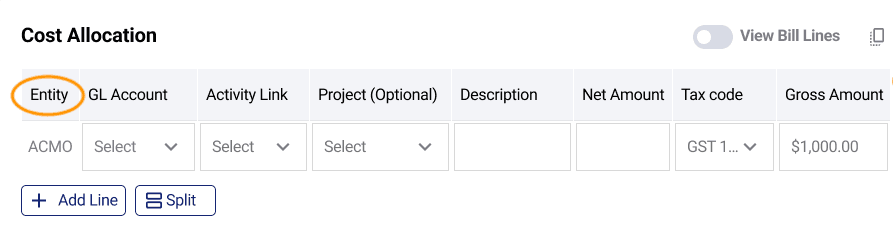
The Entity ID determines which business entity the bill costs are allocated to during GL Coding. This setting controls the availability of accounts, financial dimensions, and tax codes, ensuring allocations comply with entity-specific accounting rules.
-
The Entity ID is displayed as the first column in each allocation row.
-
By default, the Entity ID is populated from the value captured during Extraction Review.
-
Entity behaviour is governed by the Allow Cross-Entity GL Coding option in Module Settings:

- When disabled:
- The Entity ID is fixed and cannot be changed.
- All allocations must belong to the same entity identified during Extraction Review.
- When enabled:
- Users can select a different Entity ID for each allocation row.
- A single bill can be distributed across multiple business entities.
- Changing the Entity ID dynamically filters:
- Available GL accounts
- Other configured financial dimensions
- Applicable tax codes
- When disabled:
-
This ensures that only valid accounts and tax configurations are used for the selected entity, maintaining accuracy and compliance.
You can restrict which users are allowed to use or work with specific Entity IDs. To learn how to set this up, see Create Restrictions.
Cost Allocation
- The Cost Distribution configuration defined under Module Settings controls which financial dimensions appear in the GL Coding table.
- Dimensions such as GL Account, Activity Link, Project, or other accounting fields are:
- Configured by your organisation
- Displayed dynamically based on those settings
- Enforced as mandatory or optional according to configuration
- This allows the GL Coding experience to align precisely with your internal accounting and reporting structure.
To learn how to configure distributions, see Cost Distribution.
Distributing Costs
-
In each allocation row:
- Select the required financial values (for example, GL Account, Activity Link, Project).
- Enter a meaningful Description to provide context for approvers.
- Enter the Amount excluding tax, then select the appropriate Tax Code. The system automatically calculates tax and net amounts.
-
To distribute costs across multiple allocations:
-
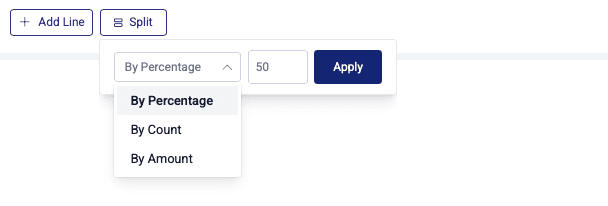
Click Add Line to add additional rows, or
-
Use the Split option to divide amounts by percentage, value, or number of lines.
-
-
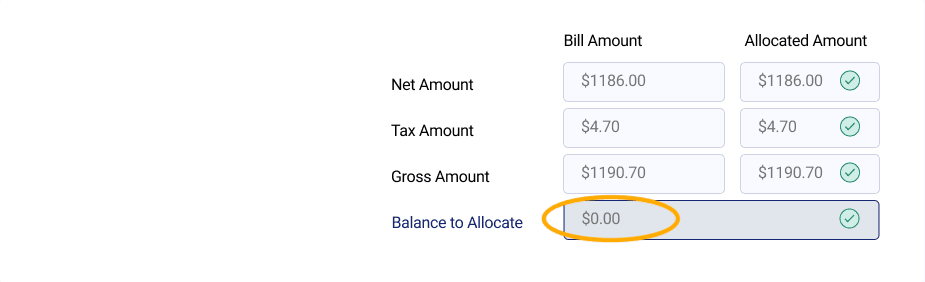
The Balance to Allocate must display $0.00 before the task can be completed.
-
A green check indicator confirms that the allocations align with the bill total.
Approval Routing
Once cost allocation is complete, confirm the approval path for the bill.
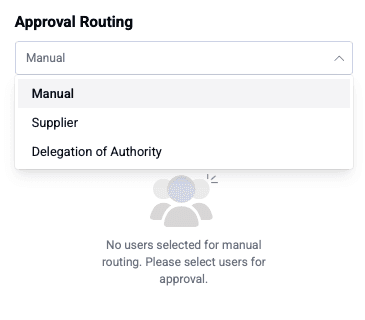
Available routing methods include:
-
Manual Routing
Allows users to manually select approvers for the bill, overriding default routing logic. -
Supplier Configuration
Uses approval paths defined at the supplier level.Approvers can be configured at the supplier level. See Supplier Configuration.
-
Delegation of Authority (DOA)
Routes bills based on predefined organizational rules such as spend thresholds, departments, or financial dimensions.Administrators can define approval rules by assigning minimum and maximum approval amounts to users. See Delegation of Authority Rules
When Delegation of Authority is selected as the Approval Routing Method, the Spend Classification Account selection menu becomes available. Users must select a spend classification account, which is presented in a popover with a hierarchical (tree) structure for easy navigation.
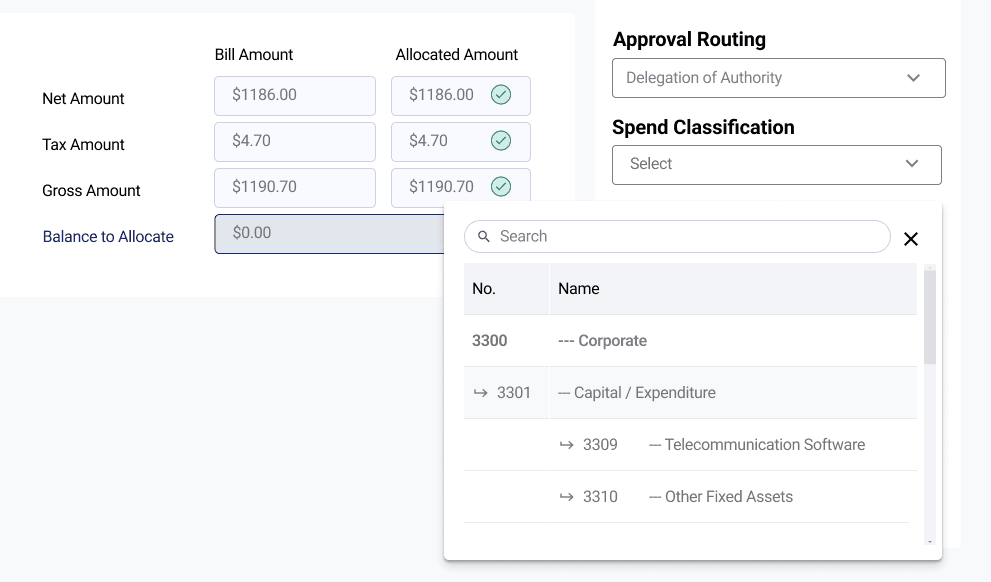
Once a spend classification account is selected, the corresponding approvers are automatically displayed in the approver list based on the configured rules.
Rearrange the approval order by dragging approvers using the drag icon.
Table Actions
The GL Coding table provides quick-access actions that help users validate bill details and reuse existing allocation patterns, reducing manual effort and improving accuracy.
View Bill Lines
This option allows users to review the original bill information captured earlier in the process.
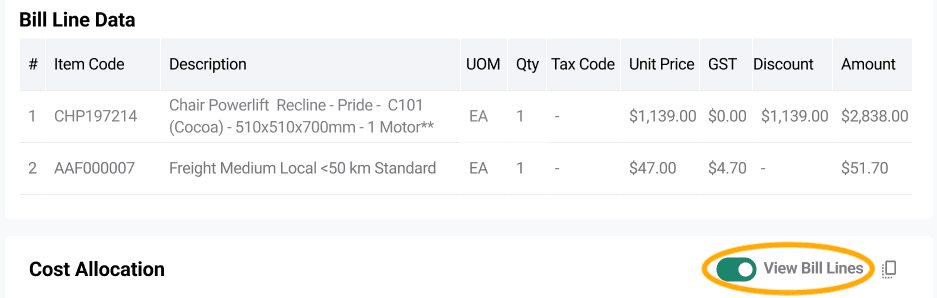
- Displays the bill line items saved during Extraction Review
- Helps validate that GL allocations align with the original bill details
- Useful when reconciling complex or multi-line invoices
Copy Allocation
This option helps users quickly reuse previously applied allocation structures.
- Opens a popover displaying Recently Used Allocations
- Enables faster GL coding for recurring suppliers or similar expense types
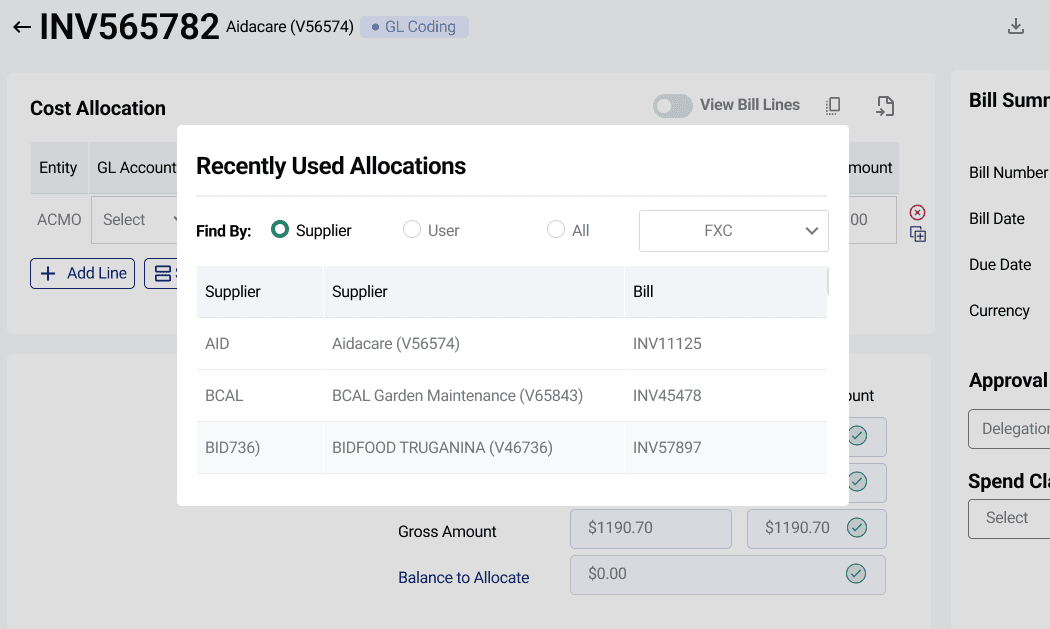
Within the Copy Allocation popover, users can:
- Filter results by Supplier
- Filter results by User
- View All recent allocations
Selecting an allocation automatically applies the same cost structure and splits to the current bill, saving time and ensuring consistency.
Import Allocation
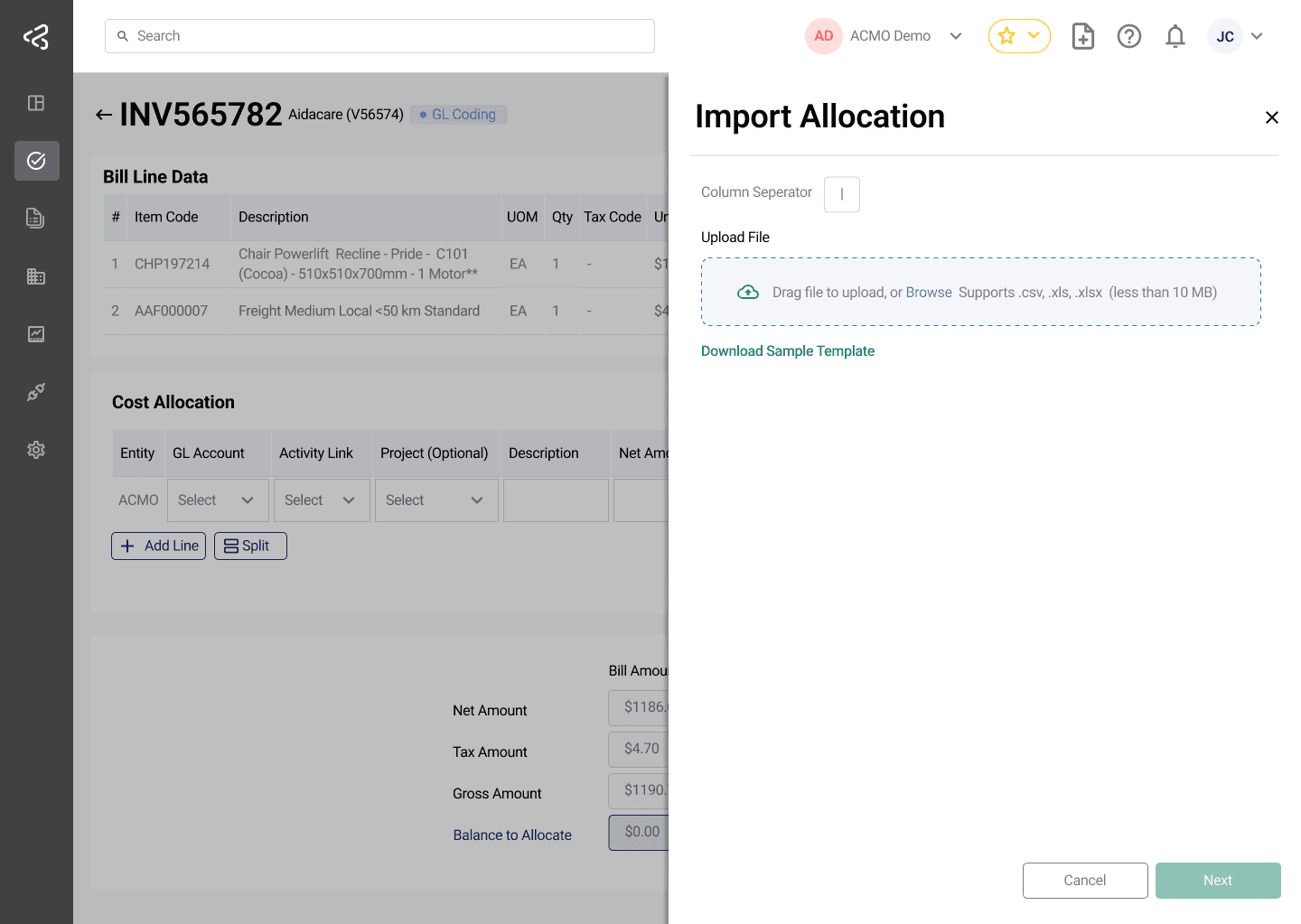
The Import Allocation feature enables users to efficiently add multiple allocation rows to the GL Coding screen using a structured file upload process. This feature streamlines bulk allocation entry, improving accuracy and saving time compared to manual input.
-
On the GL Coding screen, an Import Allocation icon is available next to the Copy Allocation option. Clicking this icon opens a side panel that facilitates the import workflow.
-
Within the panel, users can download a sample template file.
- This template provides the required format and structure for entering allocation data. It is recommended to use this template to ensure compatibility and reduce validation errors.
- The template supports both fixed dollar ($) values and percentage (%) values for the net amount. When percentages are used, the system automatically calculates and splits the amounts based on the total bill net amount (e.g., for a $1000 bill, entering 50% for two rows will allocate $500 to each row).
-
After populating the template with the required allocation details, users can upload the file through the same panel. Upon successful upload:
- The system processes the file.
- Valid allocation rows are automatically added to the GL Coding screen.
-
Ensure the template format is not altered.
-
Validate all required fields before uploading.
-
Review error messages carefully to resolve issues efficiently.
-
If the uploaded file contains errors:
- The system will not process invalid entries.
- A detailed list of errors will be displayed within the panel.
- Users can review these errors, correct the template, and re-upload the file.
Use column separator only if using CSV file format.
Smart Router AI
Smart Router AI suggestions use artificial intelligence and machine learning to make cost distribution faster, more accurate, and more consistent. By analyzing how similar bills were coded in the past, the system can automatically recommend cost allocation patterns that are likely to be correct for the current bill.
When relevant historical data is available:
- Suggestions are generated using previously approved GL Coding for the same Entity ID
- The recommendation appears in a box with an orange border below the allocation table
- Suggested allocations are based on:
- Commonly used GL account combinations
- Proven cost distribution patterns
- Historical allocations that were successfully approved
- Users can review, apply, or adjust the suggested allocation with minimal effort
This AI-driven assistance significantly reduces manual data entry and helps maintain consistent coding across similar and recurring expenses.
Learn how this works and how the AI improves over time. Explore Smart Router AI in detail.
Unable to Complete GL Coding
If the bill cannot be completed due to missing information, incorrect data, or business exceptions, users can choose one of the following actions:
- Reject
Closes the bill and removes it from further processing. - Reassign
Sends the task to another user or group for review or correction. - Route to Extraction Review
Sends the bill back to the Extraction Review task to correct upstream data issues before reprocessing.
Completing GL Coding
Once all mandatory fields are populated, allocations are balanced, and approval routing is confirmed:
-
Click Complete in the top-right corner.

-
The bill is automatically routed to the next approver in the workflow.
-
Any missing mandatory data or allocation imbalance must be resolved before submission.
Save and Clear options are available only when Allow Save is enabled in General Settings, allowing you to manage and retain in-progress changes efficiently.
For a consolidated view of the bill’s full lifecycle—including extracted data, matching, coding, approvals, comments, and audit trail—see Bill Document.