Suppliers
The Suppliers module serves as a centralized hub for managing supplier master data and defining supplier-specific behaviors that influence downstream financial workflows. It enables users to not only view supplier information but also configure how transactions related to a supplier should be processed across GL Coding and Bill Matching workflows.
This screen is accessible via the left-side quick menu and is typically used by finance and operations teams to ensure consistency, automation, and compliance in supplier-related processes.
Navigation
- From the application dashboard, navigate to the left-side quick menu.
- Click on the Suppliers icon.
- The system will redirect to the Suppliers Listing Screen.
Suppliers Listing
The Suppliers Listing screen provides a consolidated view of all suppliers available in the system. It is designed to support quick lookup, validation, and navigation into detailed supplier configurations.
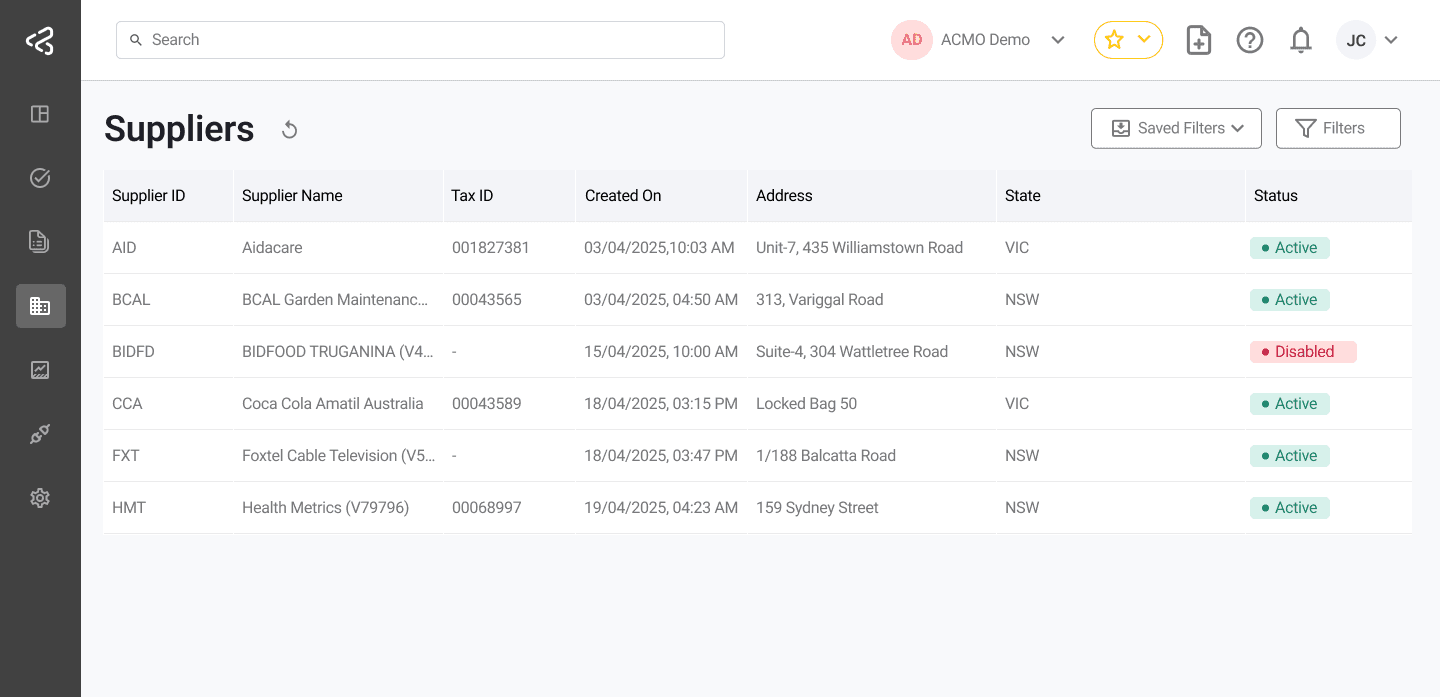
Table Columns
The table includes the following columns:
- Supplier ID - Unique identifier for each supplier
- Supplier Name - Registered name of the supplier
- Entity ID - Associated legal entity within the system
- Tax ID - Supplier’s tax registration number (e.g., ABN)
- Address - Primary registered address
- City
- State
- Status - Indicates whether the supplier is Active or Inactive
Filters
Filters are available above the table to help users quickly locate specific suppliers.
- Users can filter based on:
- Supplier Name
- Entity
- Status
- Tax ID (e.g., ABN)
- Match Type
Filtering helps reduce large datasets and improves operational efficiency when managing supplier records.
Navigation to Supplier Details
- Clicking on a Supplier ID will navigate the user to the Supplier Details Page.
- This allows users to view detailed information and configure supplier-specific settings.
Supplier Details
The Supplier Details page provides a structured view of all supplier-related information and configurations. It is divided into multiple tabs, each focusing on a specific aspect of supplier management.
These configurations play a critical role in automating downstream processes such as GL coding, approval routing, and invoice matching.
Business Details
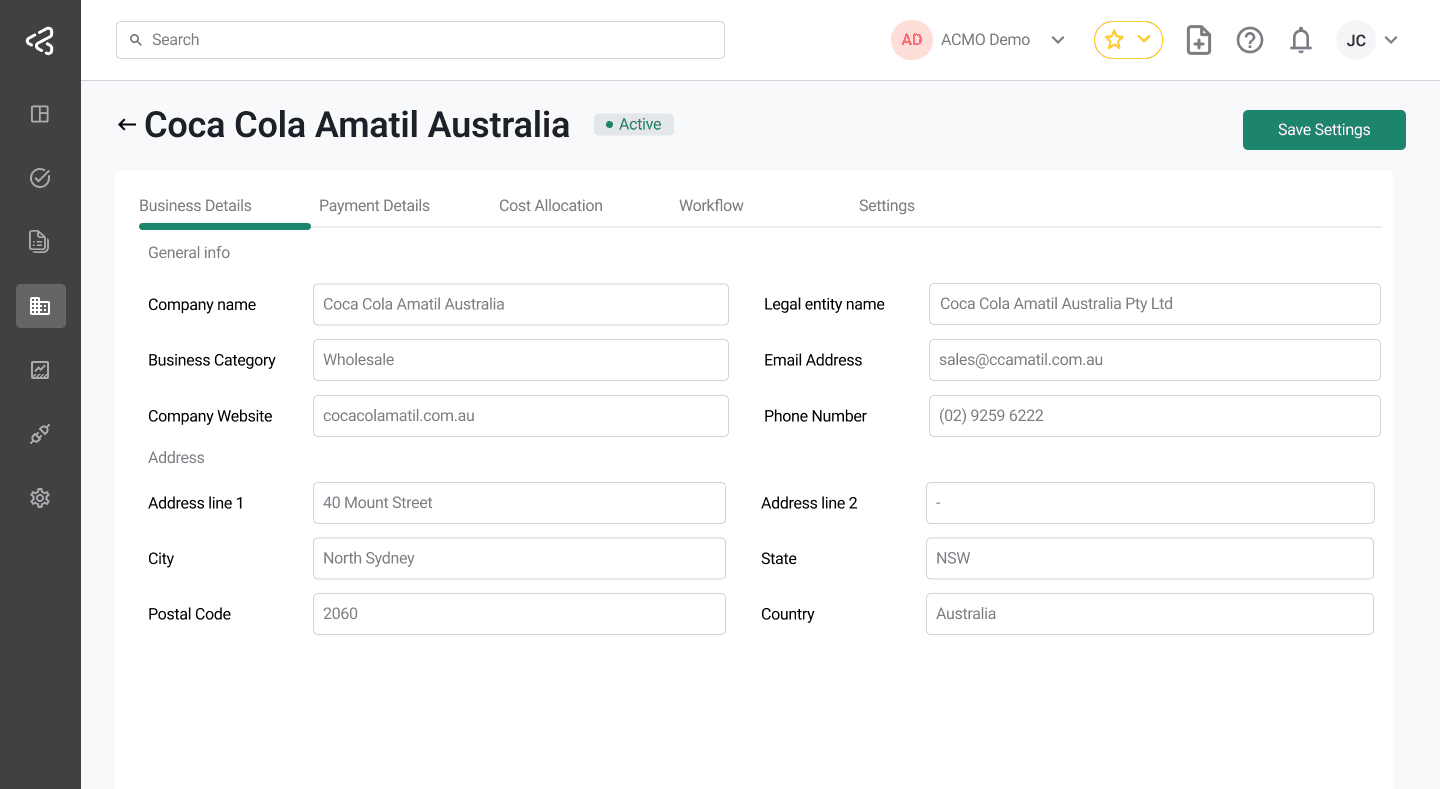
This tab displays foundational information about the supplier as maintained in the master data.
General Information
- Company Name
- Business Category
- Company Website
- Legal Entity Name
- Email Address
- Phone Number
Some fields may be empty if data is not available in the master record. This data is typically sourced from upstream systems or supplier onboarding processes.
Address Information
- Address Line 1
- Address Line 2
- City
- State
- Postal Code
- Country
This section provides the official registered address of the supplier, which may be used for compliance and communication purposes.
Payment Details
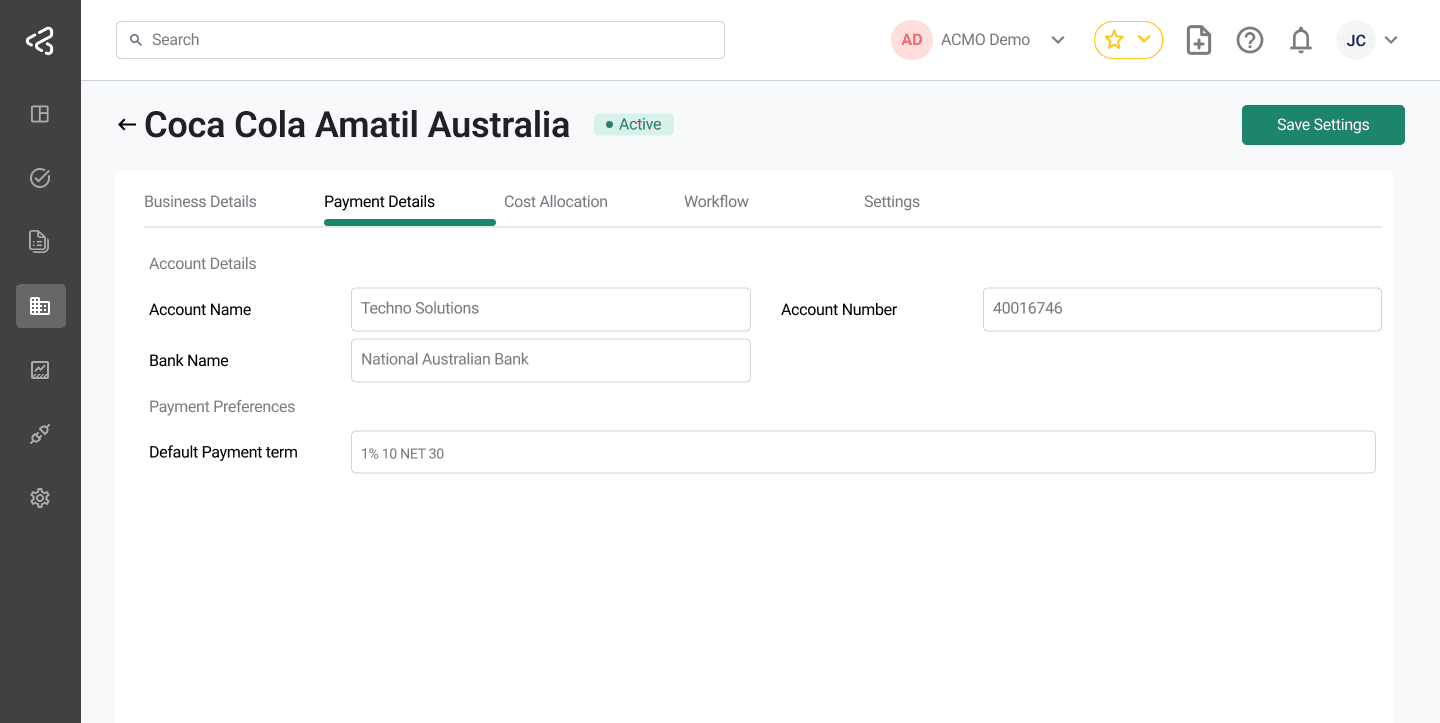
This tab contains financial and payment-related information for the supplier.
Account Details
- Account Name
- Account Number
- Bank Name
Payment Preferences
- Default Payment Term (e.g., Net 30, Net 45)
- Payment Methods (e.g., Bank Transfer, ACH, etc.)
Fields remain empty if corresponding data is not available. Payment details are typically maintained in financial systems and synced into the platform.
This information helps streamline payment processing and ensures that correct payment methods and terms are applied during invoice settlement.
Cost Allocation
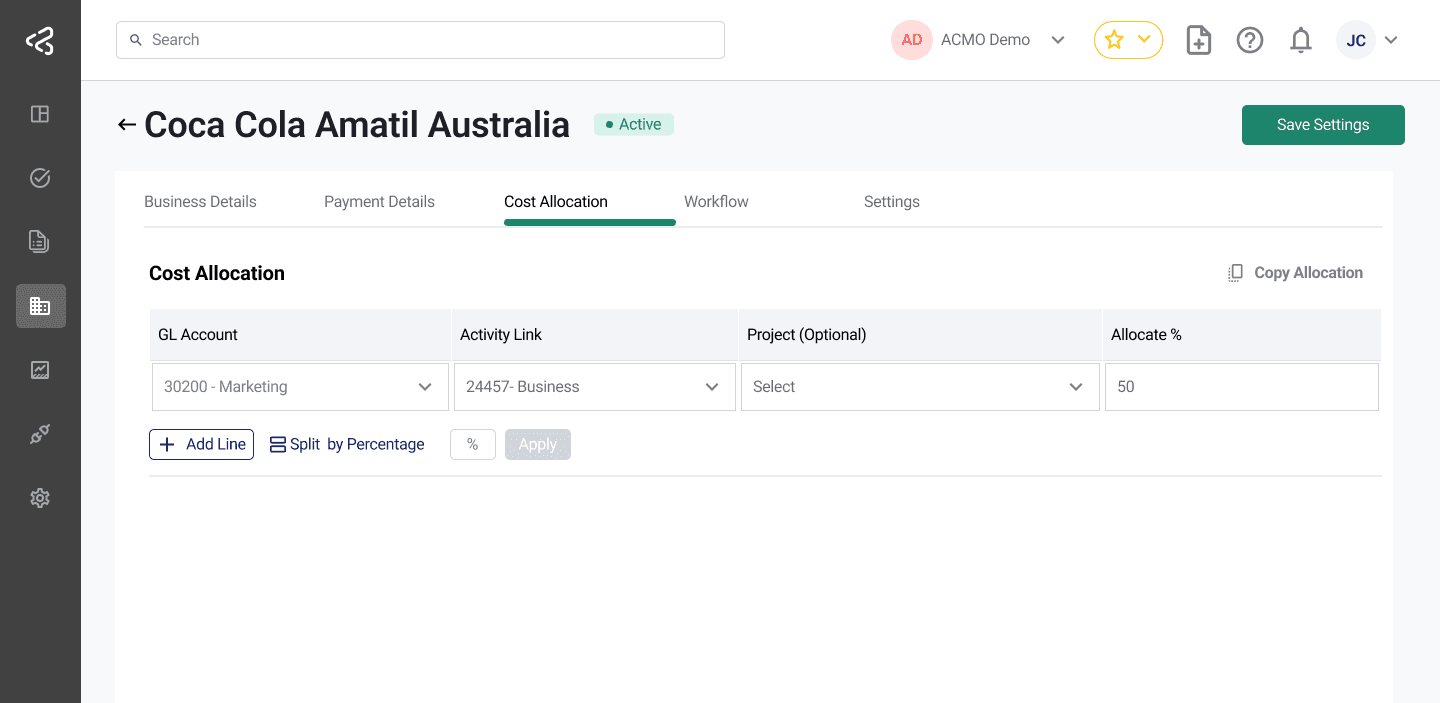
The Cost Allocation tab allows users to predefine how costs should be distributed for transactions associated with a specific supplier.
This configuration is applied when the routing method selected in a GL Coding task is “Supplier”.
Behavior
When a bill is received from a supplier and routed using the Supplier method:
- The predefined cost allocation rules are automatically applied.
- This eliminates the need for manual allocation during GL coding.
Configuration Fields
- GL Account - Account to which the cost will be posted
- Activity Link - activity or cost driver
- Project Code - Associated project (if applicable)
- Allocation Percentage - Percentage of total cost assigned to the line
Key Notes
- Multiple allocation lines can be configured for a single supplier.
- The total allocation percentage across all lines should equal 100%.
- The system automatically splits the bill amount based on these percentages.
Proper configuration of cost allocation ensures consistency in financial reporting and reduces manual effort during coding.
Workflow
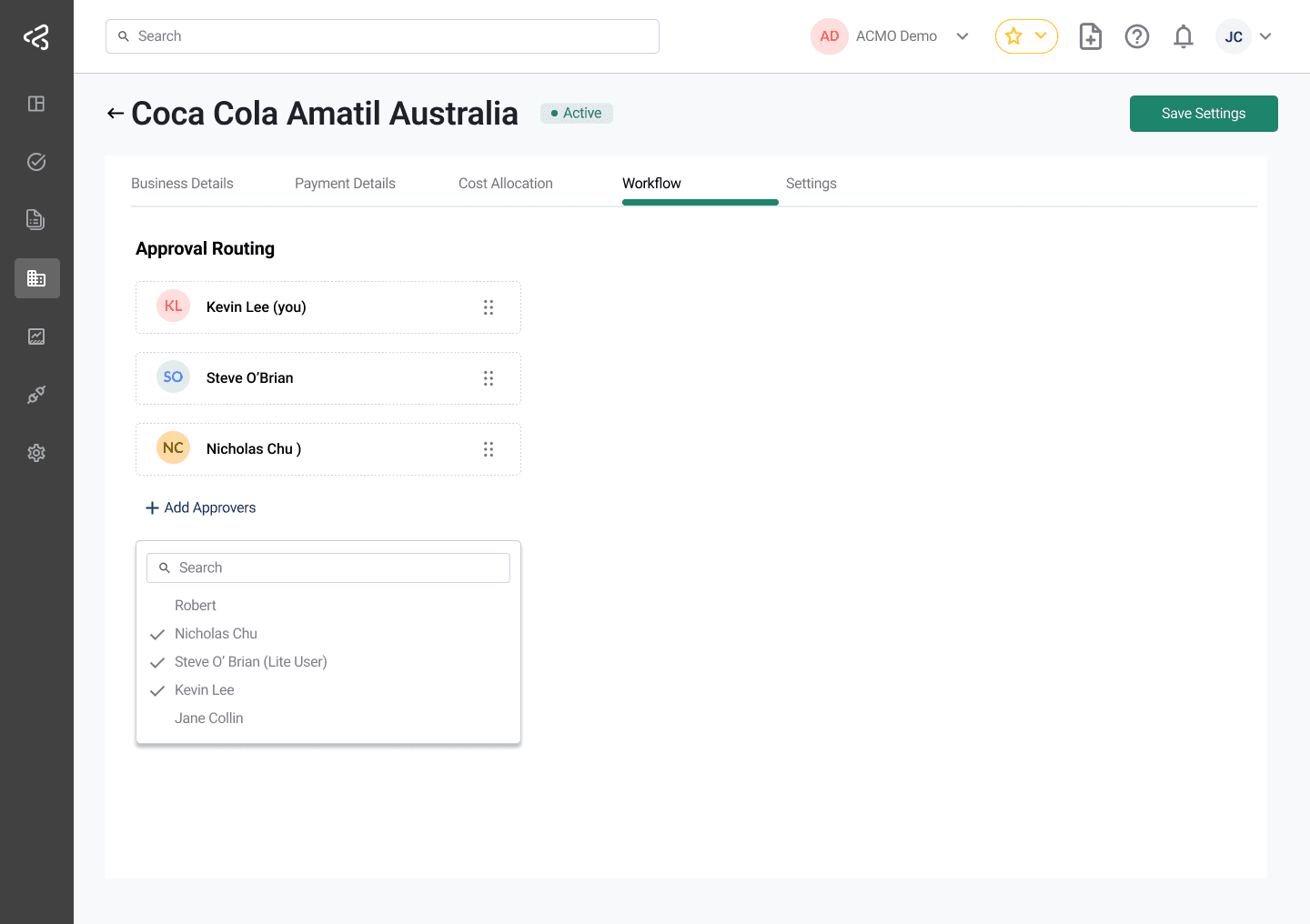
The Workflow tab allows users to define default approval routing for transactions associated with a supplier.
Behavior
When the routing method “Suppliers” is selected in a GL Coding task:
- The system automatically assigns the preconfigured approvers defined in this section.
- These approvers are applied consistently across all tasks related to the supplier.
Key Benefits
- Eliminates the need to manually assign approvers for each transaction
- Ensures compliance with organizational approval hierarchies
- Standardizes approval workflows across similar transactions
Workflow configuration is especially useful for frequently used suppliers with consistent approval requirements.
Settings
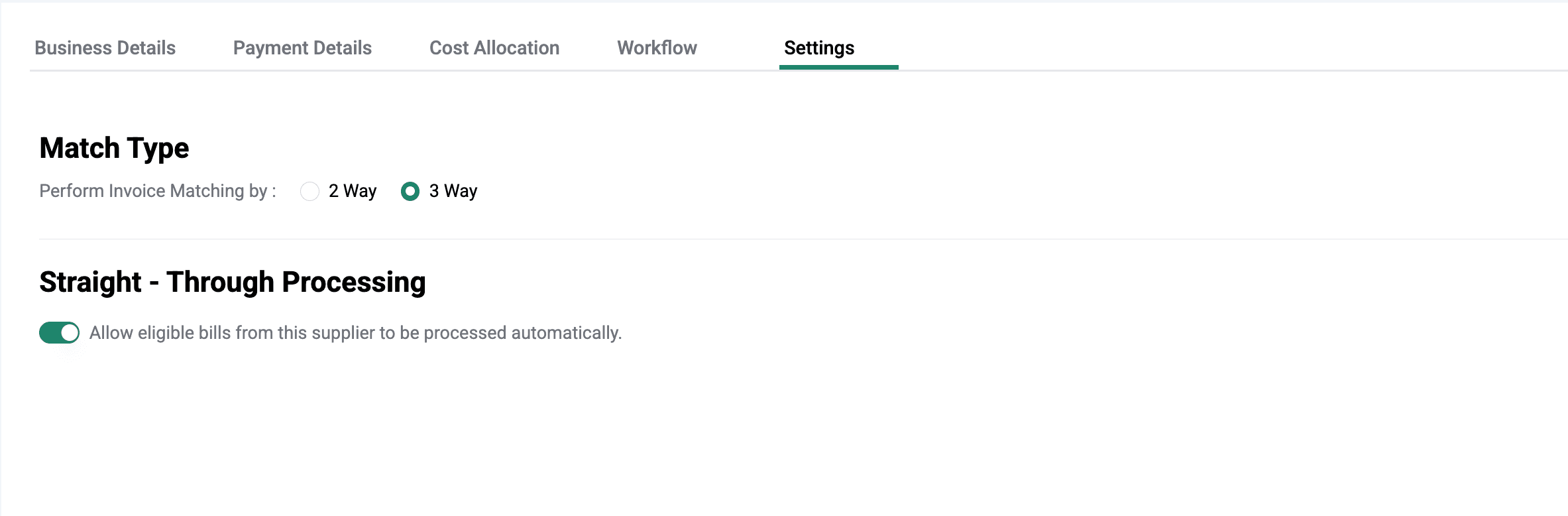
Configure supplier-specific processing rules, including invoice matching logic and automation preferences, to ensure consistent validation and enable efficient, controlled processing of supplier invoices.
Match Type Configuration
This section allows users to define how invoices from a supplier should be matched during the Bill Matching process.
Available options:
- 2-Way Matching – Invoice is matched against the Purchase Order
- 3-Way Matching – Invoice is matched against the Purchase Order and Goods Receipt
Straight-Through Processing (STP)
This setting allows users to enable or disable Straight-Through Processing (STP) for an individual supplier.
- By default, STP is disabled for all suppliers
- When enabled, invoices from this supplier become eligible for automatic processing
- STP will only apply if it is also enabled at the organisation level and configured for at least one activity (e.g., Extraction Review or Bill Matching)
Behavior
When tasks are created for this supplier:
- The configured Match Type is automatically applied during Bill Matching
- If STP is enabled for the supplier:
- Only invoices from this supplier are considered for automatic processing
- Processing occurs only for the activities enabled at the organisation level
Bulk Configuration
STP and Match Type settings can also be managed outside the UI:
- Using APIs for programmatic updates
- Via master data uploads when onboarding or updating suppliers in bulk
- The values can be defined as part of the supplier data during upload
Selecting the appropriate match type and enabling STP for trusted suppliers helps enforce financial controls while improving processing efficiency.
Save Configuration
The Save Settings button persists all configurations made across:
- Cost Allocation
- Workflow
- Settings
Changes made within these tabs are not applied until they are explicitly saved.
Ensure all configurations are reviewed and validated before saving, as these settings directly impact transaction processing and approvals.
Summary
The Suppliers module is a critical component for managing supplier data and automating financial workflows. By leveraging supplier-level configurations, organizations can:
- Reduce manual intervention in GL coding and approvals
- Enforce consistent financial controls
- Improve accuracy in cost allocation
- Standardize invoice matching processes
- Enhance operational efficiency across finance teams
Proper use of this module ensures that supplier-related transactions are processed accurately, consistently, and in alignment with organizational policies.