Scheduled Reports
Scheduled Reports allow you to automatically generate and receive reports from ACMO at regular intervals — without having to manually download them each time.
Once scheduled, the selected report will be:
- Generated automatically
- Converted into your preferred format
- Delivered directly to your inbox
You can choose to receive reports in:
- Excel (XLSX)
This helps ensure that you and your stakeholders always have access to the latest report data for review, monitoring, or sharing.
Viewing Existing Schedules
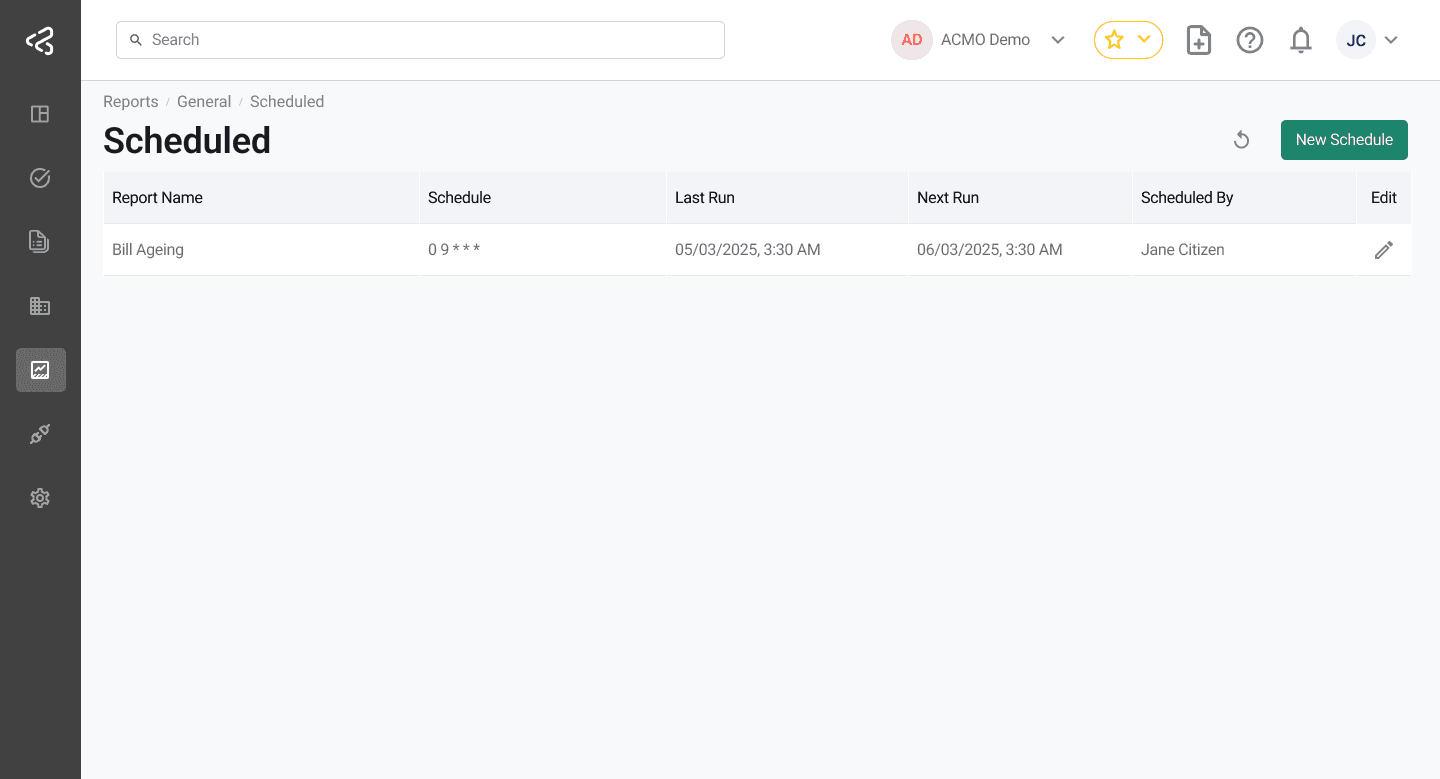
The Scheduled Reports page displays a list of all the reports that have been set up for automatic delivery.
Each row in the table includes:
- Report Name - The report being generated
- Schedule - How often the report is generated
- Last Run - The most recent time the report was sent
- Next Run - When the next report will be generated
- Scheduled By - The user who created the schedule
- Edit - Option to modify the existing schedule
This allows you to easily track which reports are being sent and when.
Creating a New Schedule
To create a new scheduled report:
Click the New Schedule button at the top of the page.
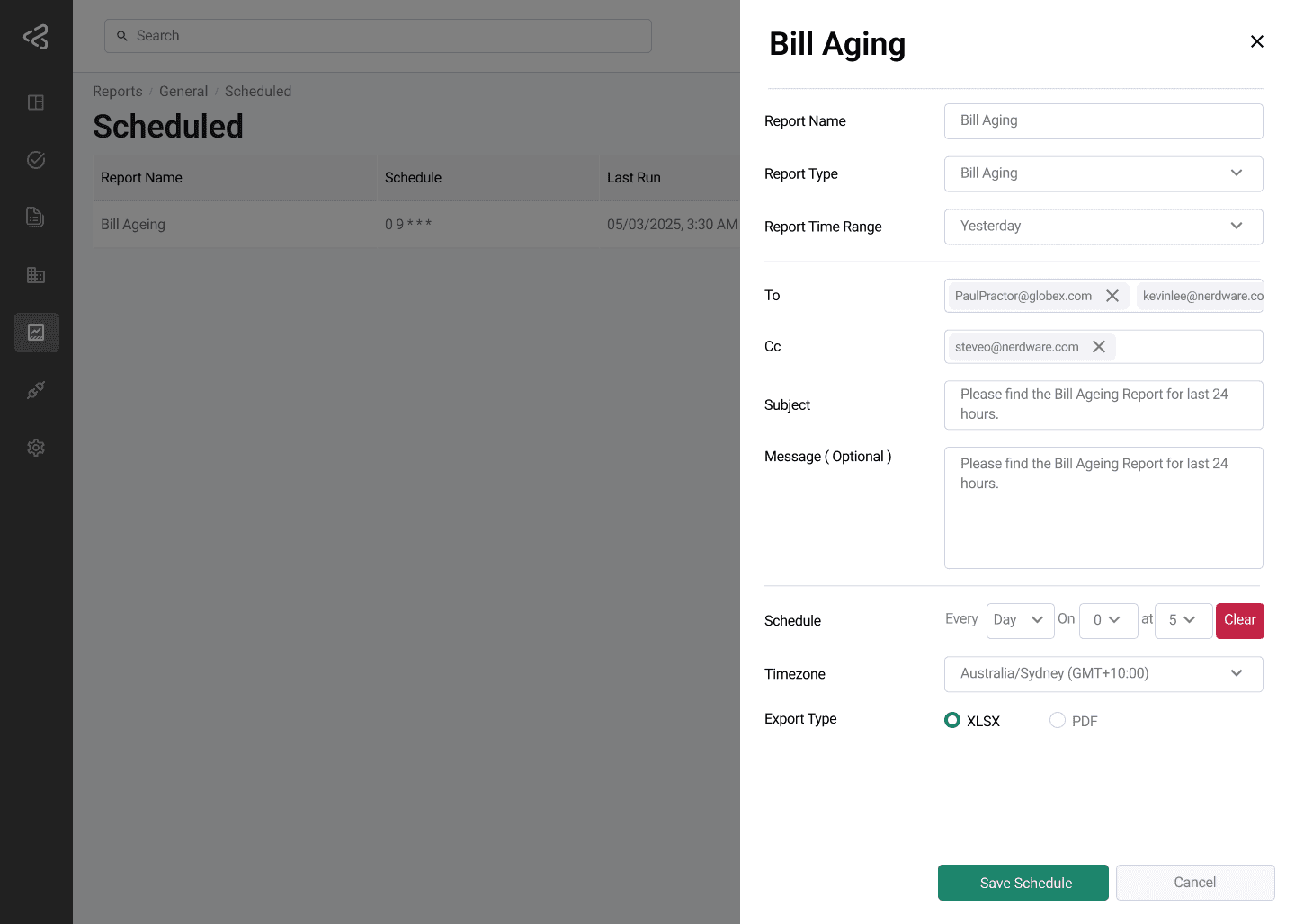
This will open the Create Schedule panel where you can configure your report delivery.
Select Report Details
You will first need to:
-
Add a report name.
-
Choose the report you want to receive automatically.
| Report Type | Description |
|---|---|
| Bills | Provides details of processed bills |
| Bills Ageing | Shows how long bills have been pending or outstanding |
| Overdue Bills | Bills that have passed their due date |
| Bills Summary | Provides a consolidated summary of bills processed |
| Exceptions | Tasks or records that require attention |
| User Productivity | Tasks completed by users over time |
| Straight Through Rate | Tasks completed automatically without manual intervention |
| Fraud Bills | Bills that were rejected and marked as fraudulent |
| Statement Reconciliation | Provides details of processed supplier statements |
Select Time Range
Choose the reporting period for which data should be included in the scheduled report.
| Time Range | Description |
|---|---|
| Today | Data from the current day |
| Yesterday | Data from the previous day |
| This Week | Data from the start of the current week until today |
| Previous Week | Data from the entire previous week |
| This Month | Data from the start of the current month until today |
| Previous Month | Data from the entire previous month |
| This Quarter | Data from the start of the current quarter until today |
| Previous Quarter | Data from the entire previous quarter |
| This Year | Data from the start of the current year until today |
| Previous Year | Data from the entire previous year |
| Current Financial Year | Data from the current financial year |
| Previous Financial Year | Data from the previous financial year |
The report you receive will always include data for the selected time range.
Email Details
Next, enter the email details for report delivery:
- To - Primary recipients
- CC - Additional recipients (optional)
- Subject - Email subject line
- Message - Custom email message (optional)
Set the Schedule
Configure when the report should be sent:
- Schedule - Enter your preferred schedule using a cron expression
- Timezone - Select the timezone for report delivery
- Example: Australia/Sydney
This ensures the report is delivered at the correct time based on your selected location.
Choose Export Format
Select how you want the report to be delivered:
- XLSX (Excel)
Report Delivery
Once your schedule is created:
- The report will be automatically generated
- Data will be included based on the selected time range
- The report will be delivered in the chosen format
- Emails will be sent according to your defined schedule
You can edit or update your scheduled reports at any time from the Scheduled Reports page.
Key Benefits
- Automate report generation
- Receive reports directly via email
- Share reports with stakeholders
- Choose preferred file format
- Track scheduled deliveries
- Reduce manual effort
Use Scheduled Reports to stay informed with the latest insights from ACMO — delivered to you automatically.