Roles
The Roles screen under User Management allows administrators to define permission sets that control what features and screens users can access within the ACMO Portal. Roles are a core part of the platform’s role-based access control model.
Purpose
The Roles screen enables authorized users to:
- Create and manage roles
- Define granular access permissions for features and screens
- Control user access by assigning roles directly or via groups
Access to this screen is controlled by role-based permissions.
Roles Listing
The main screen displays a table listing all roles in the system.
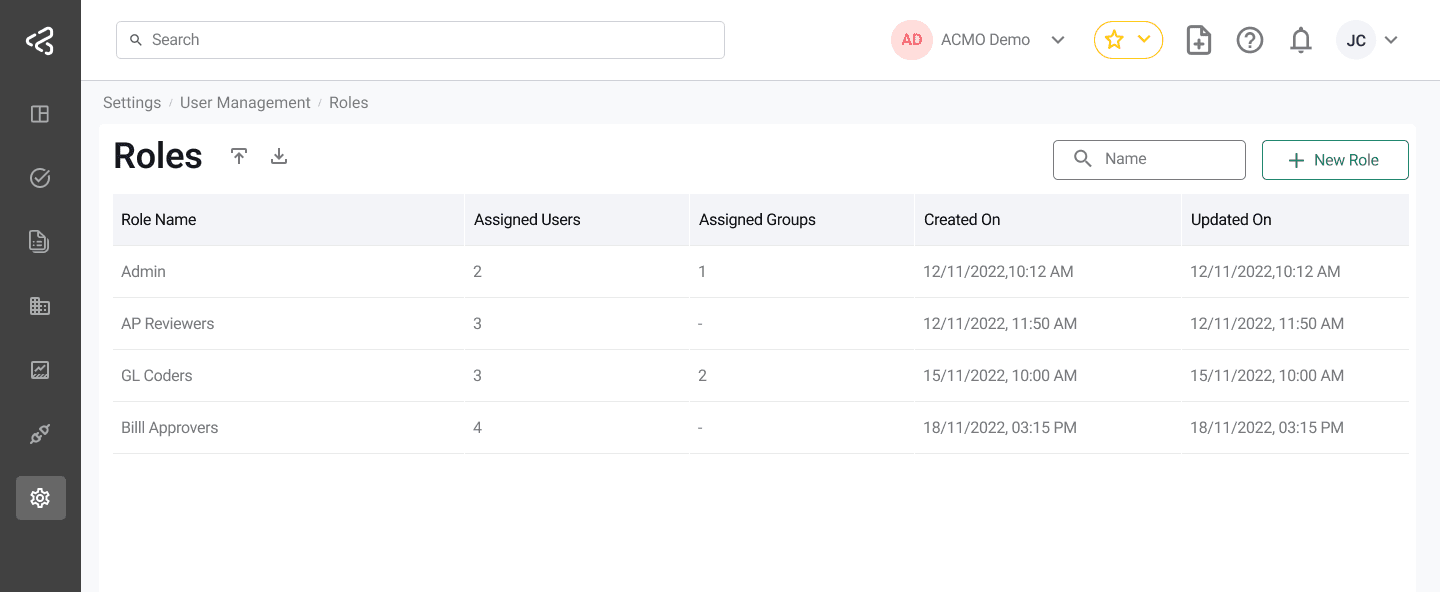
Table Columns
Each role is displayed with the following information:
-
Role Name
The name of the role. -
Created On
The date the role was created. -
Updated On
The date the role was last updated.
Filters and Actions
The following controls are available above the table:
-
Search
Filter roles by Role Name -
Add New Role
Opens the New Role screen to create a role
Creating a New Role
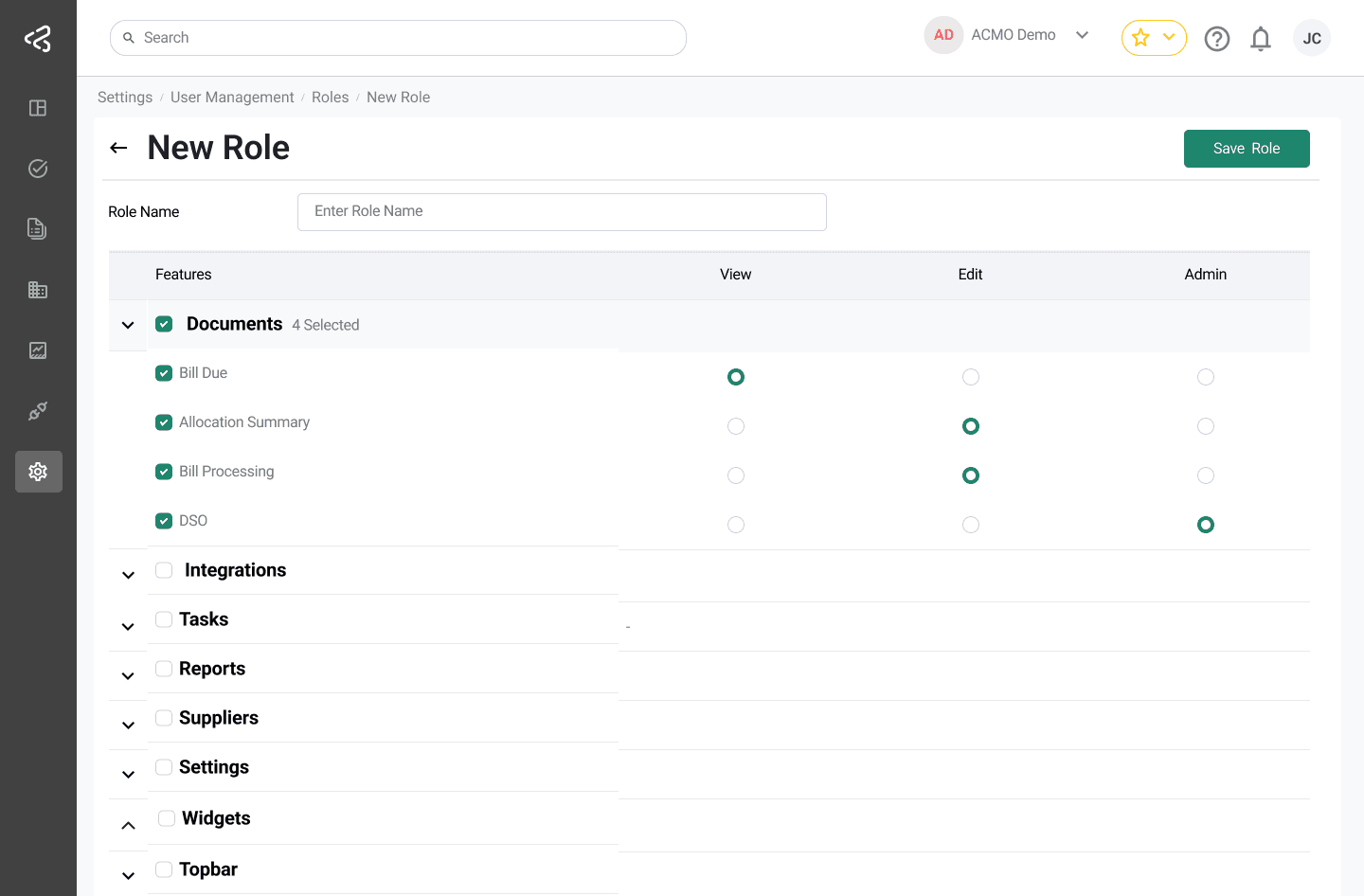
Clicking Add New Role opens a dedicated screen for defining a new role.
Role Details
-
Role Name
- Required input field
- The role cannot be saved without a name
-
Actions
- Save Role — saves the role and its permissions
- Cancel — discards changes and returns to the roles list
Assign Permissions
Below the Role Name input is the Assign Permissions table, where access is configured.
Permission Structure
- Permissions are organized by Feature Groups
- Each feature group:
- Appears as a row with an expandable view
- Expands to show all sub-features or pages within that group
Permission Levels
For each feature or sub-feature, one of the following permission levels can be selected (availability depends on the feature):
-
View
Allows read-only access -
Edit
Allows create and modify actions
(Selected by default) -
Admin
Allows full administrative access
Not all features support every permission level, as some do not require Edit or Admin access.
Admin-Level Permissions
- Certain actions (for example, deleting an application) require Admin access
- To perform these actions, the corresponding feature must have Admin selected
Group-Level Selection
- Selecting the checkbox for a feature group (for example, Tasks) automatically selects all sub-features under that group
- This allows quick assignment of permissions across related features
Access Enforcement
- Users are only able to access screens and actions explicitly permitted by their assigned roles
- Roles can be assigned:
- Directly to users
- Indirectly via groups
This ensures controlled, consistent, and secure access throughout the portal.
Import and Export Roles
Users can export and import roles using the controls available next to the Roles label at the top of the screen.

Export Roles
- Click the Export icon to download roles as a JSON file
- The exported file includes all configurable roles currently available in the system
- This can be used for:
- Backup purposes
- Migrating roles between environments
- Sharing role configurations
Admin (default) roles are not included in the export and cannot be exported.
Import Roles
- Click the Import icon to open the file upload modal
- Drag and drop or select a JSON file to import roles
- Imported roles will be added to the existing roles list
Import Behaviour
- Roles are imported alongside existing roles and do not replace them
- Users can import:
- A single role
- Multiple roles within the JSON file
Admin (default) roles cannot be imported and will be ignored if present in the file.
Usage Notes
- Ensure the JSON file structure matches the expected format when importing
- Imported roles can be edited after upload if required
- This feature is intended to simplify role setup across tenants or environments
Summary
The Roles screen provides fine-grained control over system access by allowing administrators to define permission sets aligned with organizational responsibilities. By combining feature-level permissions with user and group assignments, roles ensure users only see and interact with what they are authorized to access.