Connections
A Connection defines a data flow between the customer environment and ACMO Cloud for the currently selected environment.
Each connection has:
- A Connection Type
- A Direction
- A Data Category
- Behaviour settings (for example file paths, file filters, size limits, delays)
Connections are always environment scoped. The Connections page only shows connections for the environment that the user has entered.
Connections Page
Within an environment workspace, the Connections page displays all connections defined for that environment.
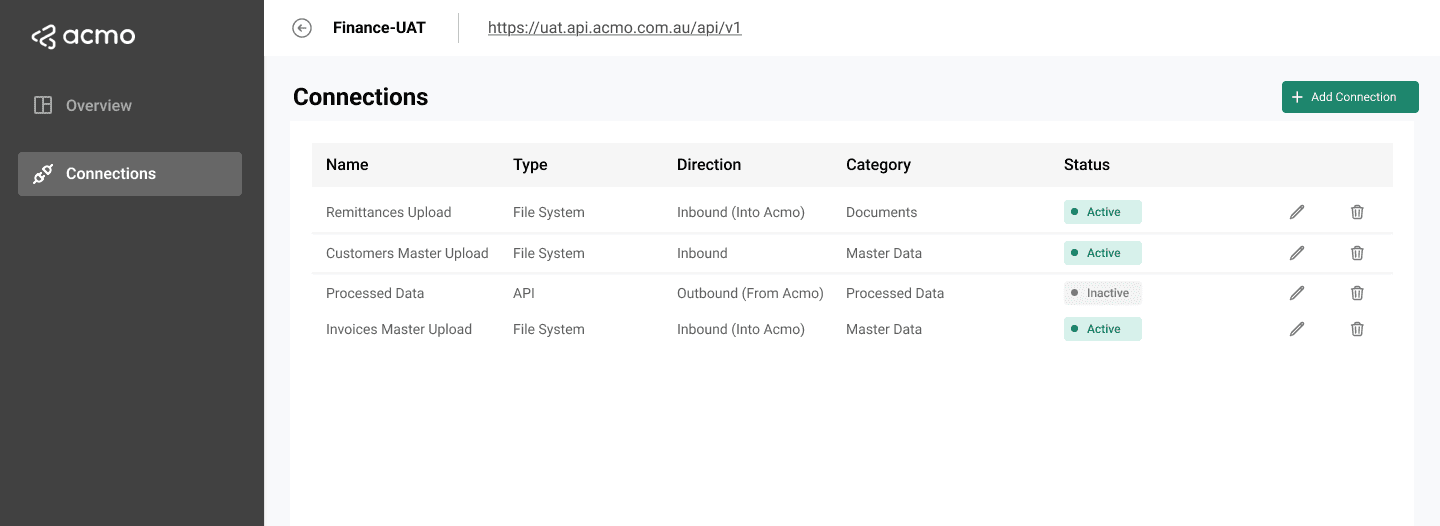
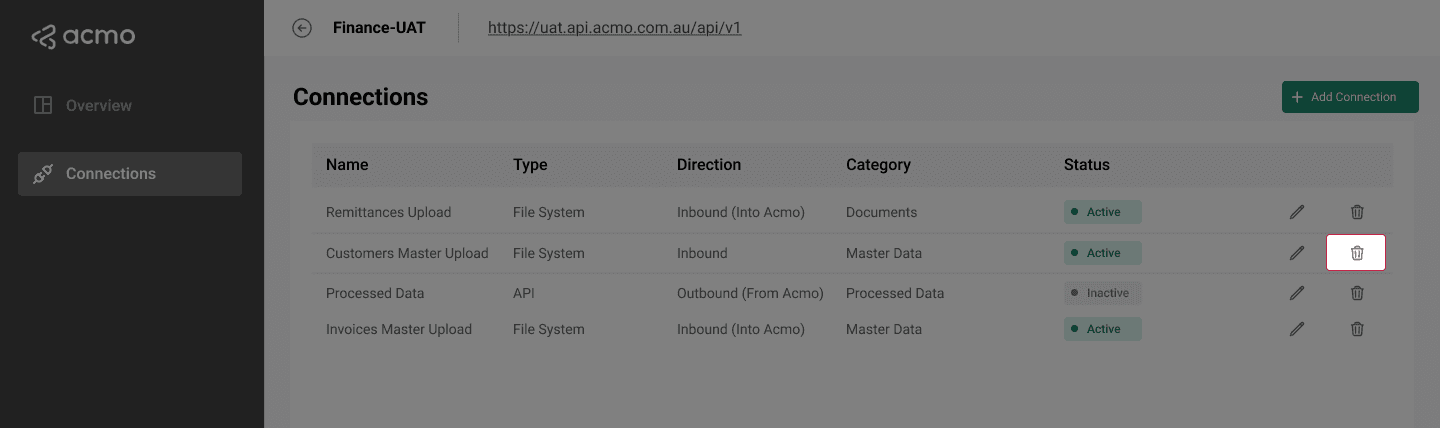
The page includes a table listing connections with columns:
-
Name
-
Connection Type
-
Direction
-
Data Category
-
Status (Active / Inactive)
-
Row actions:
- Edit
- Delete
-
A primary action:
- Add connection
Connection Model
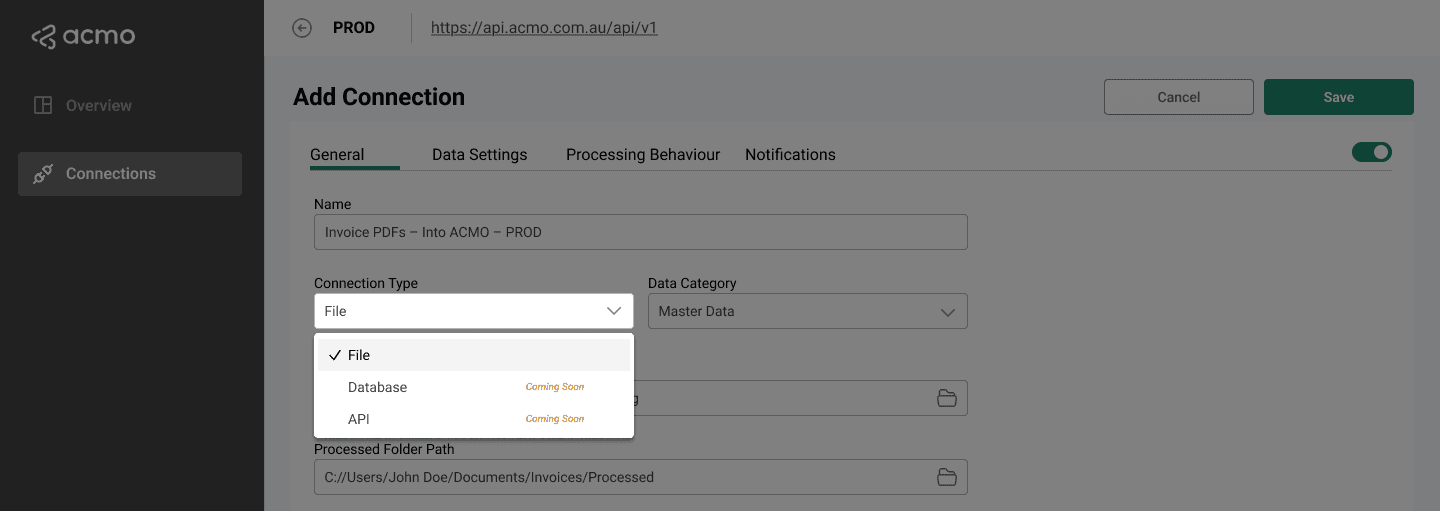
Connection Type
Indicates the underlying mechanism used to move data.
- File (current release)
- Database (reserved for future use)
- API (reserved for future use)
Direction
Indicates the direction of data flow relative to ACMO:
-
Into ACMO: Data moves from the customer environment into ACMO Cloud.
-
From ACMO: Data moves from ACMO Cloud into the customer environment.
Data Category
Describes the type of data processed by the connection:
-
Documents such as invoices, credit notes, remittances, and attachments.
-
Master data such as suppliers, customers, purchase orders, goods receipts, tax codes, chart of accounts, payment terms, and similar records.
-
Processed data produced by ACMO processing, such as processed bills, processed remittances, and cash allocation results.
-
Other for future or non-standard scenarios.
When Data Category is Master data or Processed data, the connection also requires field mappings (see below).
Adding a File Connection
To add a new File-based connection:
- Enter the desired environment workspace.
- Open Connections.
- Select Add connection.
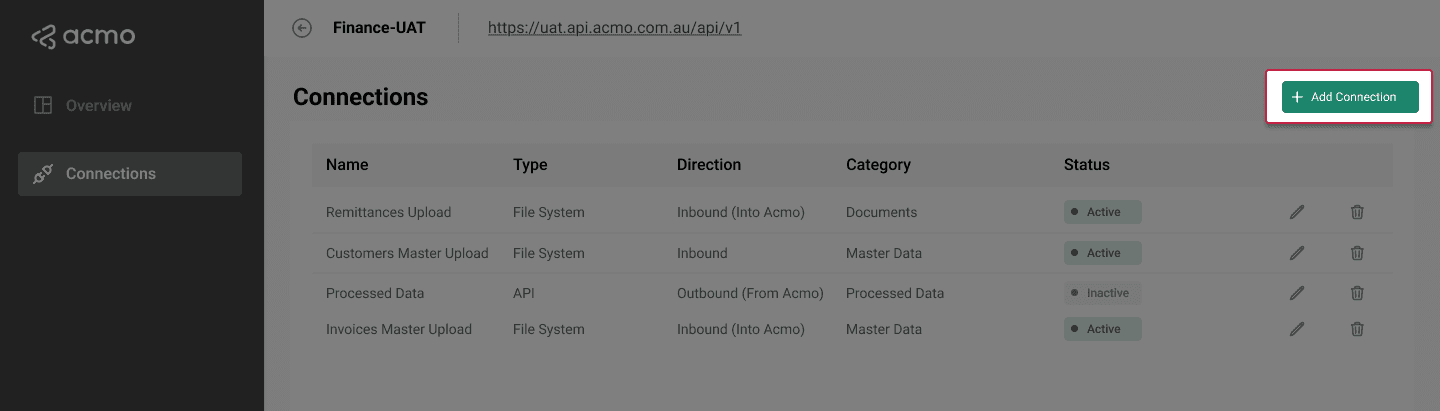
- Configure the connection using the sections below.
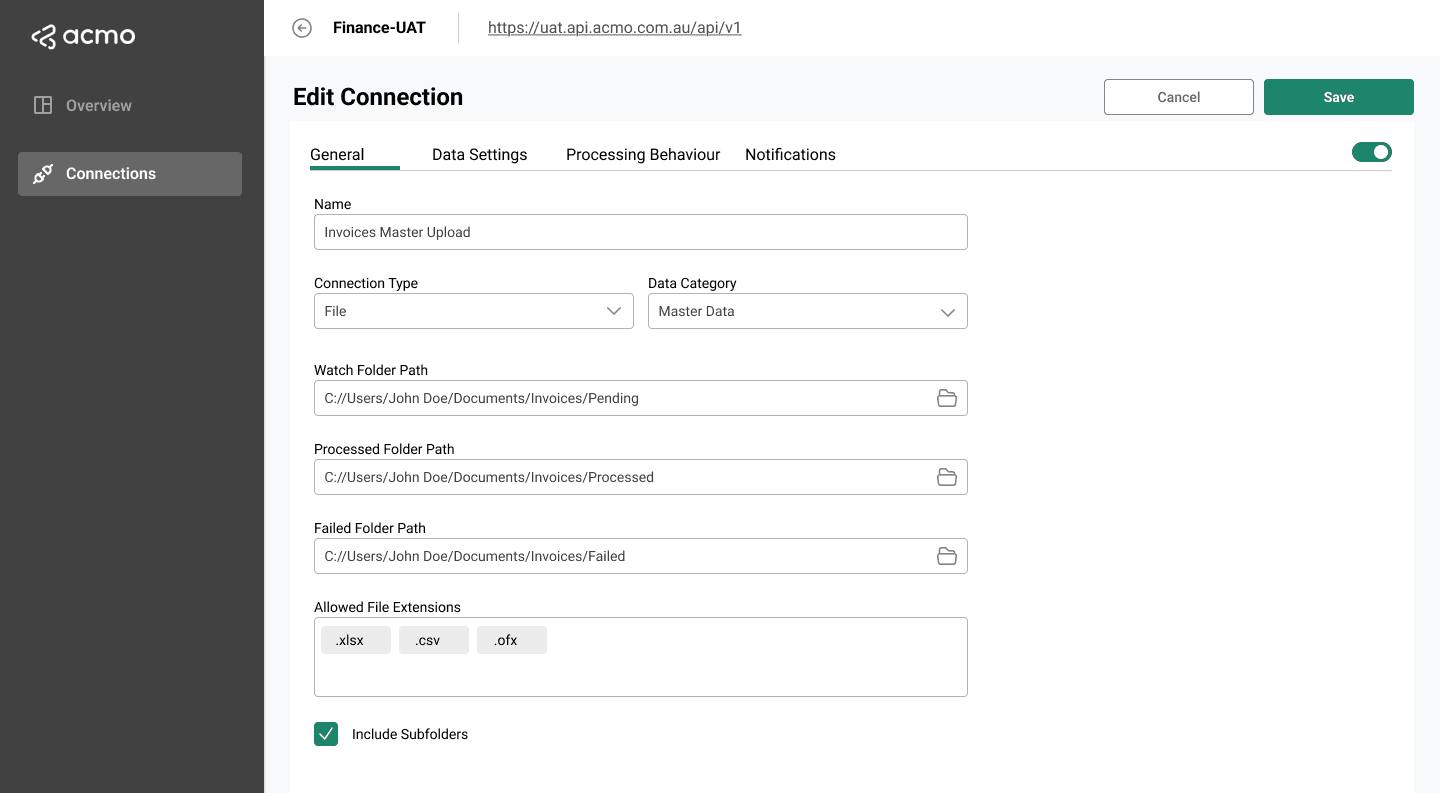
General
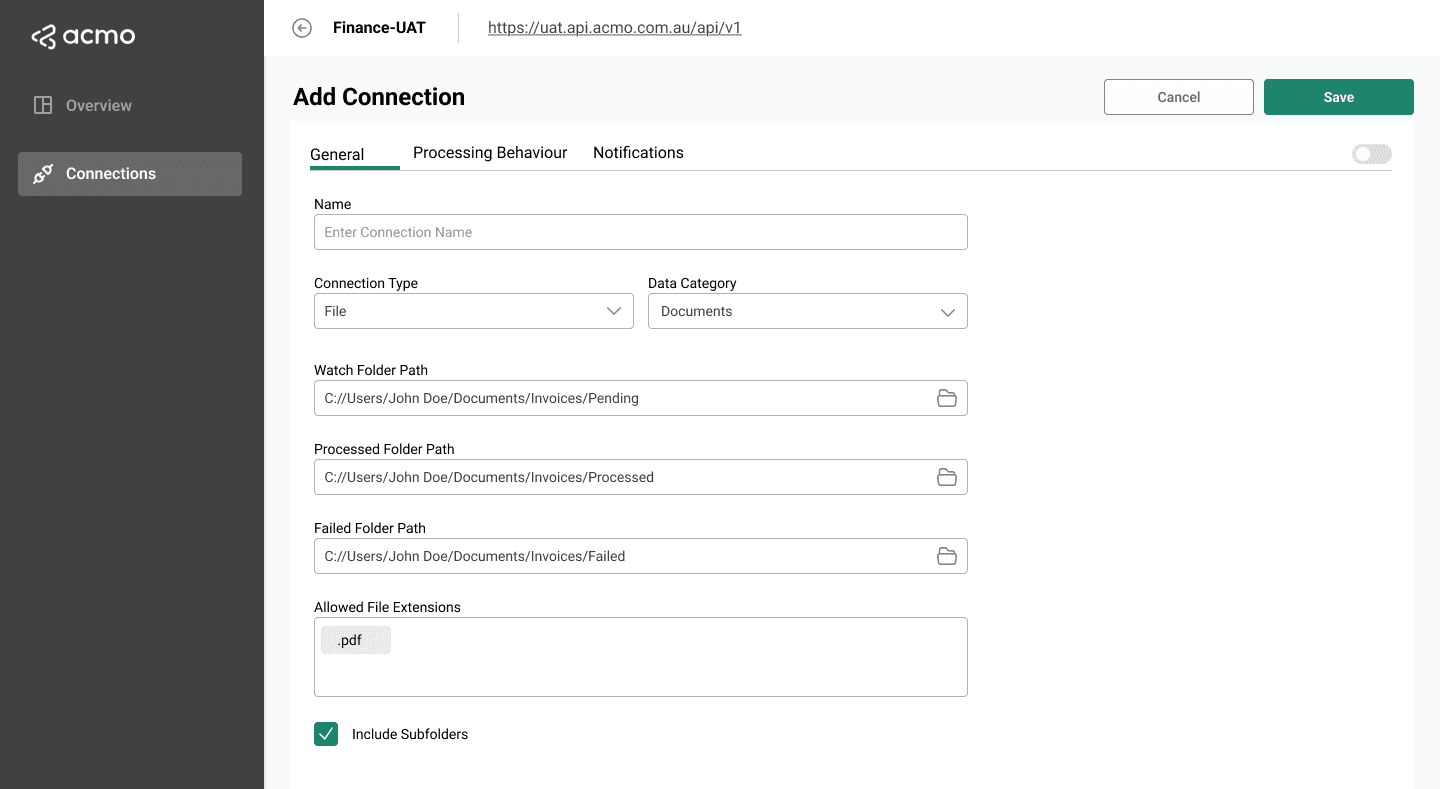
Connection Name
A descriptive name, for example:
Invoice PDFs – Into ACMO – PRODSuppliers CSV – Master data – Into ACMO
Connection Type
Select connection type as File.
Data Category
Choose Documents, Master data, Processed data, or Other.
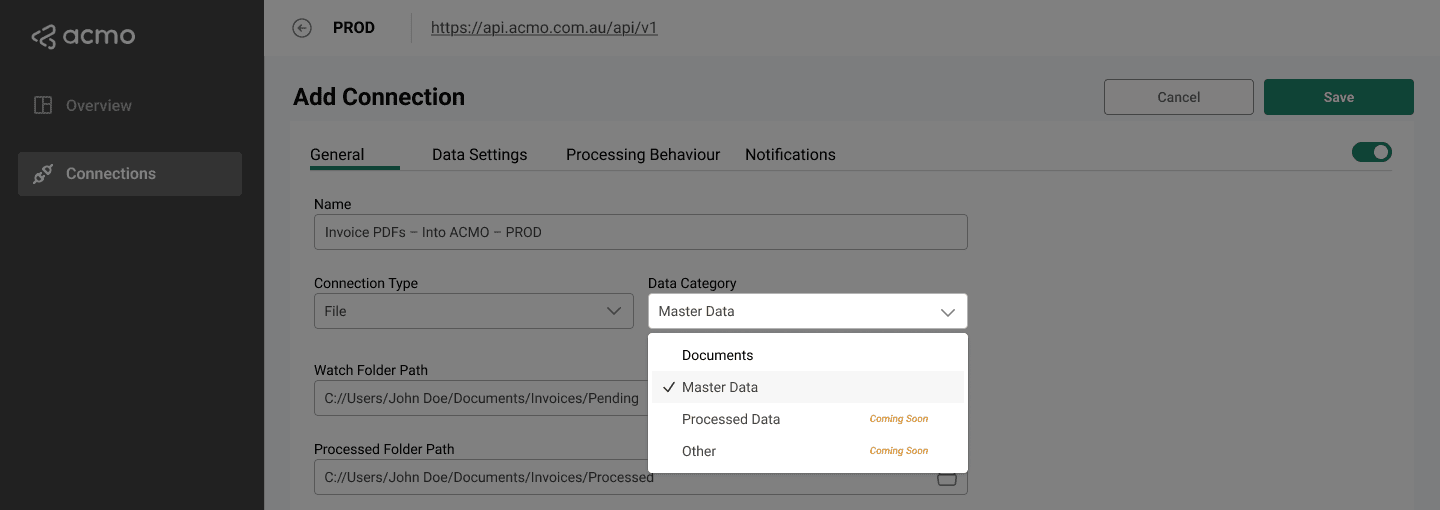
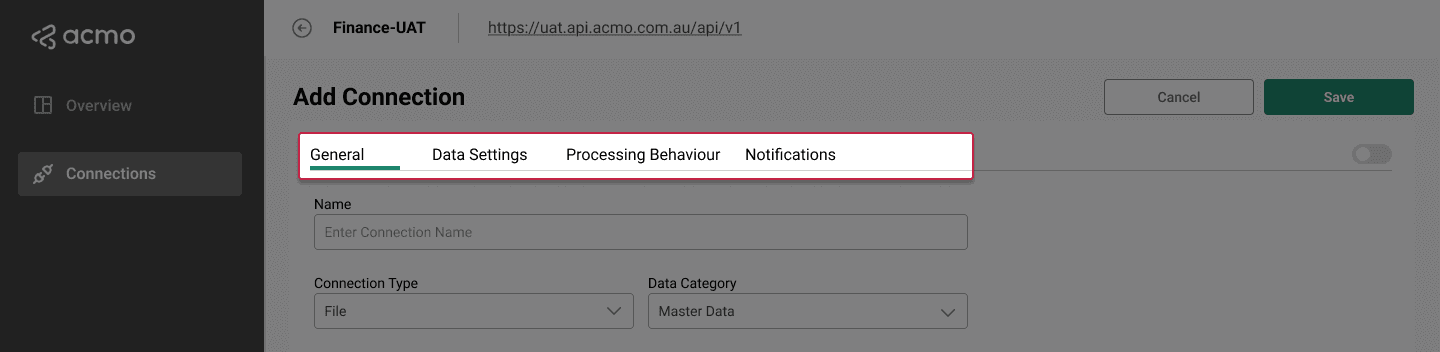
If Master data or Processed data is selected, a Data Settings tab becomes relevant for this connection.
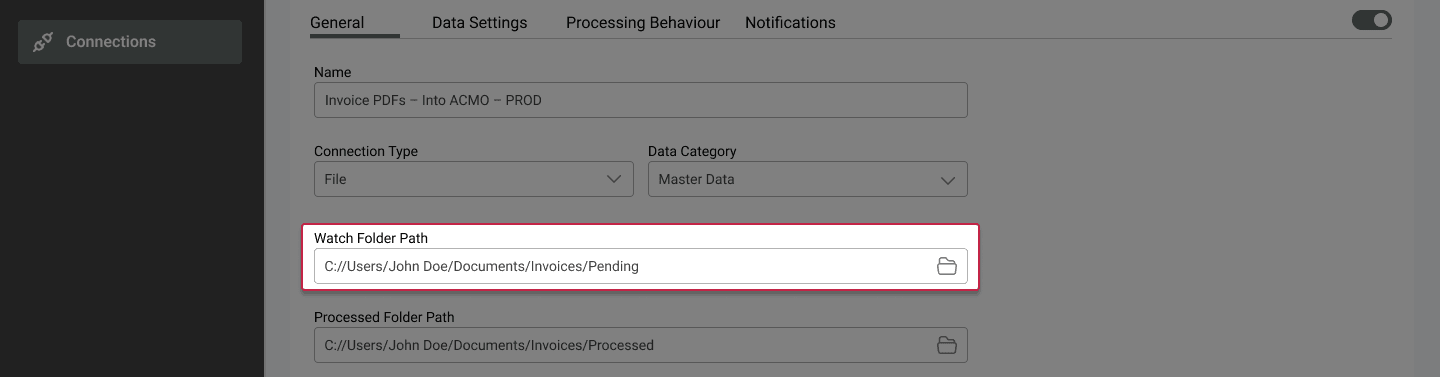
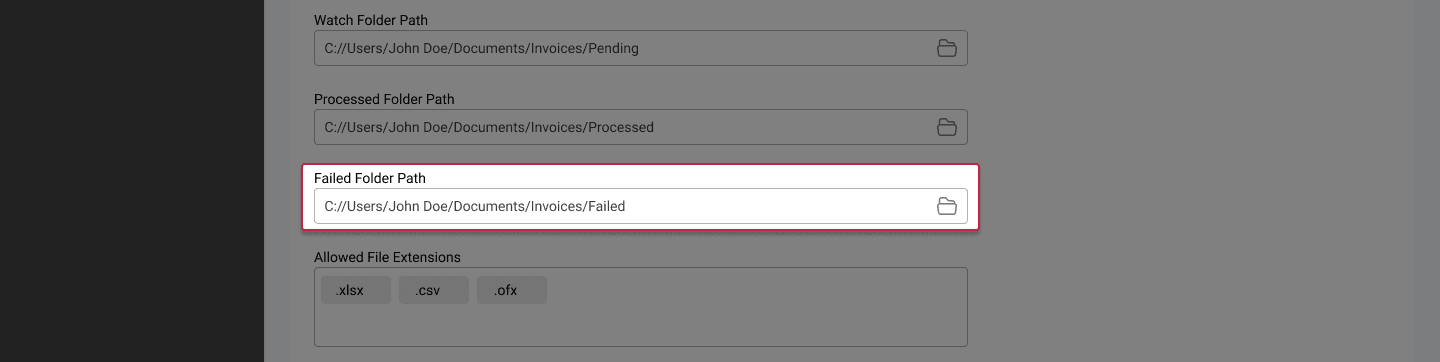
Watch Folder Path
- The folder that the background service will monitor (for Into ACMO), or the folder where ACMO will write data (for From ACMO).
- Supports local and UNC paths.
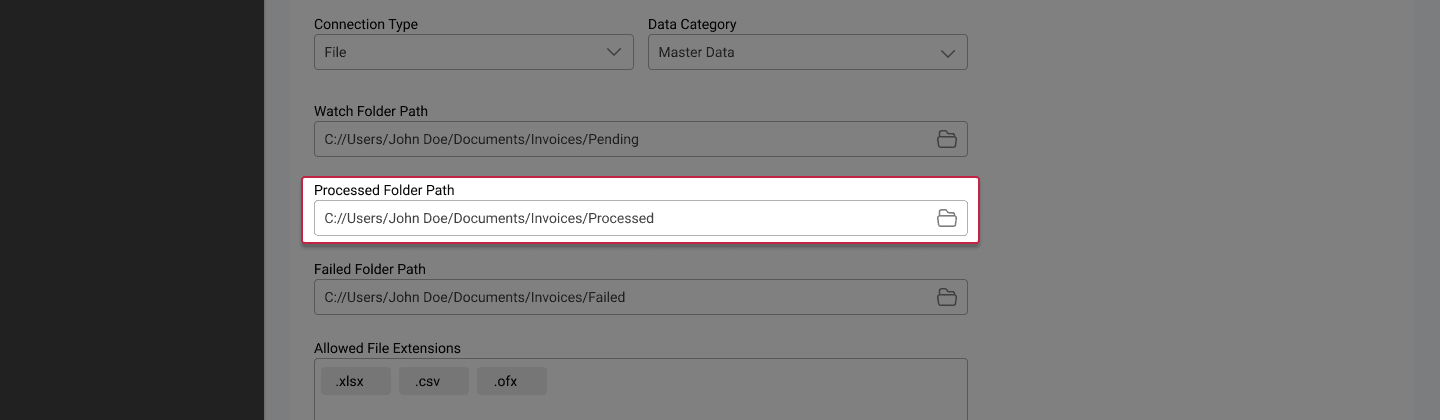
Processed Folder Path
- Folder where successfully processed files are moved.
- Helps prevent the same file from being processed multiple times.
Failed Folder Path
- Folder where files are placed if processing fails.
- The Sync Client may also write an error file here to describe the failure.
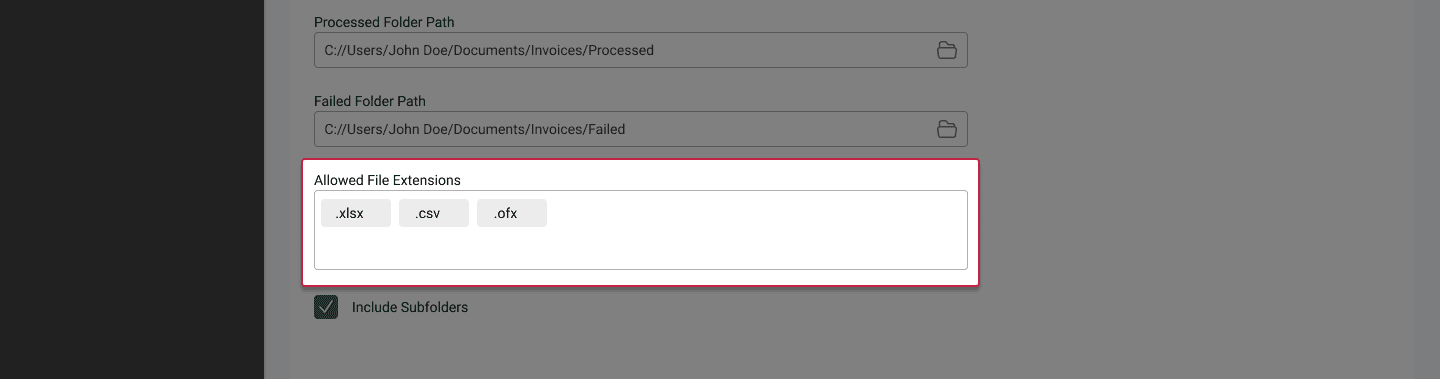
File Extensions
Allowed file extensions based on Data Category selection, for example:
.pdf.csv.xlsx.ofx
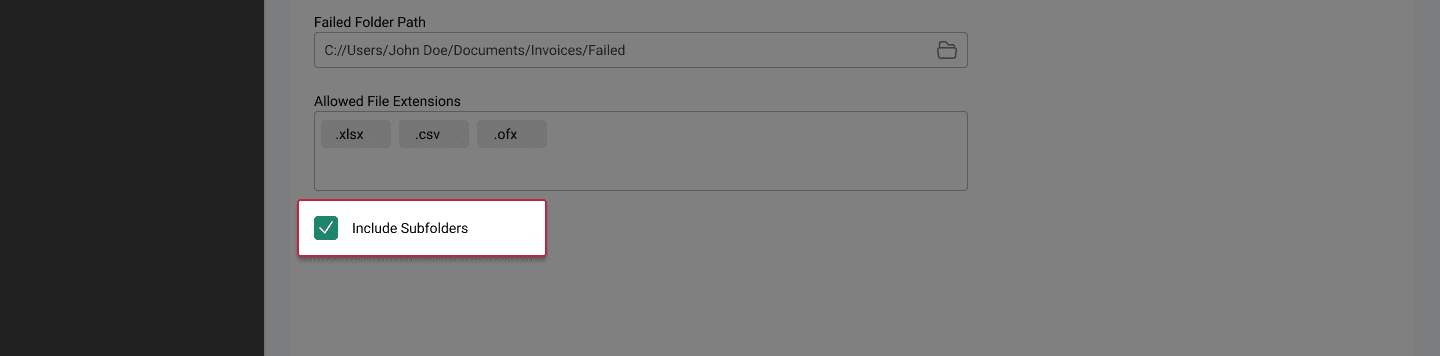
Include Subfolders
- If selected, includes files in subfolders under the watch folder.
- If not selected, only files directly in the watch folder are processed.
Data Settings
For connections where Data Category is:
- Master data, or
- Processed data
field mappings are required to align source fields with ACMO field definitions.
Dataset Type Selection
The Dataset Type menu determines which ACMO dataset the current connection will process.
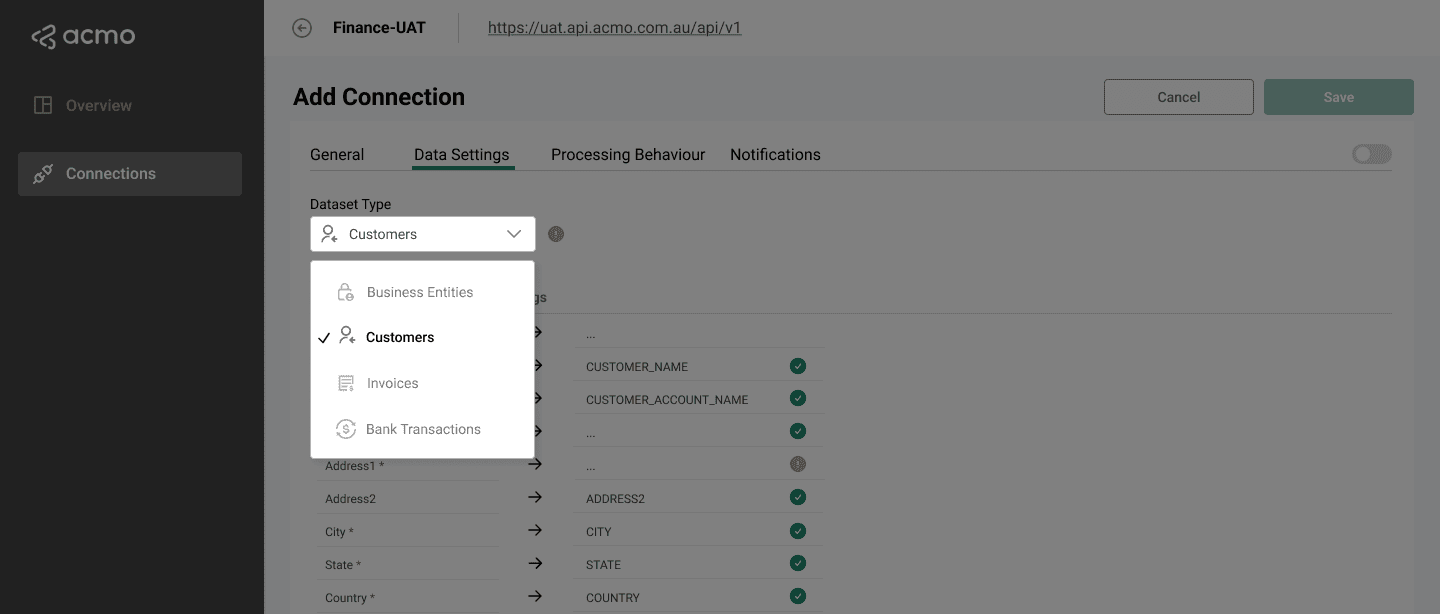
- Each connection can configure one dataset only.
- Examples include Customers, Invoices, Business Entities, and Bank Transactions.
- Datasets already configured in another connection appear disabled.
- Selecting a dataset automatically loads the relevant mapping structure.
Once a dataset is selected, the Data Settings screen displays additional configuration tabs required to complete the setup.
Data Mappings
A dedicated Data mappings page (or tab) is available for these connections. It should:
- Display source fields from the incoming data format (for example CSV columns).
- Allow the user to map each source field to a target ACMO field.
- Indicate whether a mapping is required or optional.
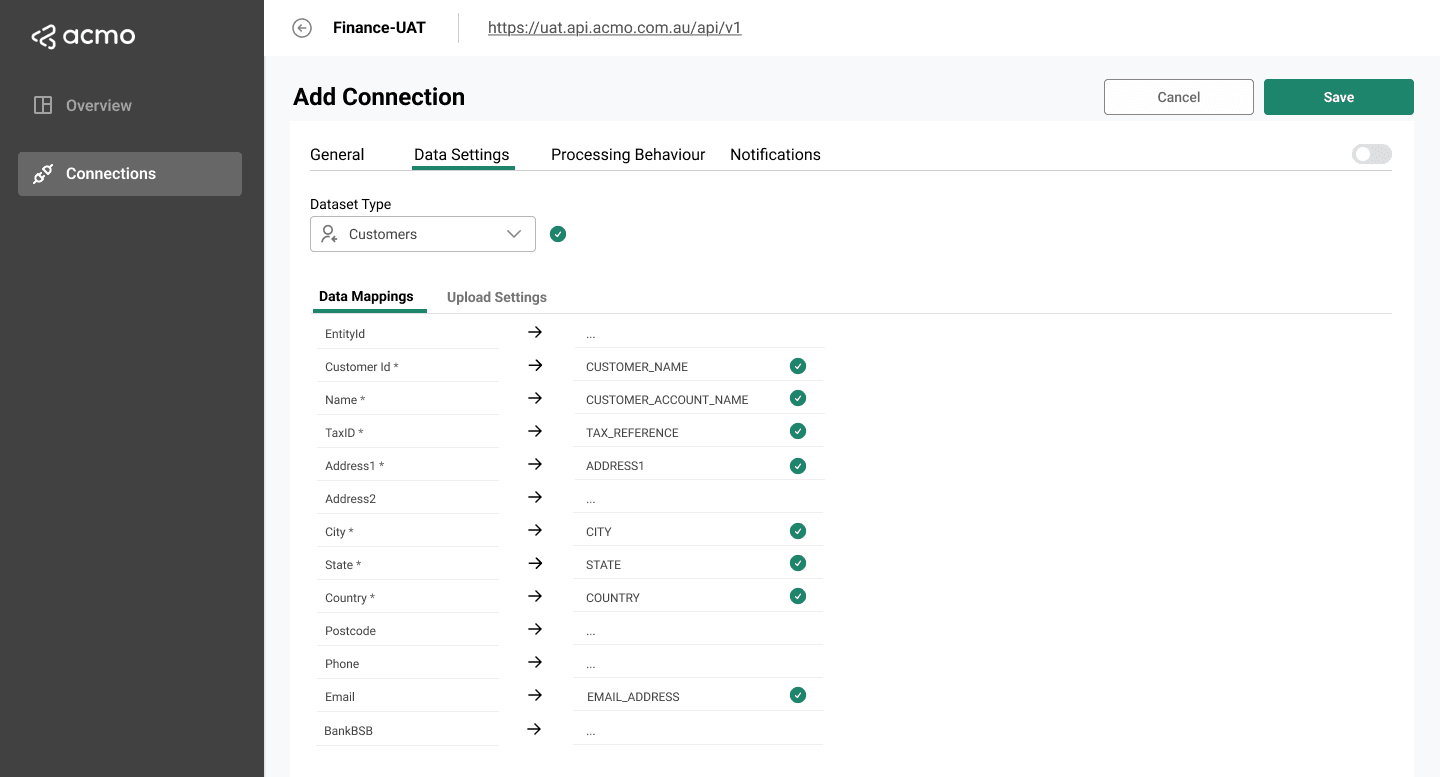
If field mappings for the same tenant and data category already exist in the ACMO Portal, the Sync Client should retrieve and display those mappings so that users do not need to define them again.
Any changes saved in the Sync Client should align with the same mapping model used by the ACMO Portal.
Typical fields on the Field mappings page include:
- Source field name or index
- Target ACMO field (text input)
- Required or optional indicator
Mappings are stored as part of the connection configuration and used when processing files.
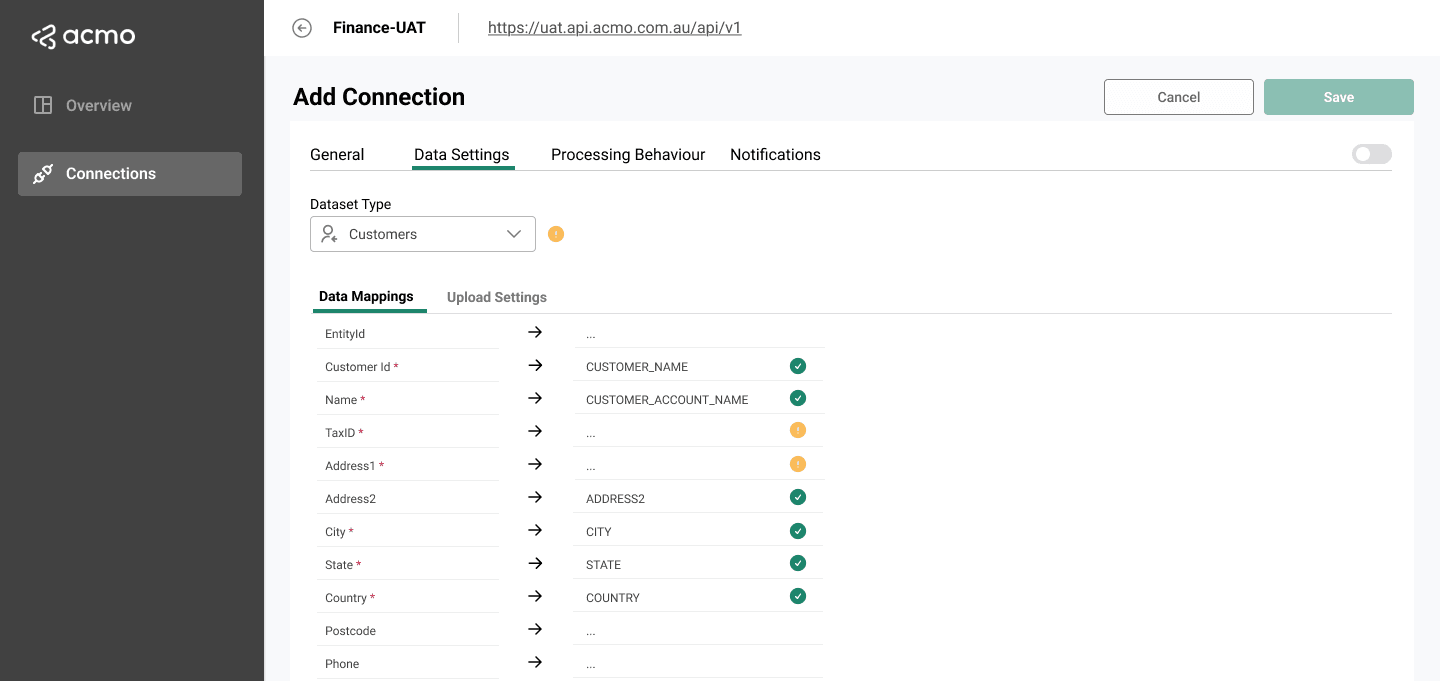
Mandatory ACMO fields must be mapped. If a required mapping is missing or invalid, the UI highlights the issue to prevent incorrect uploads.
Upload Settings
The Upload Settings tab controls how the Sync Client reads, filters, and uploads files for the selected dataset.
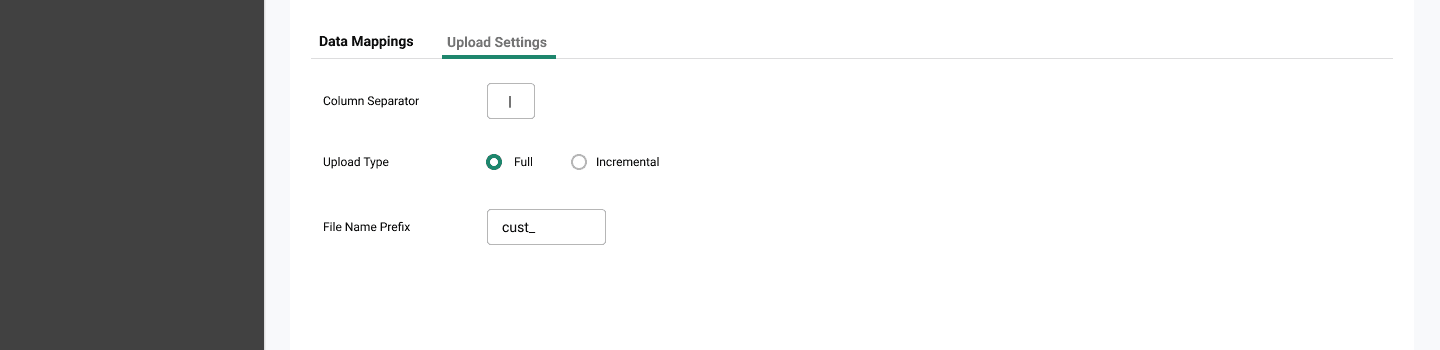
Column Separator
- Required for CSV files
- Common values include comma (,), semicolon (;), or pipe (|)
Upload Type
- Full: replaces existing dataset records
- Incremental: adds or updates records
File Prefix
- Only files starting with the specified prefix are processed
All required inputs must be completed to ensure the client can correctly identify and interpret incoming files.
Processing behaviour
-
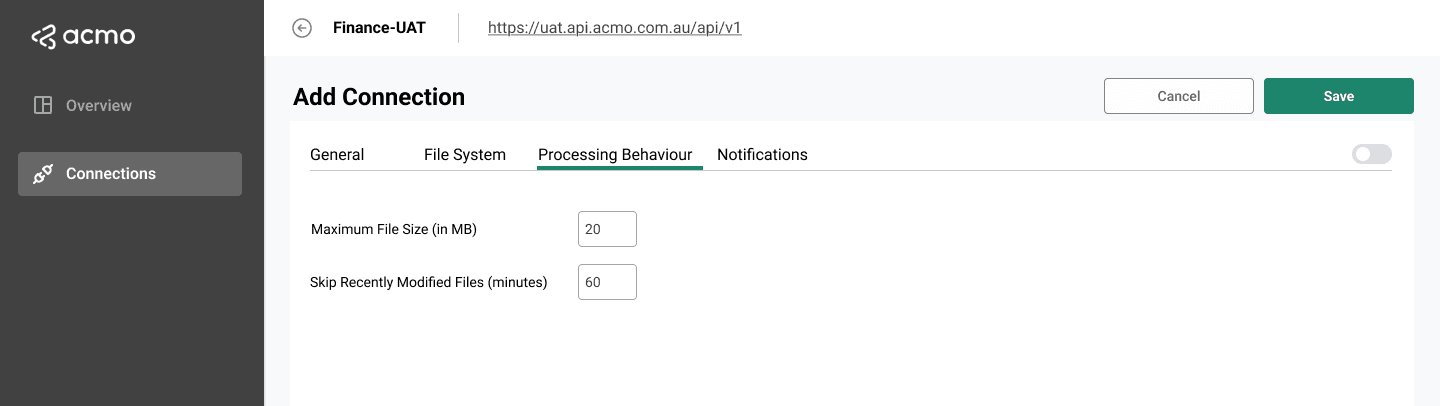
Maximum file size (MB)
- The largest file size the Sync Client will attempt to process.
- Files larger than this limit are not processed.
-
Skip recently modified files (minutes)
- A delay to avoid processing files while they are still being written.
- For example, if set to
5, files modified in the last five minutes are temporarily ignored.
Notifications
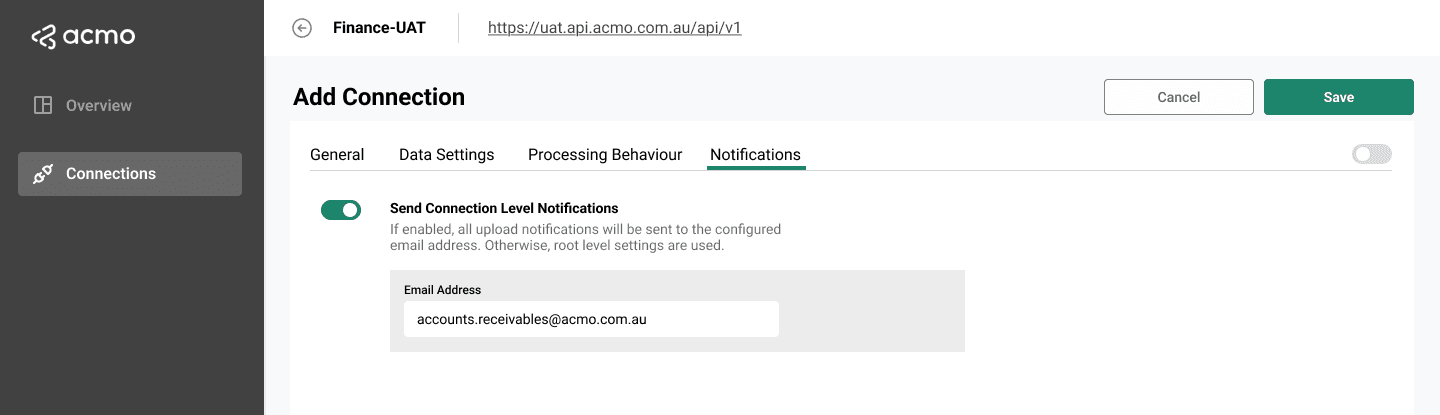
You can override the root level notification email and configure it for each connection.
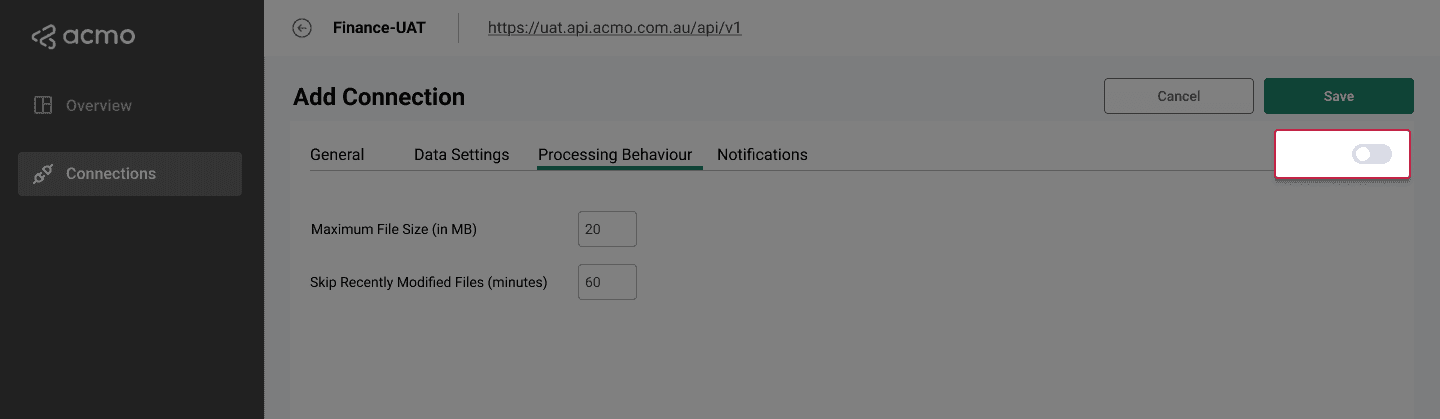
Status
Use the Toggle to change the status of a connection.
- Active: the connection runs whenever the ACMO Sync Client Service is running.
- Inactive: the configuration is retained but the connection does not run.
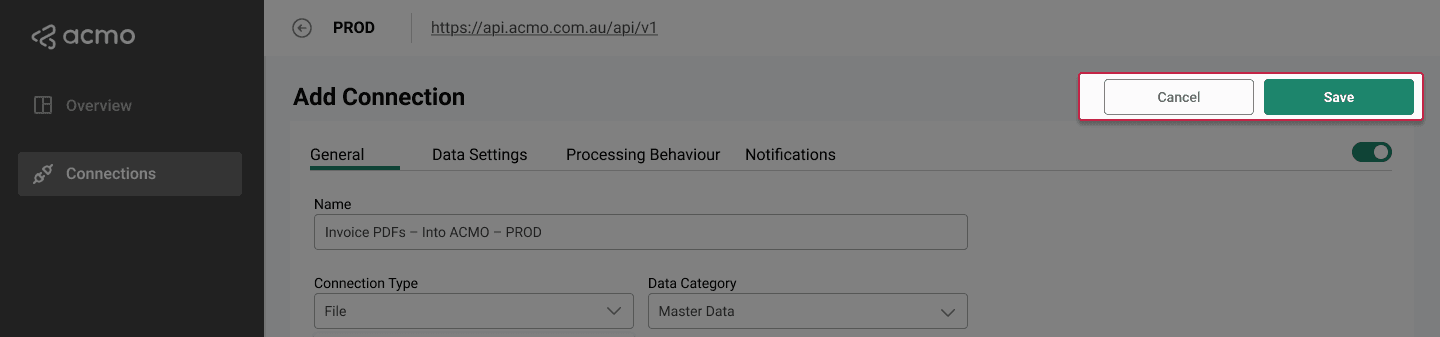
Actions
- Save: save all the connection settings.
- Cancel: discard the changes and navigate back to the connections listing.
Editing Connections
To edit a connection:
Open Connections
Open Connections in the relevant environment.
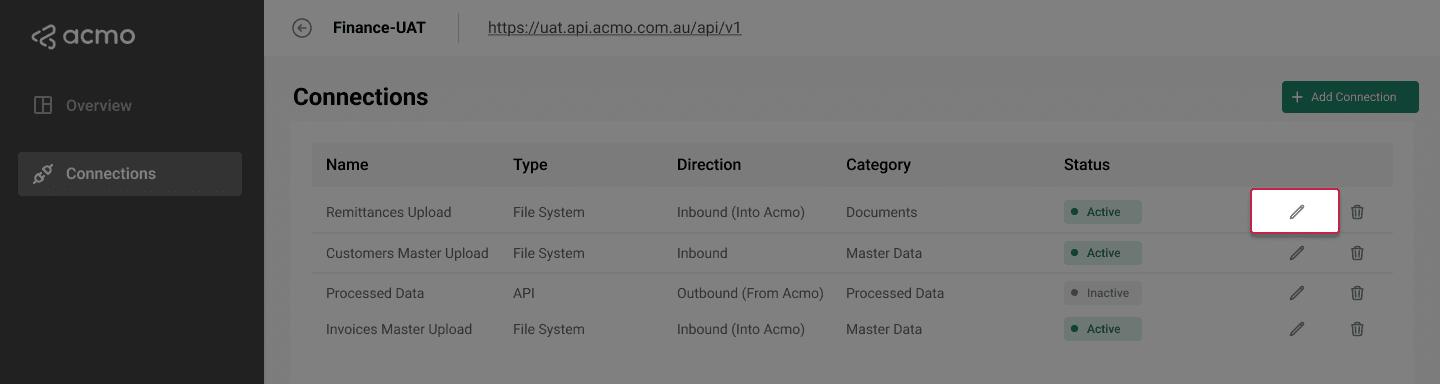
Select Edit
Click on the Pencil icon to edit the desired connection.
Update Fields
You should now see the fields for editing within a connection.
Select Save
Click on the Save button to save all your changes.
Deleting Connections
To delete a connection:
Open Connections
Navigate to the connections screens within an environment.
Select Delete
Click on “Trash” icon to delete the connection.
Confirm Delete
Confirm when prompted to permanently remove the connection from an environment.

Deleting a connection stops further processing. Any existing files in watch, processed, or failed folders are not altered by deleting the connection.
Future connection types such as Database and API will follow the same general model, with additional sections for database connection strings, queries, API endpoints, and payload mapping. Those details will be documented when they are introduced.