Colour Schemes
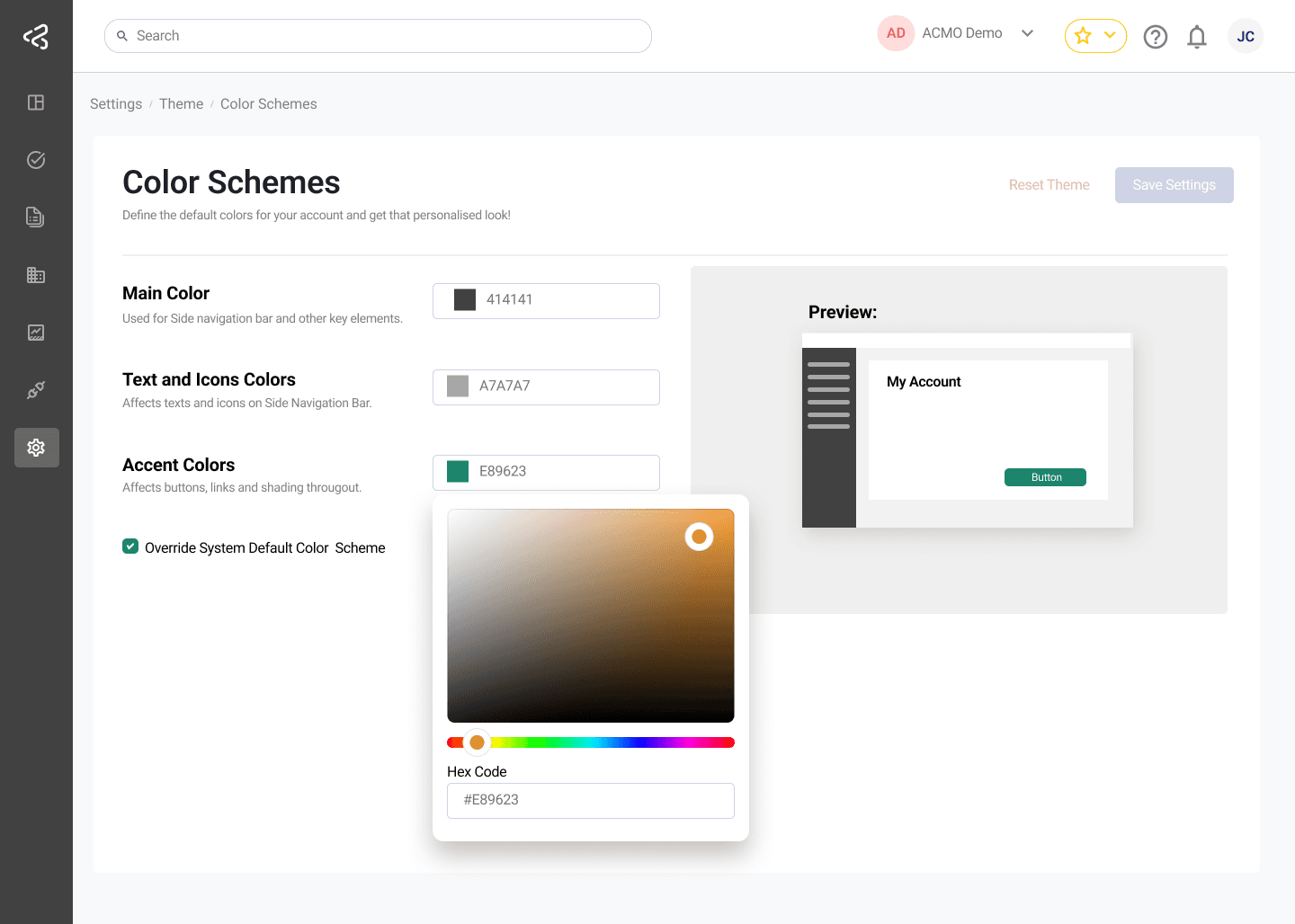
The Colour Schemes settings screen allows users to personalize the visual appearance of the ACMO Portal by defining a custom color palette for their account. This helps align the portal with organizational branding and improves visual consistency.
Purpose
The Colour Schemes page enables authorized users to:
- Customize key colors used throughout the ACMO Portal
- Preview branding changes in real time
- Override the system default color scheme when required
- Reset all theme settings back to the system defaults
Access to this screen is controlled by role-based permissions.
Screen Layout
The screen is divided into two main sections:
Left Panel — Configuration
The left side of the screen contains all color configuration controls, including color pickers and options.
Right Panel — Preview
The right side of the screen displays a preview of the ACMO Portal, showing how the selected colour scheme will appear once applied.
Colour Configuration Options
The following color settings can be configured using the built-in color picker:
Main Color
- Used for the side navigation bar
- Applied to other key structural elements within the portal
- Defines the primary visual identity of the application
Icon Colors
- Controls the color of icons in the side navigation bar
- Ensures icon visibility and contrast against the selected main color
Accent Colors
- Applied to buttons, links, and shaded UI elements
- Used to highlight interactive and important elements across the portal
Override System Default
- A checkbox is provided to override the system default colour scheme
- When unchecked, the portal uses the default system-defined colors
- When checked, the custom color settings configured on this page are applied
Actions
The following action buttons are available in the top-right corner of the screen:
Save Settings
- Saves and applies the selected colour scheme
- Changes are reflected immediately across the portal
Reset Theme
- Resets all colour settings back to the default/system theme
- Removes any custom color overrides
- Useful for reverting unintended changes
Preview Behavior
- Any color changes made using the color pickers are instantly reflected in the preview panel
- The preview allows users to validate readability, contrast, and overall appearance before saving
Summary
The Colour Schemes screen provides a powerful yet simple way to personalize the ACMO Portal. With real-time preview, granular color control, and the ability to revert to system defaults, users can confidently apply branding that best represents their organization.