Customers
The Customers module serves as a centralized hub for viewing customer data used across Accounts Receivable workflows, including Cash Allocation and Remittance Review.
This screen is accessible via the left-side quick menu and is typically used by finance and operations teams to look up and validate customer information.
Navigation
- From the application dashboard, navigate to the left-side quick menu.
- Click on the Customers icon.
- The system will redirect to the Customers Listing Screen.
Customers Listing
The Customers Listing screen provides a consolidated view of all customers available in the system. It is designed to support quick lookup and validation.
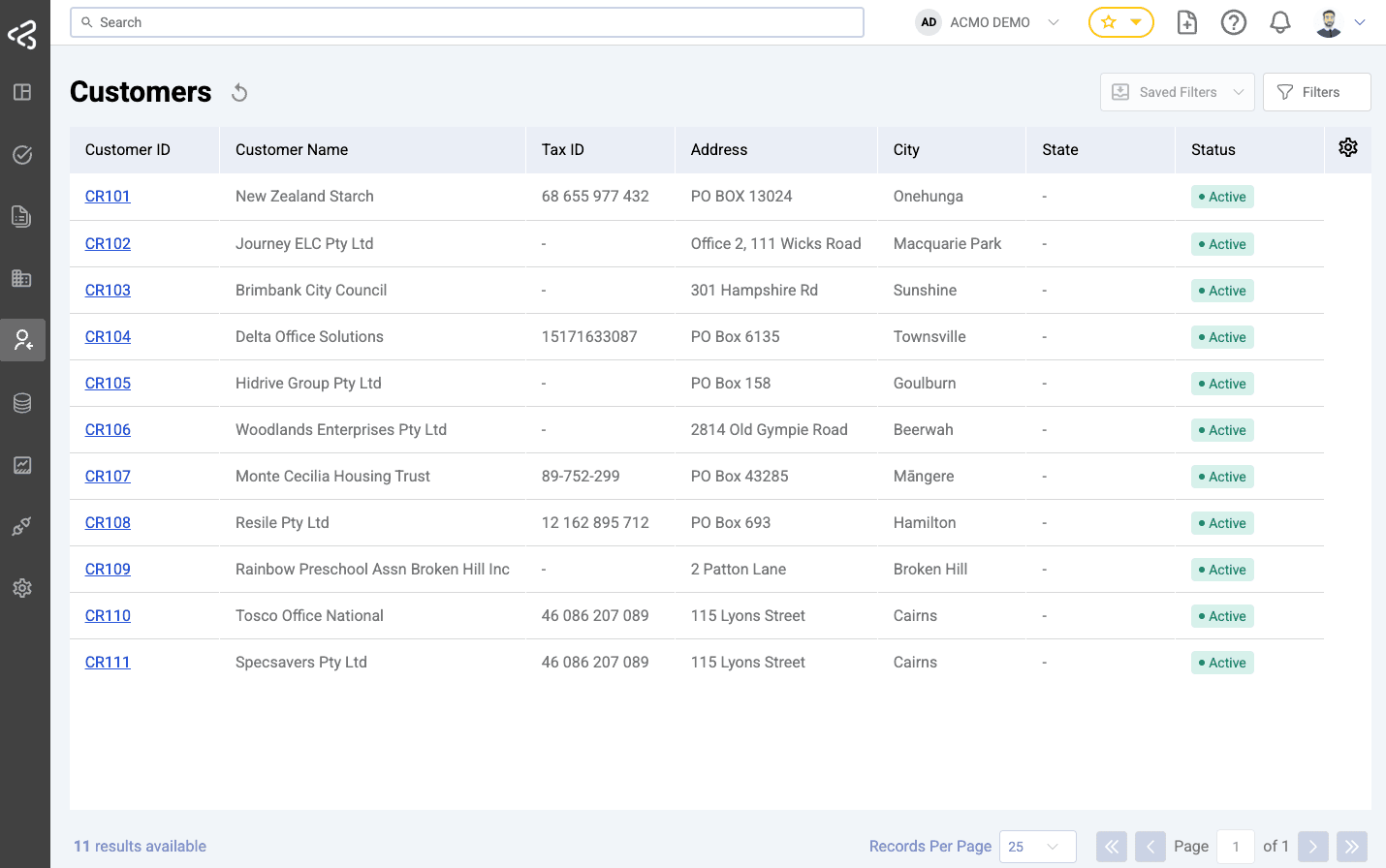
Table Columns
The table includes the following columns:
- Customer ID - Unique identifier for each customer
- Customer Name - Registered name of the customer
- Tax ID - Customer’s tax registration number (e.g., ABN)
- Address - Primary registered address
- City
- State
- Status - Indicates whether the customer is Active or Disabled
Filters
Filters are available above the table to help users quickly locate specific customers.
- Users can filter based on:
- Customer ID
- Customer Name
- Customer ABN
This task uses a dedicated filter set. For general filter behaviour, refer to the Task Filters documentation.
Navigation to Customer Details
- Clicking on a Customer ID will navigate the user to the Customer Details Page.
- This allows users to view detailed information about the customer.
Customer Details
The Customer Details page provides a structured view of customer information as maintained in the master data.
- The top of the page displays the Customer Name and Status (Active or Disabled).
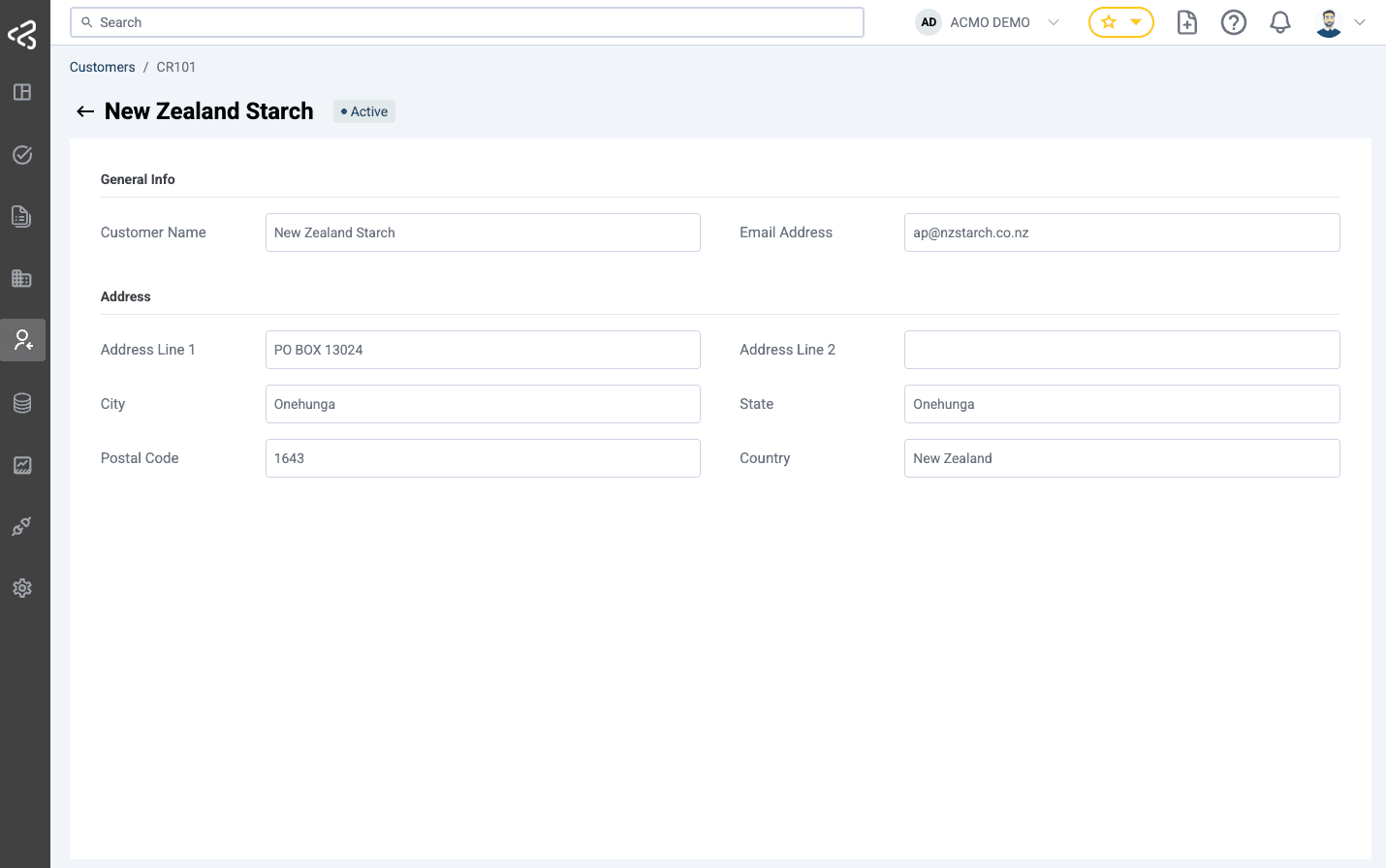
Some fields may be empty if data is not available in the master record. This data is typically sourced from upstream systems or customer onboarding processes.
General Info
- Customer Name
- Email Address
Address Info
- Address Line 1
- Address Line 2
- City
- State
- Postal Code
- Country