System Exceptions
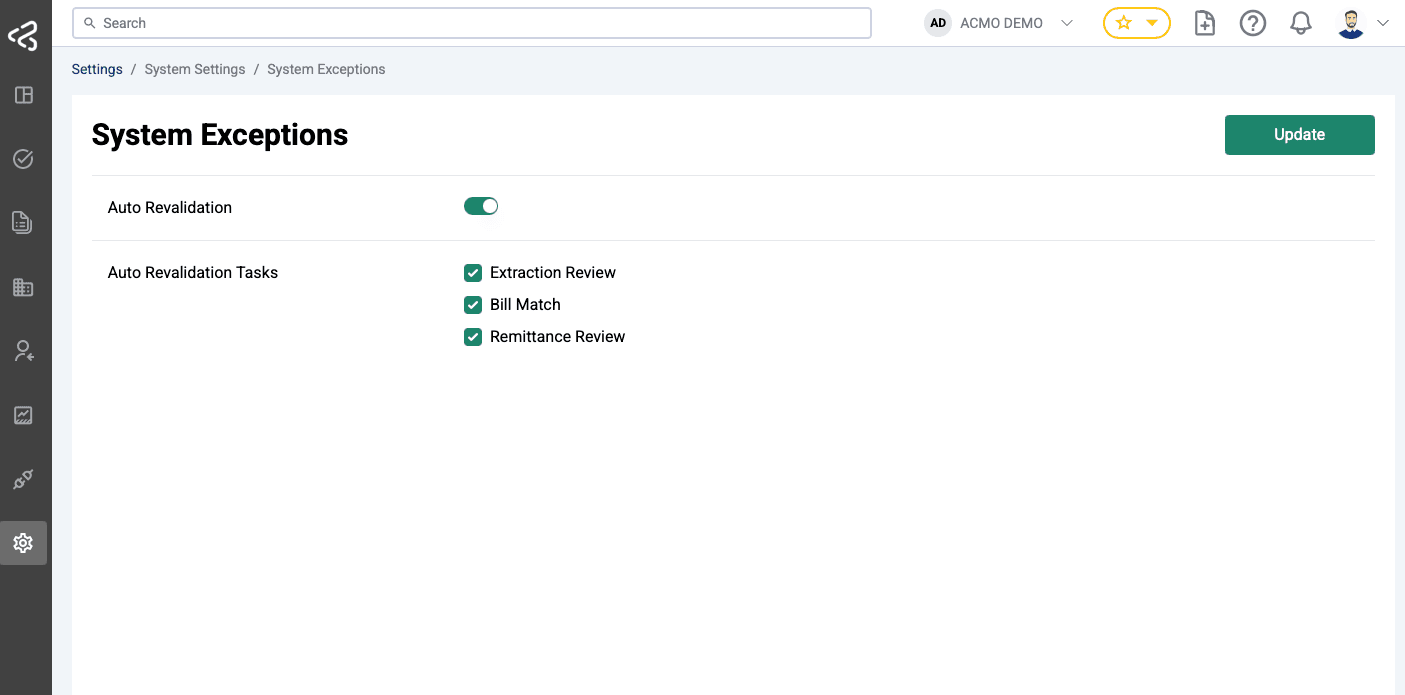
The System Exceptions page under System Settings allows tenants to configure how ACMO handles documents that are currently waiting in manual review due to validation or matching exceptions.
This feature enables ACMO to automatically retry validation on such documents once the underlying issue has been resolved in upstream systems such as ERP, supplier master data, purchase orders, or goods receipts — thereby reducing the need for manual intervention.
Overview
Documents processed through ACMO modules such as:
- Accounts Payable
- Accounts Receivable
may enter human review tasks such as:
- Extraction Review
- Bill Match
when validation, enrichment, or matching exceptions occur.
In many scenarios, users resolve the root cause of these exceptions by correcting upstream transactional or master data after the document has already entered a review state.
Previously, users were required to manually reopen and complete these tasks even after the data issue had been resolved.
With Auto Revalidation, ACMO can:
- Periodically re-run validation or matching logic
- Identify documents where all exceptions have been resolved
- Automatically progress or complete eligible workflow tasks using a system context
Configuring Auto Revalidation
The System Exceptions page allows organisation administrators to:
1. Enable or Disable Auto Revalidation
Use the Auto Revalidation toggle to control whether ACMO should automatically retry validation for documents currently waiting in manual workflow tasks.
| Setting | Description |
|---|---|
| Enabled | ACMO periodically retries validation for eligible documents. |
| Disabled | All review tasks must be manually completed by users. |
2. Select Eligible Workflow Tasks
You can choose which workflow tasks are eligible for automatic revalidation.
Examples include:
- Extraction Review
- Bill Match
- Remittance Review
Only tasks associated with your subscribed ACMO modules will be available for selection.
For example:
| Subscription | Visible Tasks |
|---|---|
| Accounts Payable | AP-related review tasks |
| Accounts Receivable | AR-related review tasks |
Tasks from unsubscribed modules will not be visible or processed by the system.
How Auto Revalidation Works
When Auto Revalidation is enabled:
- ACMO identifies documents currently waiting in the selected eligible workflow tasks.
- The system re-runs the relevant validation, matching, or enrichment logic using the latest available upstream data.
- The following outcomes are possible:
Exceptions Still Present
- The document remains in the same review task.
- No workflow state changes occur.
Exceptions Resolved
- If straight-through processing is enabled and criteria are met:
- The system automatically completes the task using a system session.
- If straight-through processing is not enabled:
- The task becomes valid and is ready for manual completion.
System-completed tasks behave functionally equivalent to a user manually clicking Complete, but are executed under a system context.
Scheduling Auto Revalidation
Auto revalidation is executed via a background System Task.
Default Behaviour
- Runs once daily
- Scheduled at approximately 1:00 AM Sydney Time
Organisation administrators can configure:
- Execution time
- Execution frequency
from the System Task management page.
Audit Logging
All tasks completed automatically through auto revalidation:
- Generate an audit log entry
- Are clearly marked as completed by the system
- Remain visible for:
- Compliance
- Traceability
- Troubleshooting
This ensures full transparency between manual and automated workflow actions.
Reporting Considerations
Tasks completed automatically by the system:
- Are excluded from throughput reports
- Are excluded from throughput dashboard widgets
Manual and system-completed tasks remain distinguishable within logs and reporting data to ensure accurate performance metrics.
Important Notes
- Auto Revalidation is configured at the organisation level.
- Module-specific overrides are not supported.
- Only selected eligible tasks will be processed automatically.
- Tasks outside your subscribed ACMO modules will never be processed by this feature.
Configuring System Exceptions appropriately can significantly reduce manual review effort and improve document processing efficiency across ACMO workflows.