User Productivity Report
The User Productivity Report helps supervisors and managers understand how work is being handled across their team.
It gives you a simple and reliable way to see:
- How many tasks were completed
- Who completed them
- What type of work was done
- When the work was completed
All of this information is available in one place, so you can easily track team performance and workload over a selected time period.
Why Use This Report?
This report is designed to answer common day-to-day supervisory questions such as:
- When does my team’s workload usually peak?
- Which users are handling the most tasks?
- What kind of work is being completed the most?
- What exactly was completed on a particular day?
You can use this report for:
- Monitoring team productivity
- Understanding workload distribution
- Reviewing completed work
- Investigating specific tasks if needed
- Supporting performance discussions
Using Filters
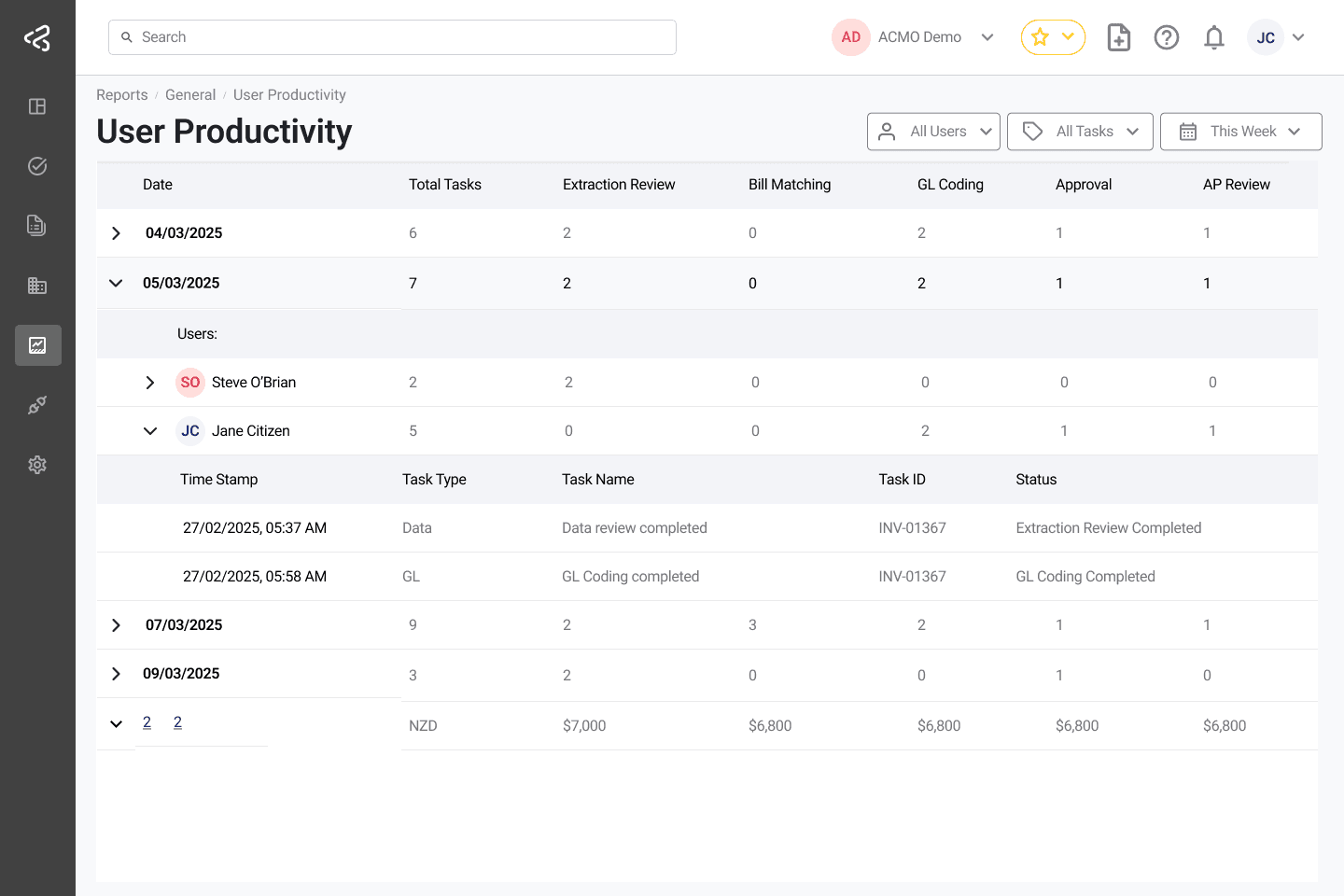
At the top of the report page, you can adjust filters to customise what you see.
- Date Range: Select the time period for which you want to view productivity data.
How to Read the Report
The report allows you to start with a summary view and then explore more details if needed — all without leaving the page.
See Workload by Date
When you open the report, you will first see a table that shows:
- Total number of tasks completed each day
- Number of tasks completed for each activity type

This helps you quickly identify:
- Busy days
- Slow days
- Trends in workload over time
You can immediately spot when your team handled the highest volume of work.
See Who Completed Tasks on a Selected Day
If you click on any date in the summary table, the report will show a breakdown of:
- Which users completed tasks on that day
- How many tasks each user completed
- The types of tasks they worked on

This helps you understand:
- Who handled the workload on that day
- How work was distributed across your team
You can sort this list to quickly find your top contributors for that day.
View Task-Level Details
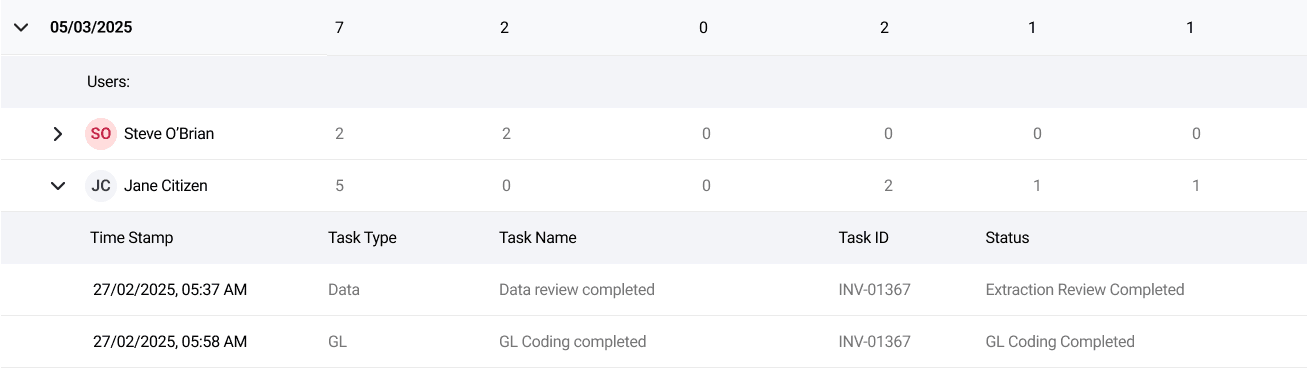
If you want to go deeper, you can click on a user’s name to see detailed information about the tasks they completed.
This includes:
- Time when the task was completed
- Task type
- Task ID (for example: Bill Number or Document ID)
- Outcome (Completed, Approved, Rejected)
This detailed view is useful for:
- Reviewing specific completed work
- Investigating issues
- Verifying task history
- Supporting performance discussions
Productivity Widget
A User Productivity Widget is also available on dashboard page within ACMO.
This widget provides:
- A quick snapshot of completed work
- High-level productivity insights
- Fast access to the full User Productivity Report
It allows you to monitor team performance at a glance without opening the full report.
Key Benefits
- Quickly identify peak workload days
- Understand how work is distributed across users
- Track completed activities
- Review task outcomes
- Access detailed task history when needed
- Stay within one report without switching pages
Use the User Productivity Report to gain better visibility into your team’s performance and make informed supervisory decisions with confidence.